How to share interactive videos
Last updated by
1 min readClickView30th January, 2026
Summary
- Navigate to My Videos to find an interactive video quiz you have created.
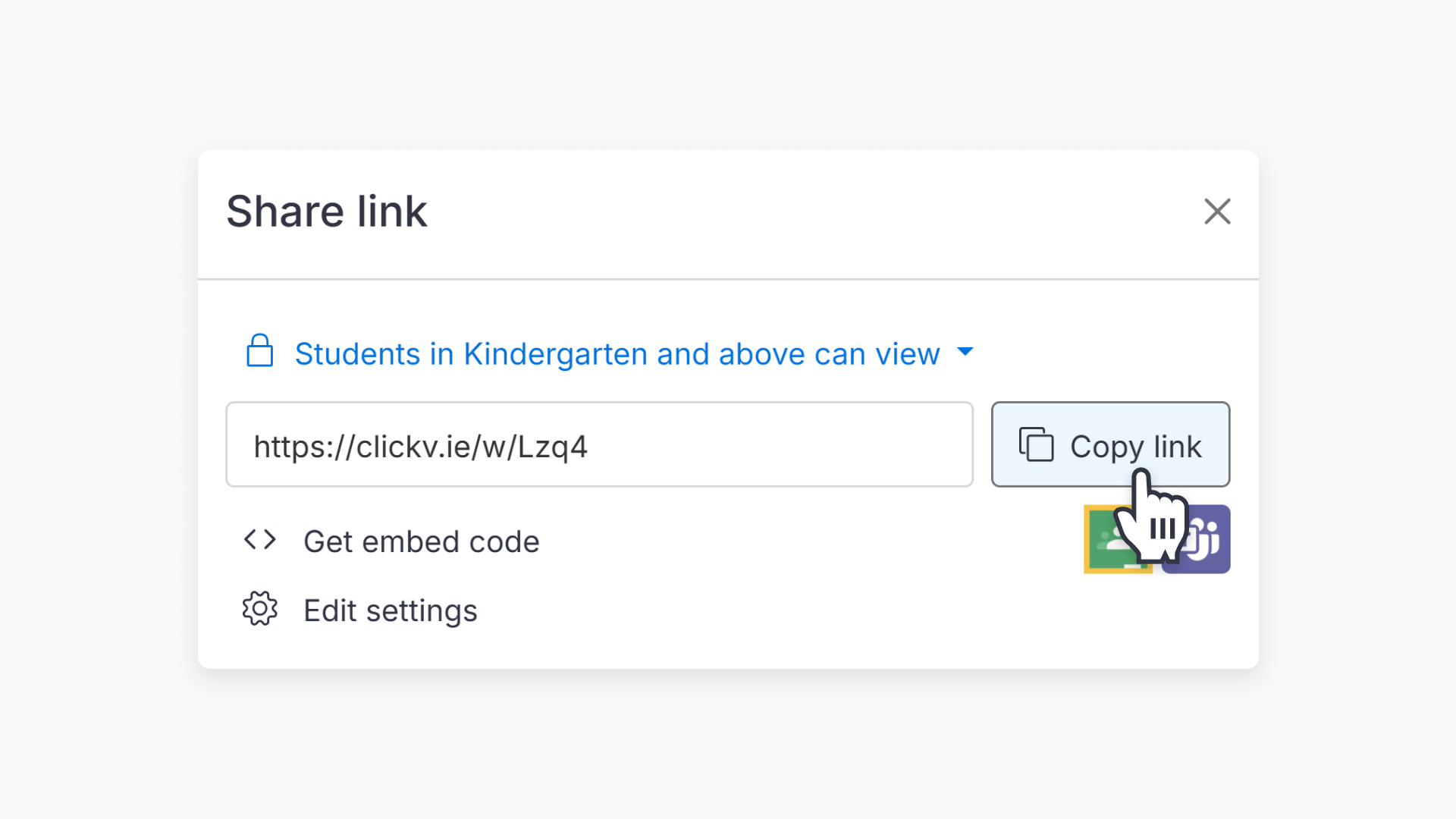
- Click on the Share icon.
- Copy the interactive video link.
- Share the link with students.
Steps to share an interactive video
- Navigate to the My Videos section:

- Locate your desired interactive video, then click on the Share icon:

- Copy the link to the interactive video and share it with students or staff:

When students receive the interactive video link, they can attempt the questions. You can view and mark their responses within ClickView.
Frequently asked questions
Recipients can attempt the interactive questions, and you have the ability to mark their responses in ClickView.
Yes, you can share interactive videos with both students and staff by providing them with the link.
Get in touch
If you’re having trouble finding the right topics or videos, just reach out! Our team - 

 Akhil, Daniel, Jalaj, or any of us at ClickView - will be happy to help you get sorted.
Give feedback
Was this guide helpful?
Up Next
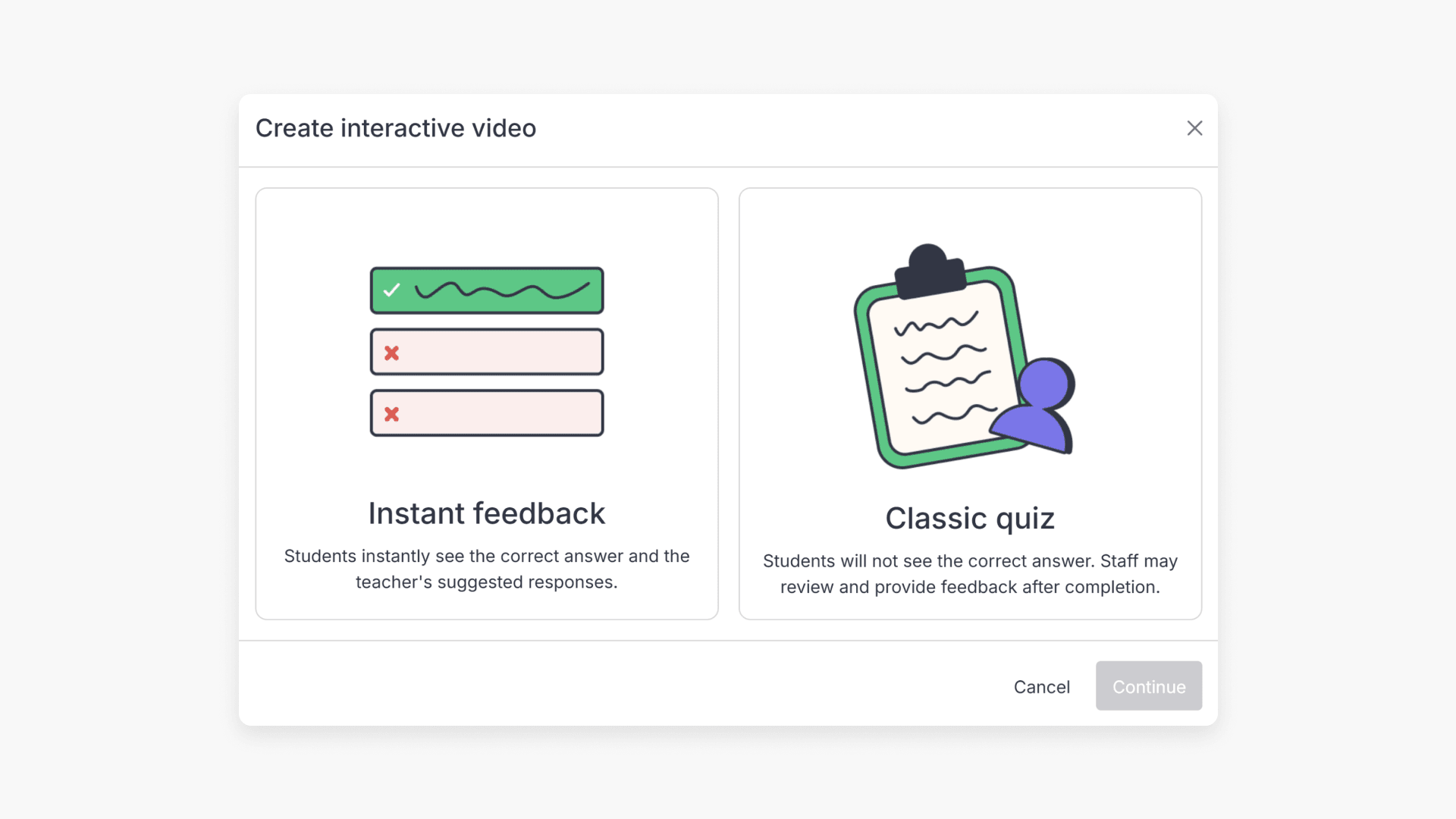
Interactive videos: Instant Feedback vs. Classic Quiz
Explore how Instant Feedback and Classic Quiz work for interactive videos in ClickView. Learn when students see answers and feedback, plus key differences between the two options.