How to edit an interactive video
Last updated by
2 min readClickView30th January, 2026
Summary
- Open ‘My Videos’ tab on the left side of the screen.
- Find the interactive and use the 3-dot icon to choose ‘Edit interactive’.
- If you interactive doesn’t have any student responses, you can unpublish and edit.
- If students have attempted it, create a copy before editing.
- Use ‘Edit Interactive’ below the video to make changes.
- After editing, click ‘Publish’, complete the name and options, and press ‘Publish Interactive’.
Steps to edit your interactive video
- Go to the My Videos tab on the left side of the screen:

- Find the interactive video you want to edit. Click the 3-dot icon, then select Edit interactive from the drop-down list:

- If the interactive is published and has no student views, you will be prompted to edit and unpublish. This means that no one can attempt the interactive video quiz while you are making edits.

- If the interactive has been attempted by a student, a pop-up will ask you to create a copy. Click Create a copy to continue. This prevents you from removing or changing questions that have already been answered or attempted by students.

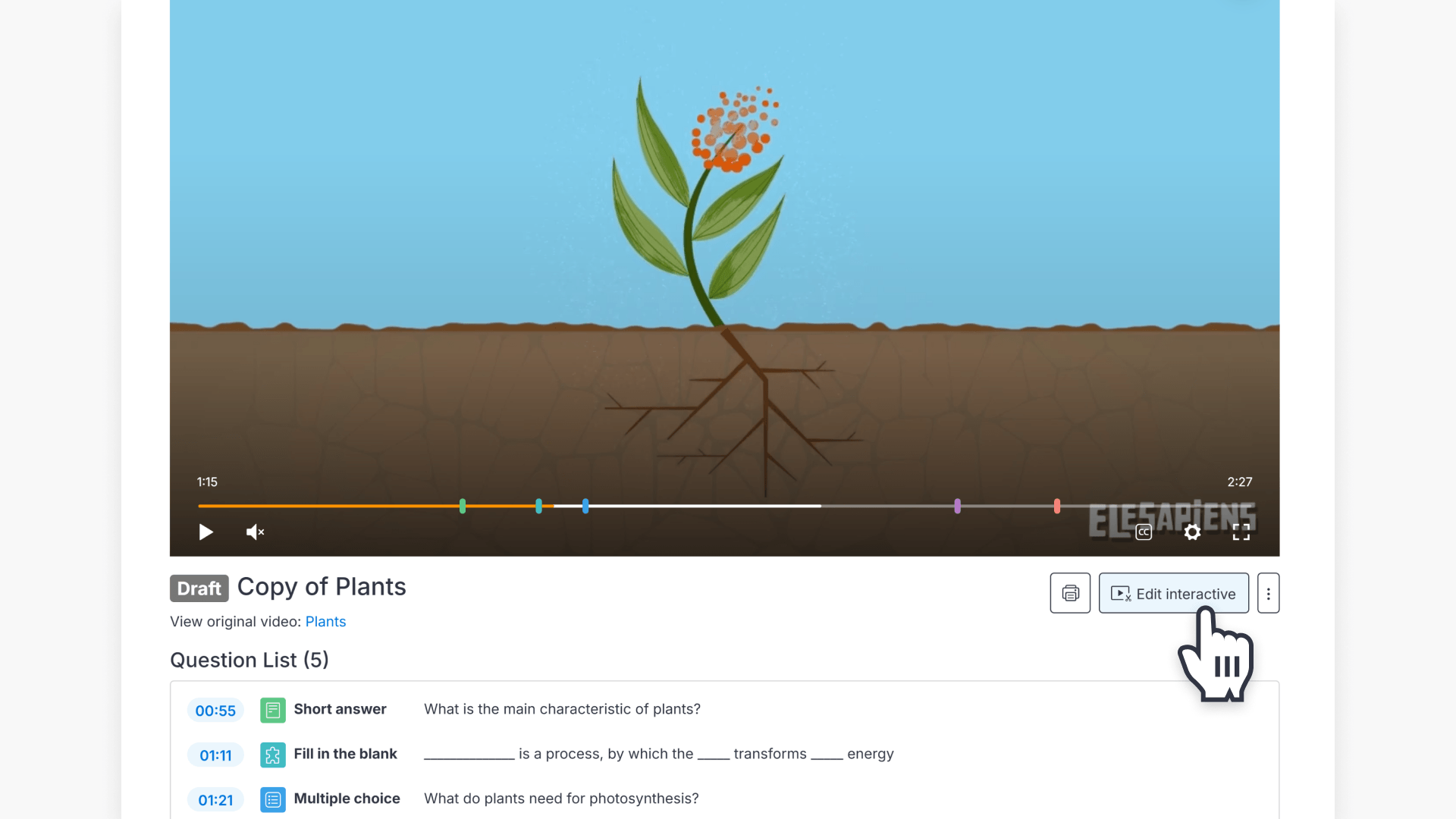
- After the copy is created, select Edit Interactive below the video:

- When you finish editing, click Publish:

- Fill out the interactive name, the description (optional), and set if you want to enable instant feedback. Then click Publish interactive:

- Your new interactive will now be available.
Frequently asked questions
If students have attempted the interactive, you must create a copy to make edits. Previous results remain on the original version.
Yes, when publishing, you can choose to enable instant feedback for students.
Yes, you can update the name and description before publishing your edited interactive.
Get in touch
If you’re having trouble finding the right topics or videos, just reach out! Our team - 


 Andrew, Nisch, Janice, Pfreya, or any of us at ClickView - will be happy to help you get sorted.
Give feedback
Was this guide helpful?
Up Next
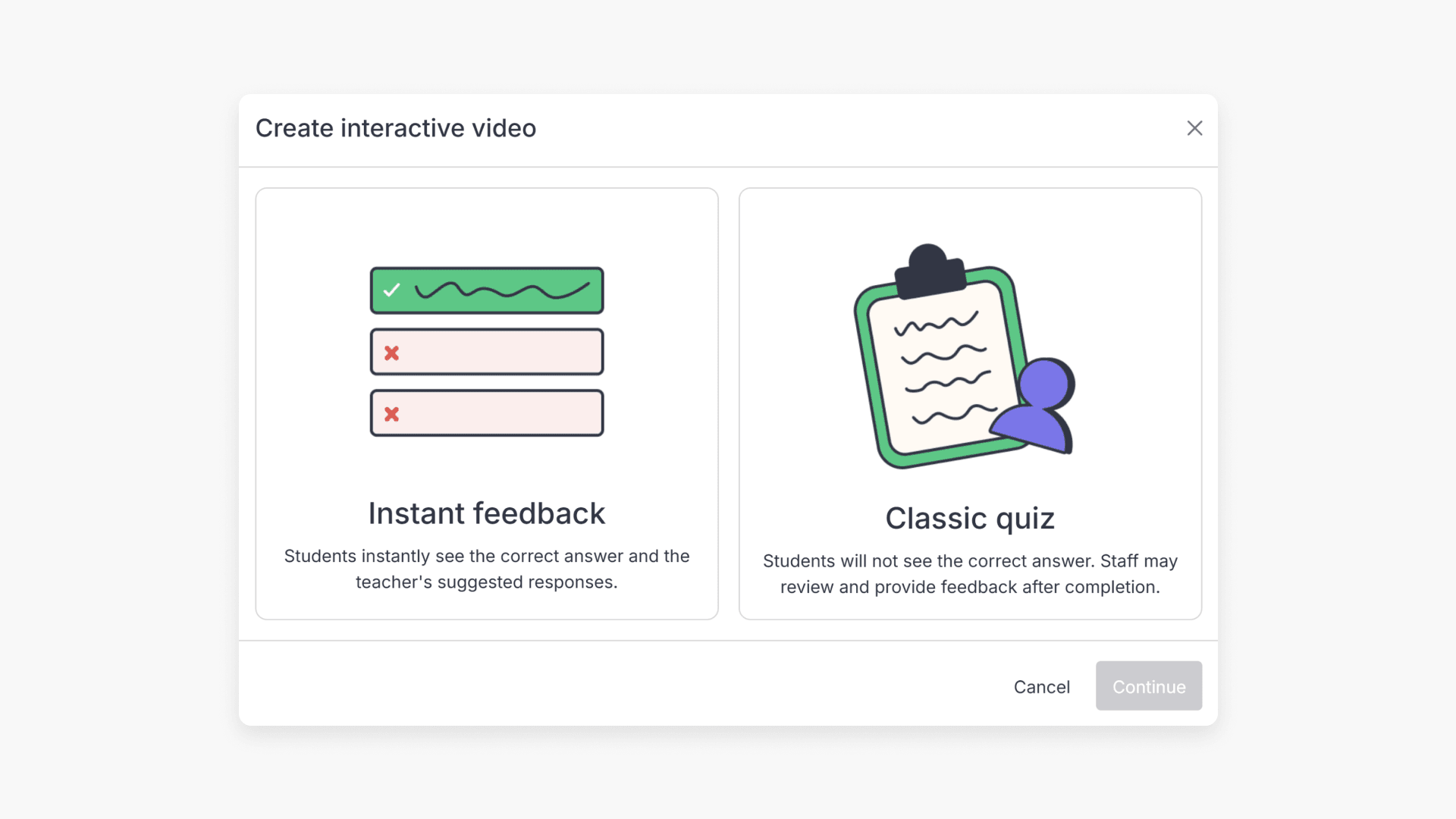
Interactive videos: Instant Feedback vs. Classic Quiz
Explore how Instant Feedback and Classic Quiz work for interactive videos in ClickView. Learn when students see answers and feedback, plus key differences between the two options.