How to copy an interactive video

Summary
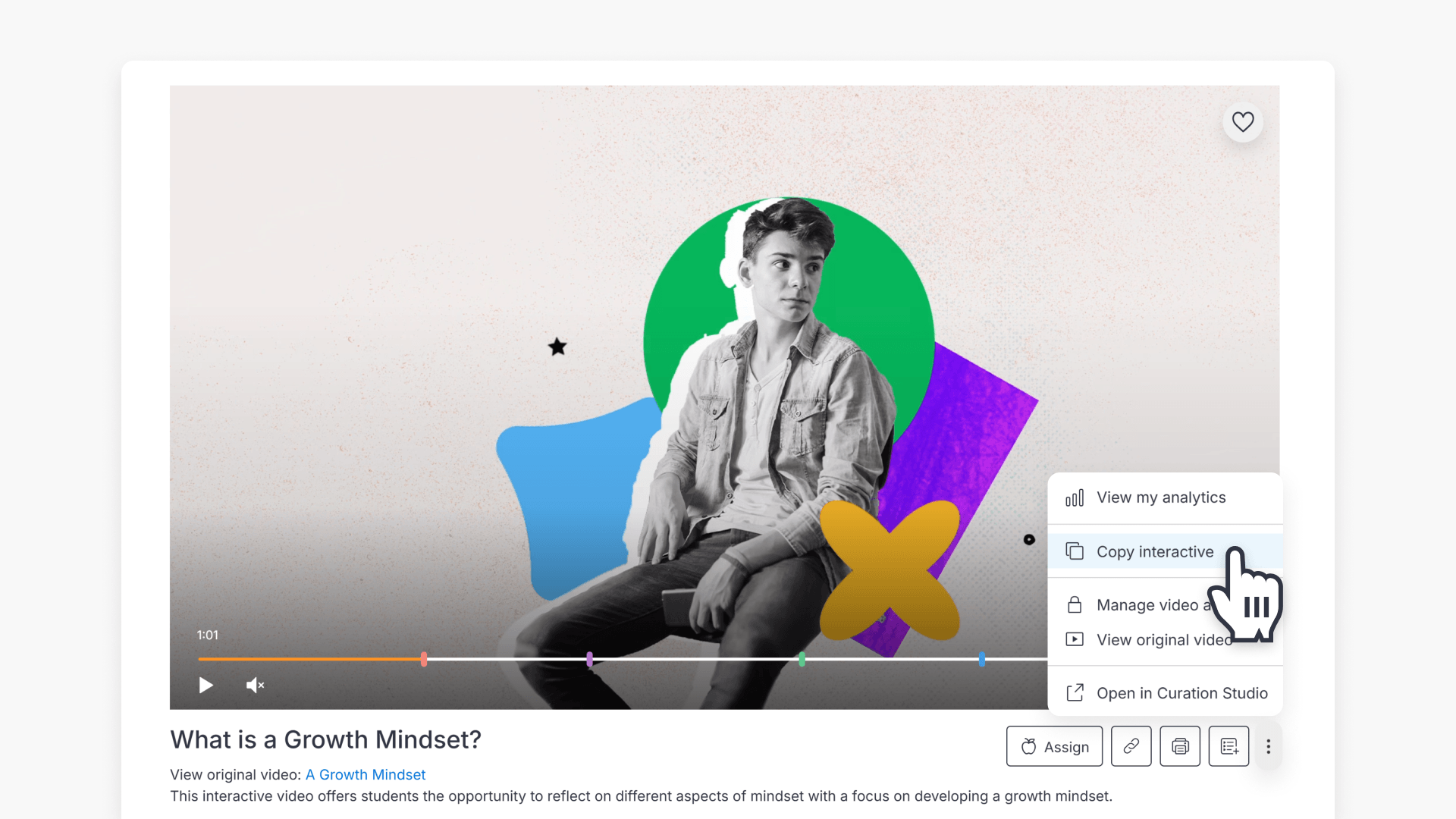
- Click the three dots on a video and select ‘Copy interactive’
- Click ‘Create a copy’ in the pop-up window
- Edit with the ‘Edit Interactive’ button as needed
- Edit video details such as name and description
- Publish your customised interactive
- Your copied interactive appears in My Videos
Saving and editing a copy of an interactive video
ClickView allows you to save and customise a copy of an existing interactive video. This is great if you want to use an existing interactive but customise it before sharing.
Follow these steps to add your own questions or change existing ones to fit your classroom needs.
- Find and copy an interactive
Locate the video you want to use. Click the three dots at the bottom right corner of the video, then select ‘Copy interactive’.
- Create your own copy
A window will pop up asking to create a new copy. Click the ‘Create a copy’ button.
- Edit your copied interactive (if required)
You will see a draft of the interactive, including an overview of the questions below the video. Click ‘Edit Interactive’ to add or modify questions for your class.
- Publish the interactive
Once you have finished editing, click the ‘Publish’ button.
- Update video details
After publishing, edit the interactive’s details like the name, description, and whether instant feedback is enabled.
- Access your interactive in My Videos
You can now find the new interactive video in your My Videos page and share it with students.
Important: Any changes you make to your copied interactive in My Videos will not affect the original interactive video.
Frequently asked questions
Get in touch
If you’re having trouble finding the right topics or videos, just reach out! Our team - 


 Andrew, Nisch, Janice, Pfreya, or any of us at ClickView - will be happy to help you get sorted.
Give feedback
Was this guide helpful?
Up Next
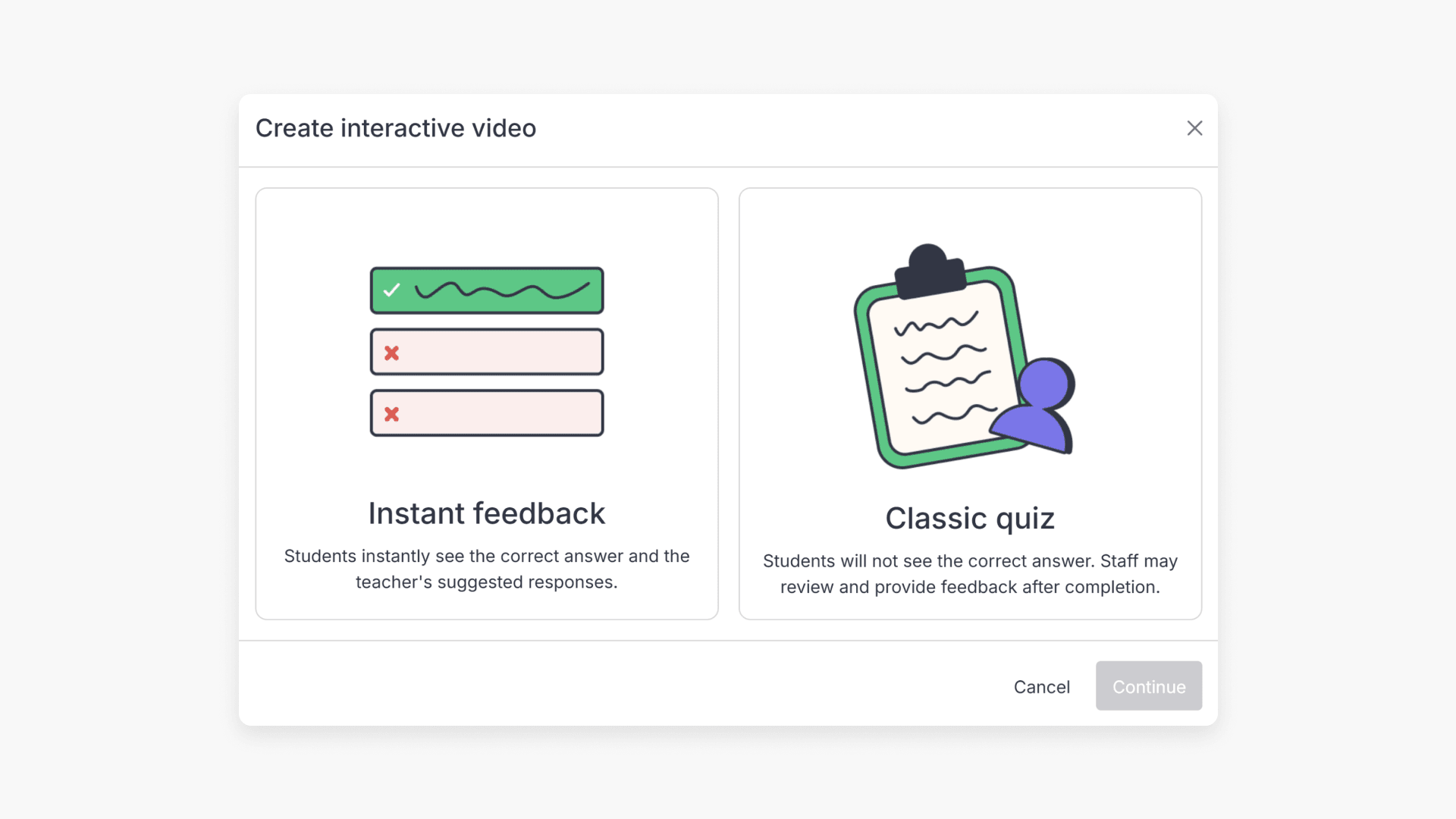
Interactive videos: Instant Feedback vs. Classic Quiz
Explore how Instant Feedback and Classic Quiz work for interactive videos in ClickView. Learn when students see answers and feedback, plus key differences between the two options.