How to request and edit TV programmes
In this article
Last updated by
2 min readClickView23rd February, 2026
Summary
- Click your avatar, select ‘Exchange Archive + TV’, then choose ‘ClickView TV’.
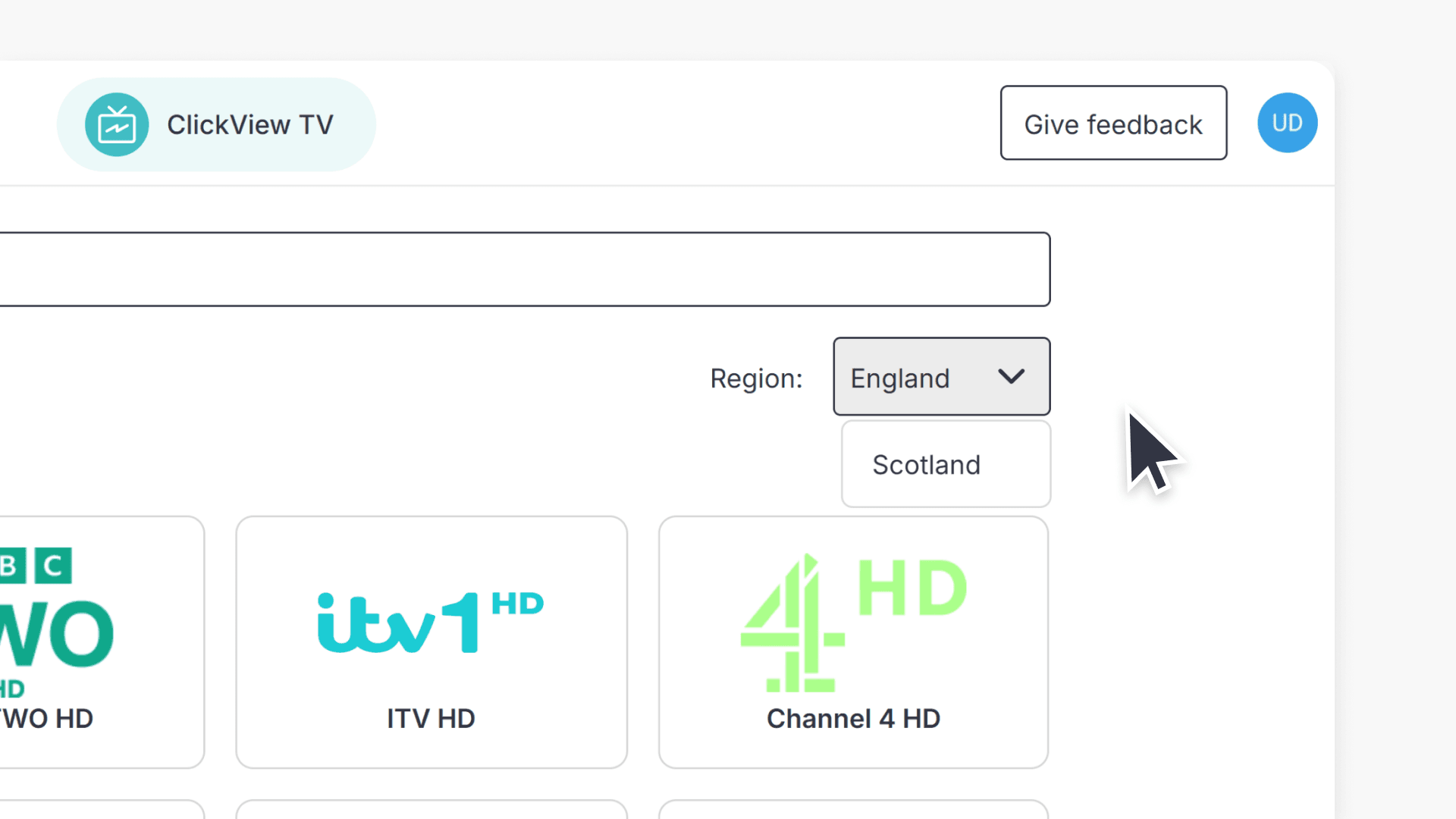
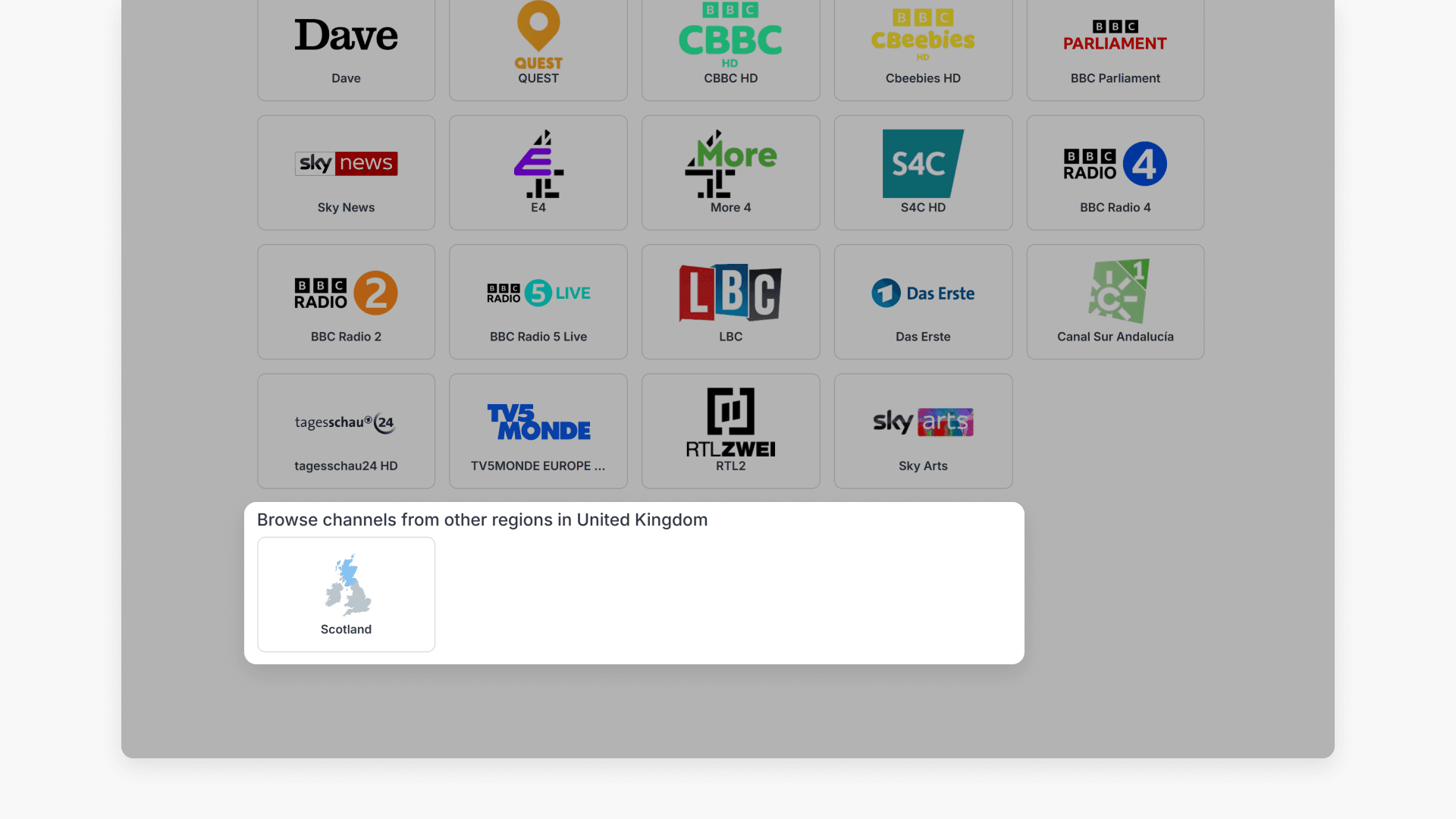
- Change the broadcasting region using the ‘Region’ drop-down or at the homepage bottom.
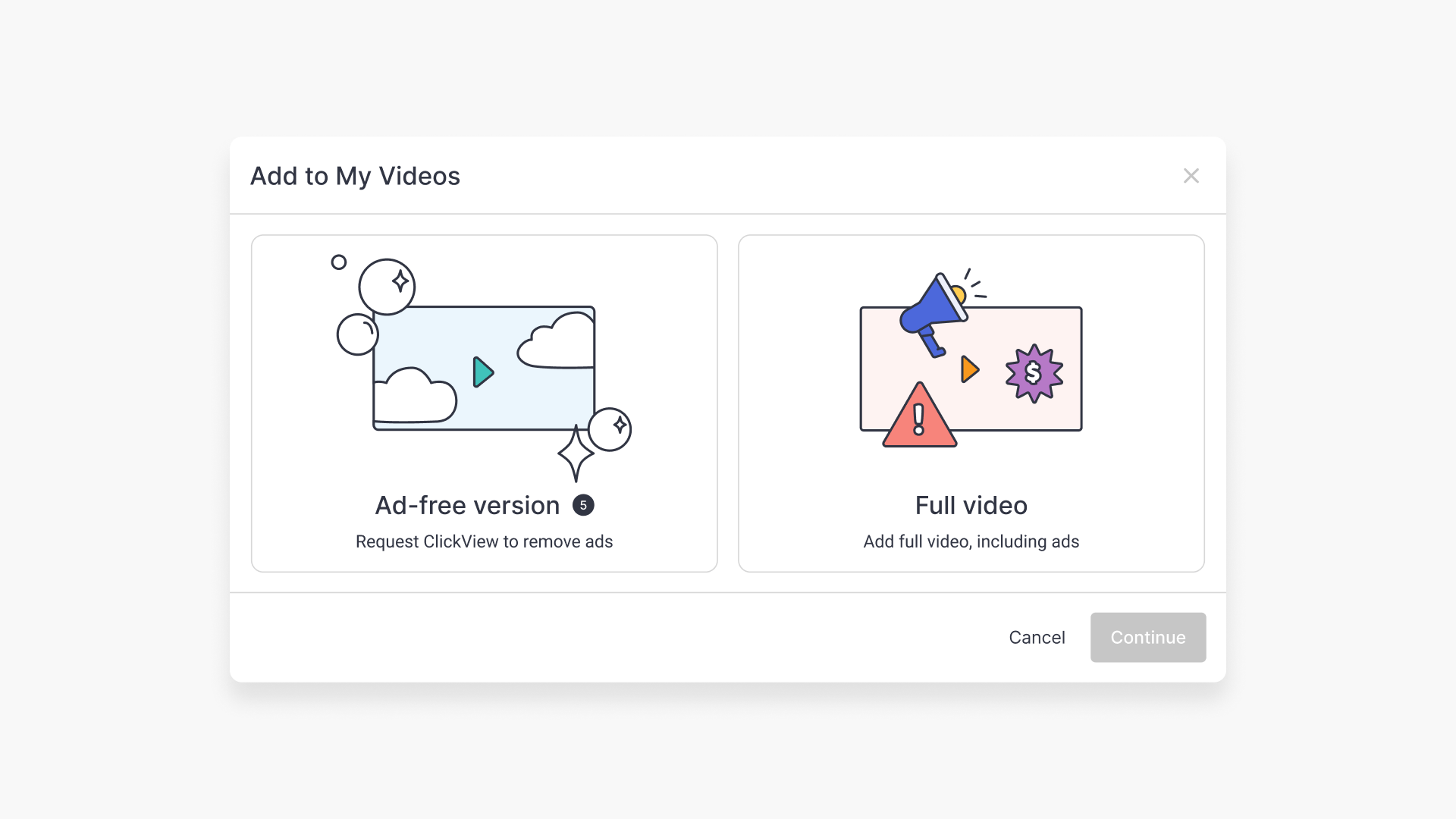
- To request a TV programme, use the ‘Add to My Videos’ button.
- Request ad-free copies using the ‘Ad-free version’ button and manage daily limits with the displayed counter.
- Full video requests appear in My Videos after a brief processing period.
- Edit videos in Cloud Editor using the three dots and clicking on ‘Edit video’.
star icon
Quick tip
How long does it take for an ad-free TV programme to appear in My Videos after a request?
Ad-free TV programme requests may take up to 72 hours to become available in My Videos, while full video requests are processed in a couple of minutes.
Access ClickView TV
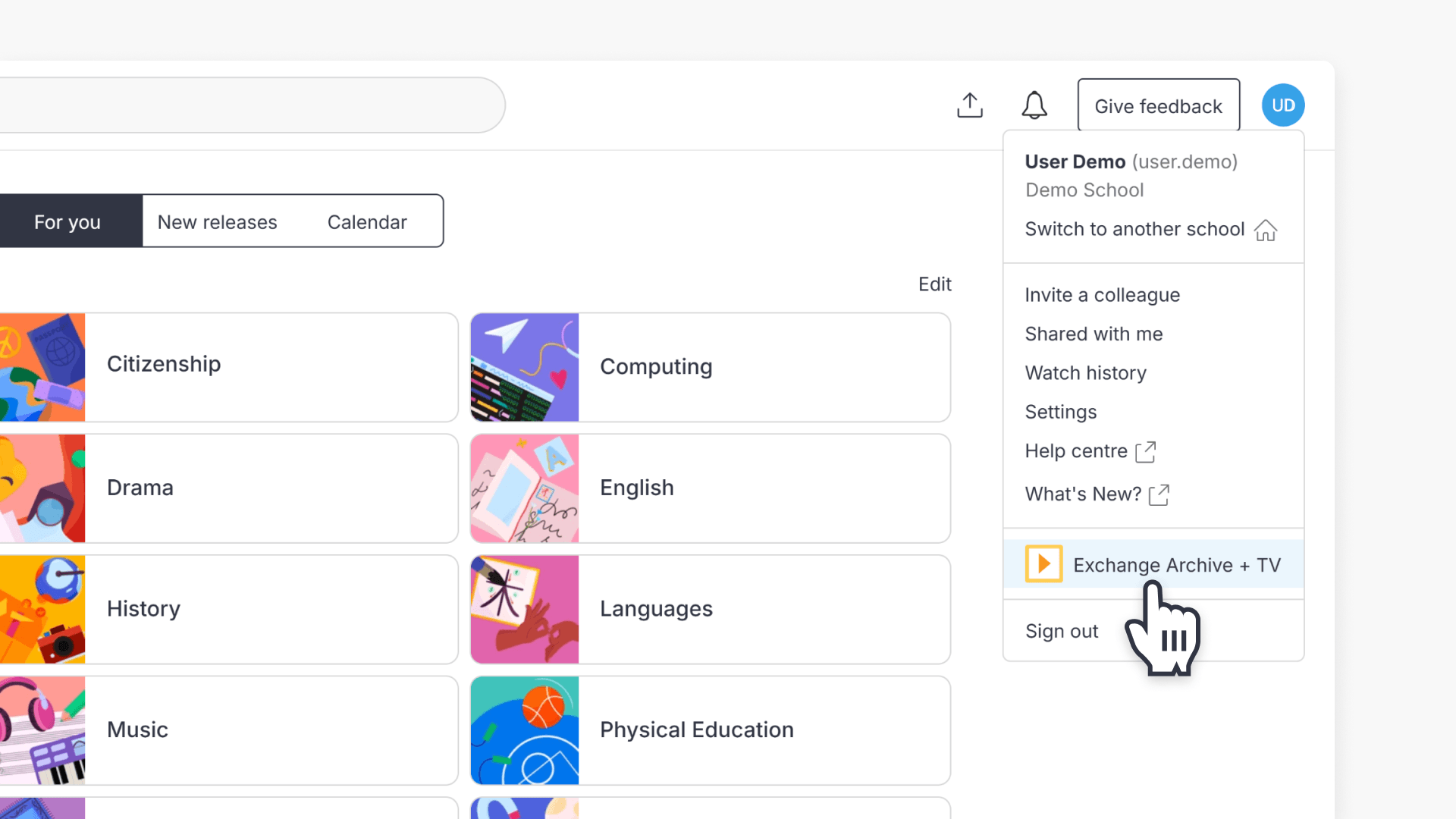
- Click your avatar at the top right and select Exchange Archive + TV from the drop-down menu.
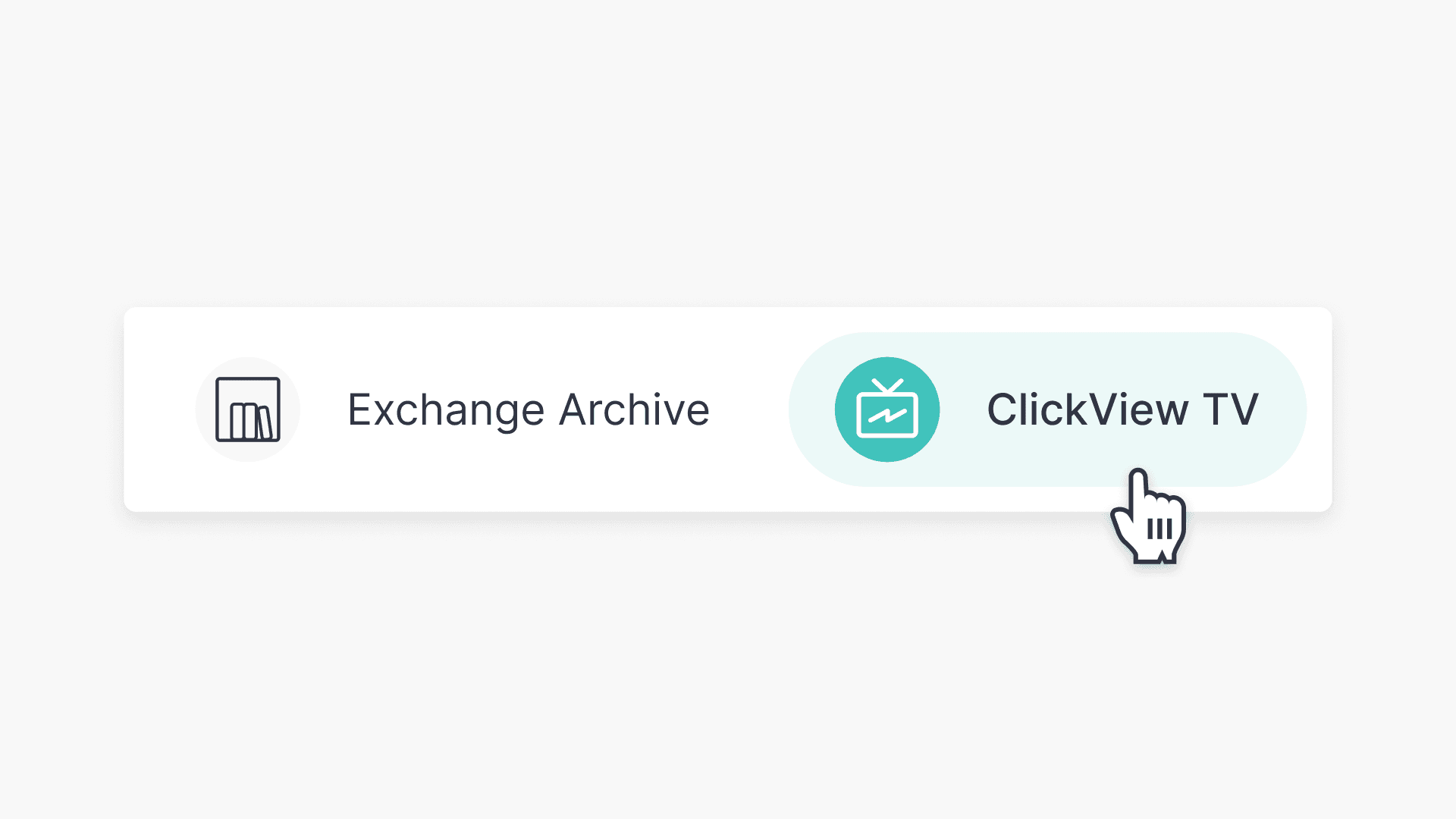
- On the next screen, select ClickView TV at the top.
- The TV home page will display.
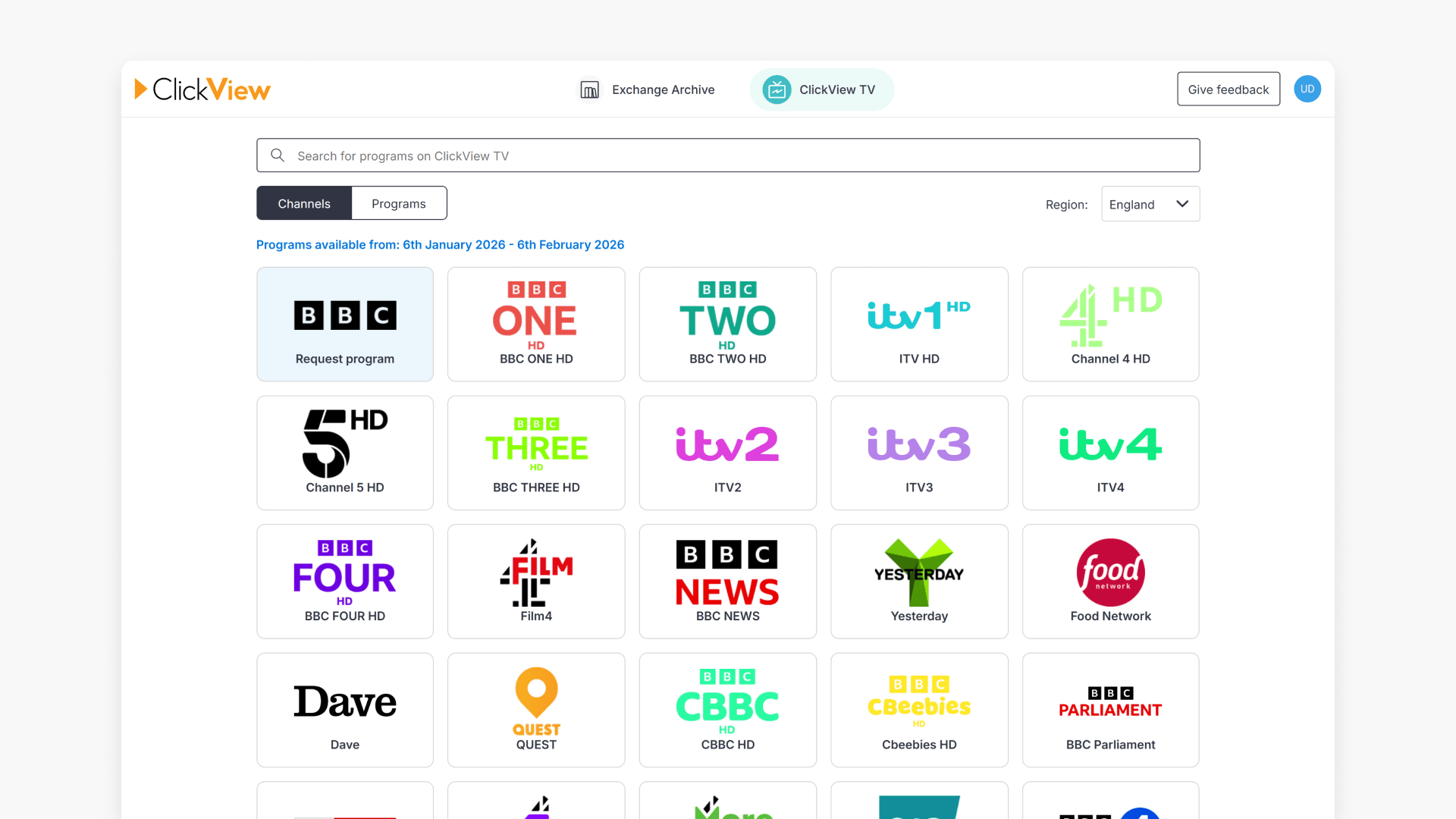
- Switch the broadcasting region by selecting the Region drop-down at the top or at the bottom of the page.
How to request TV programmes
- Search for programmes by channel, programme name, or keyword.
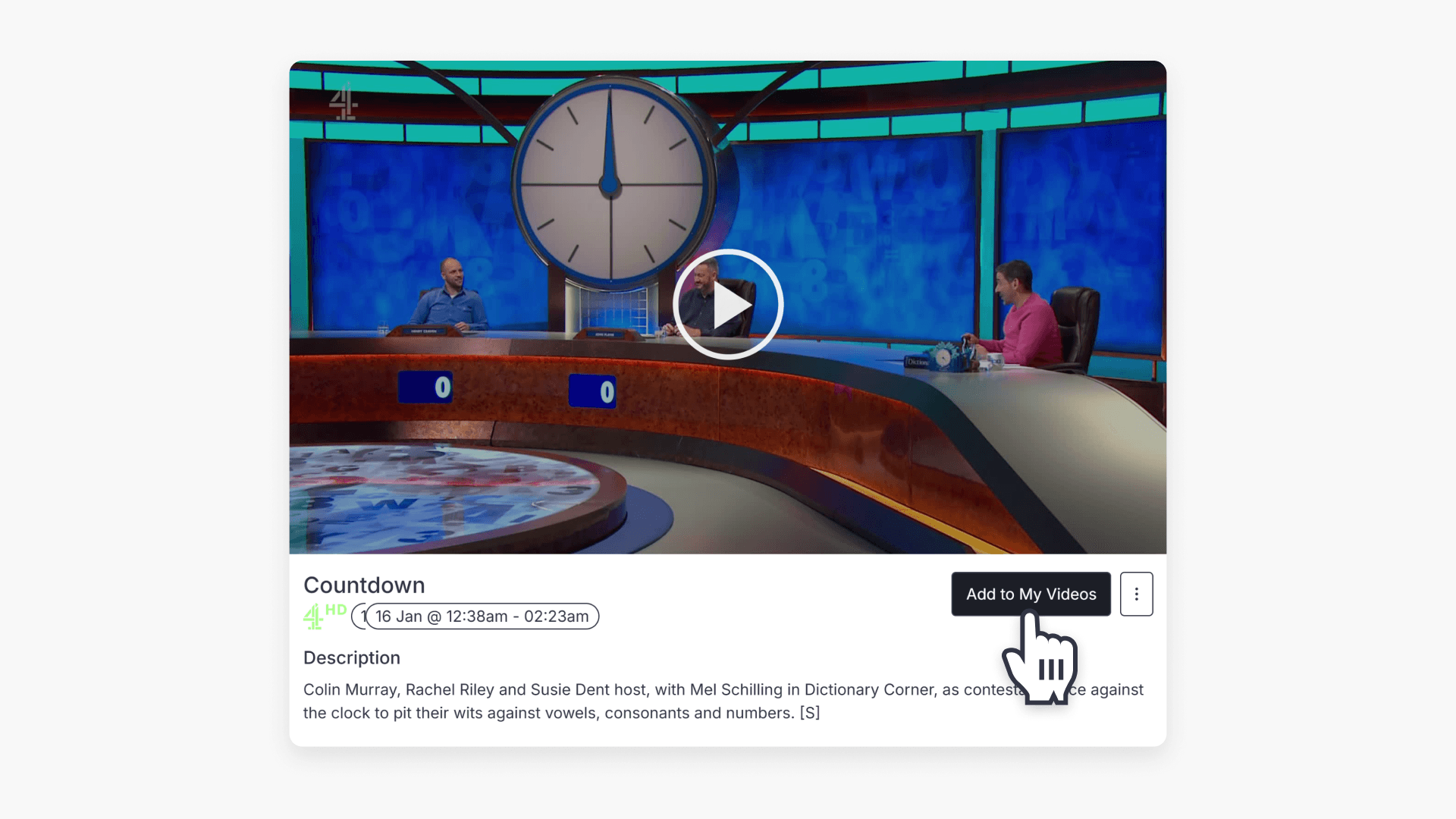
- Review your chosen content in the displayed pop-up window.
- Click the ‘Add to My Videos’ button to start the request.
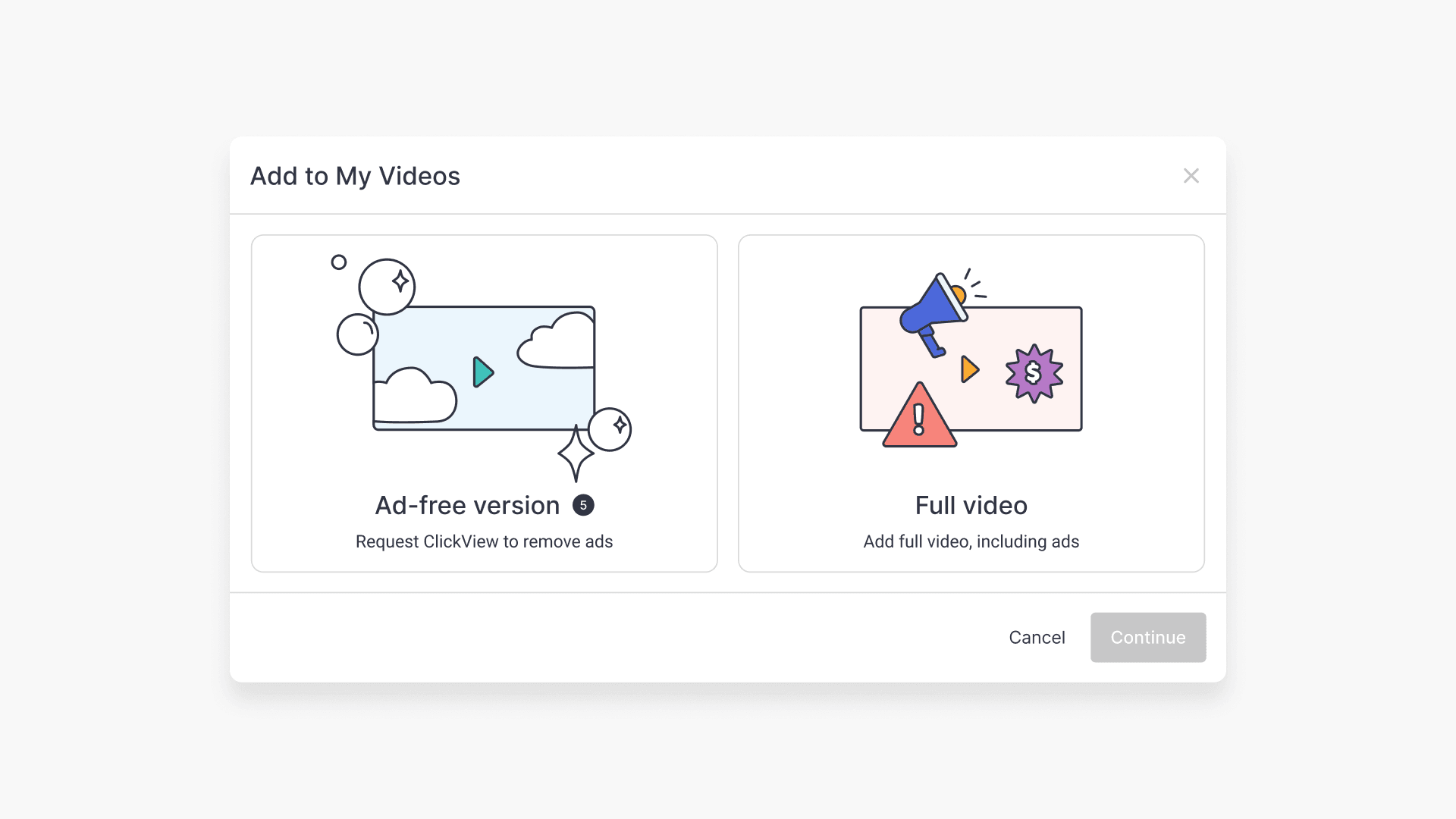
- Select if you want the original recording or an ad-free version.
Request ad-free programmes
- Click the ‘Ad-free version’ button.
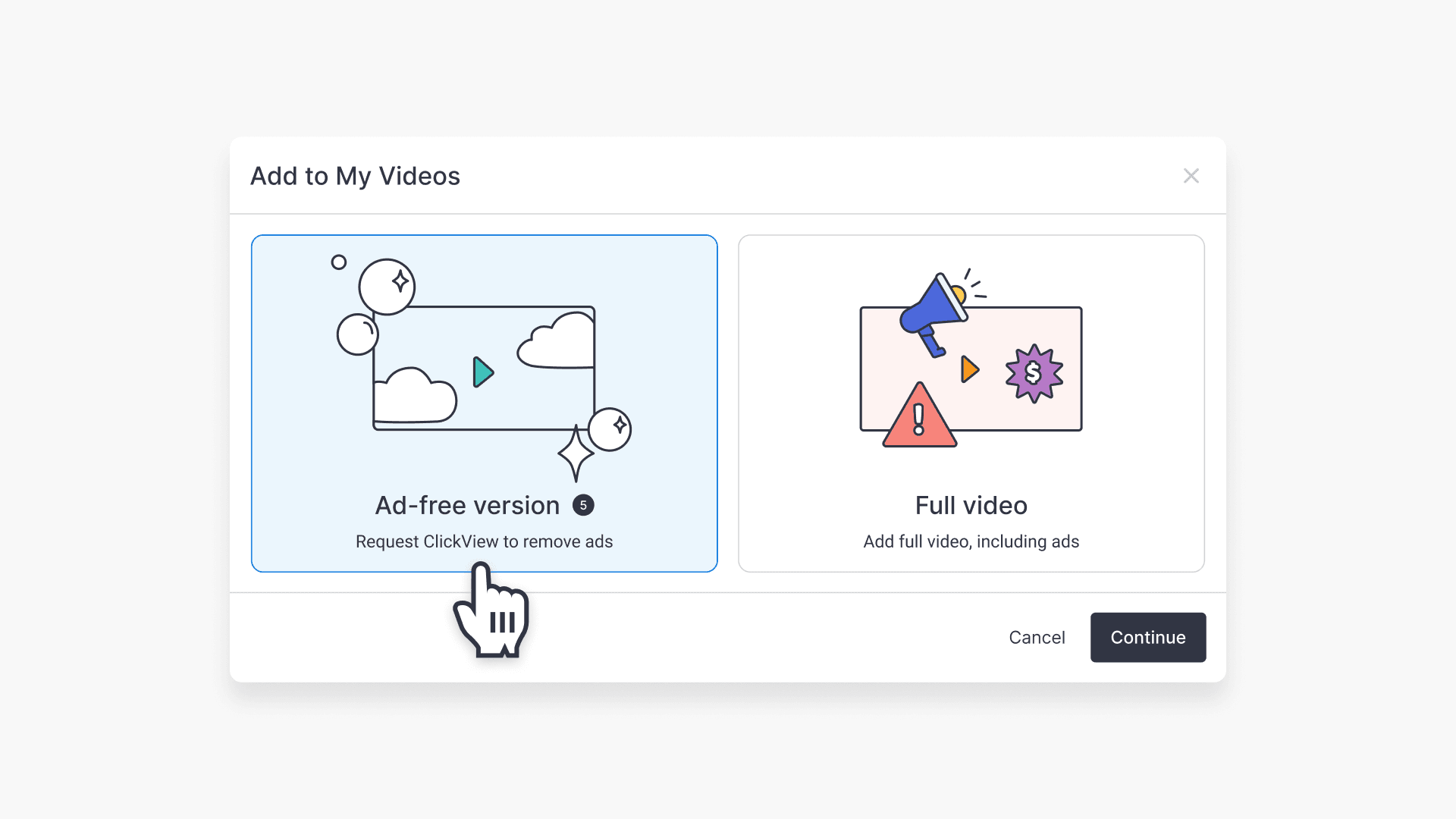
- A confirmation pop-up appears. Here you can review the details.
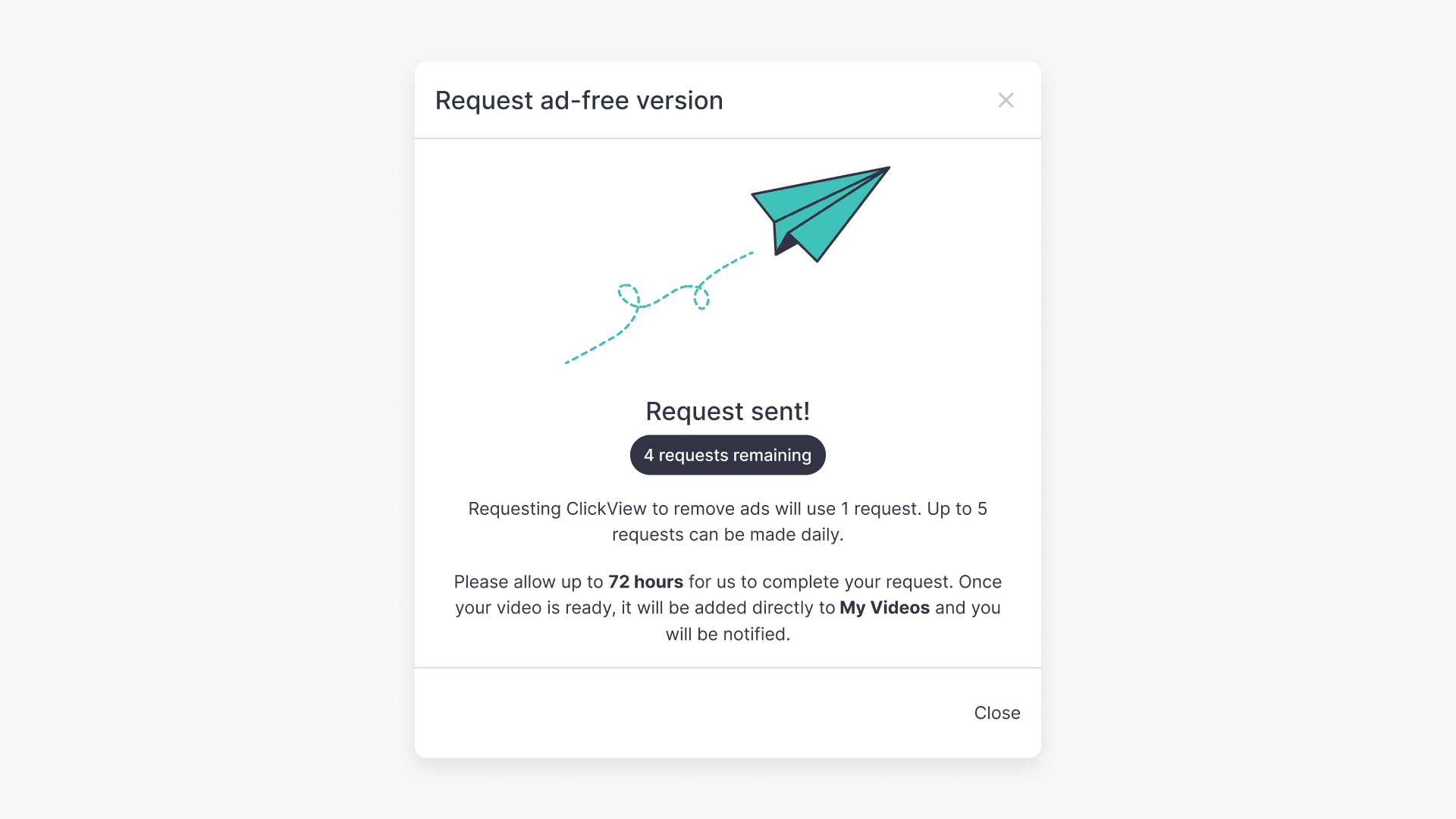
- Ad-free requests are limited to five per user, per day, as shown by a request counter. Once reached, no further requests are allowed for that day.
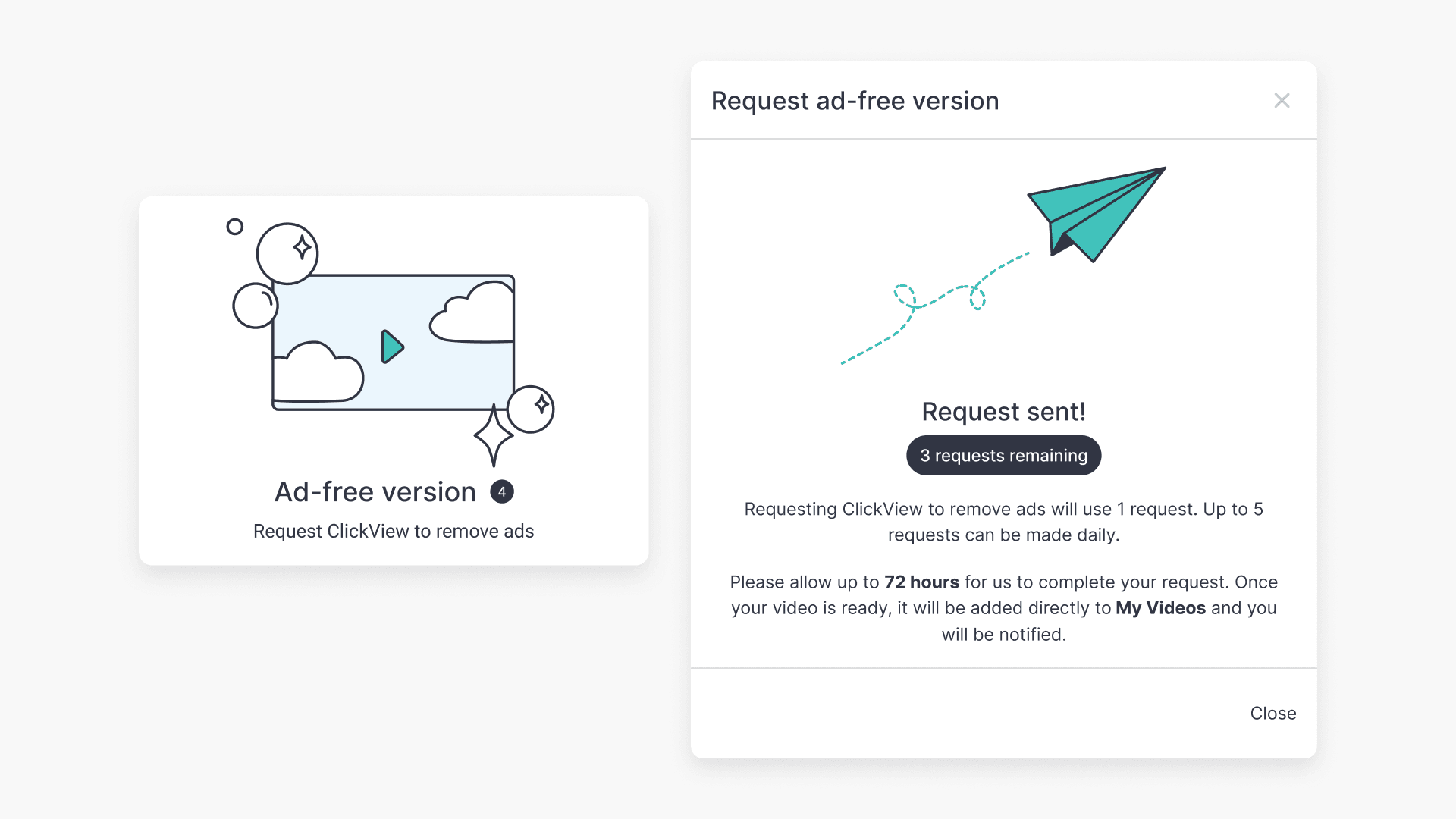
- Please note that your ad-free video will become available in My Videos within 72 hours.
Request full video programmes
- Click the ‘Full video’ button.
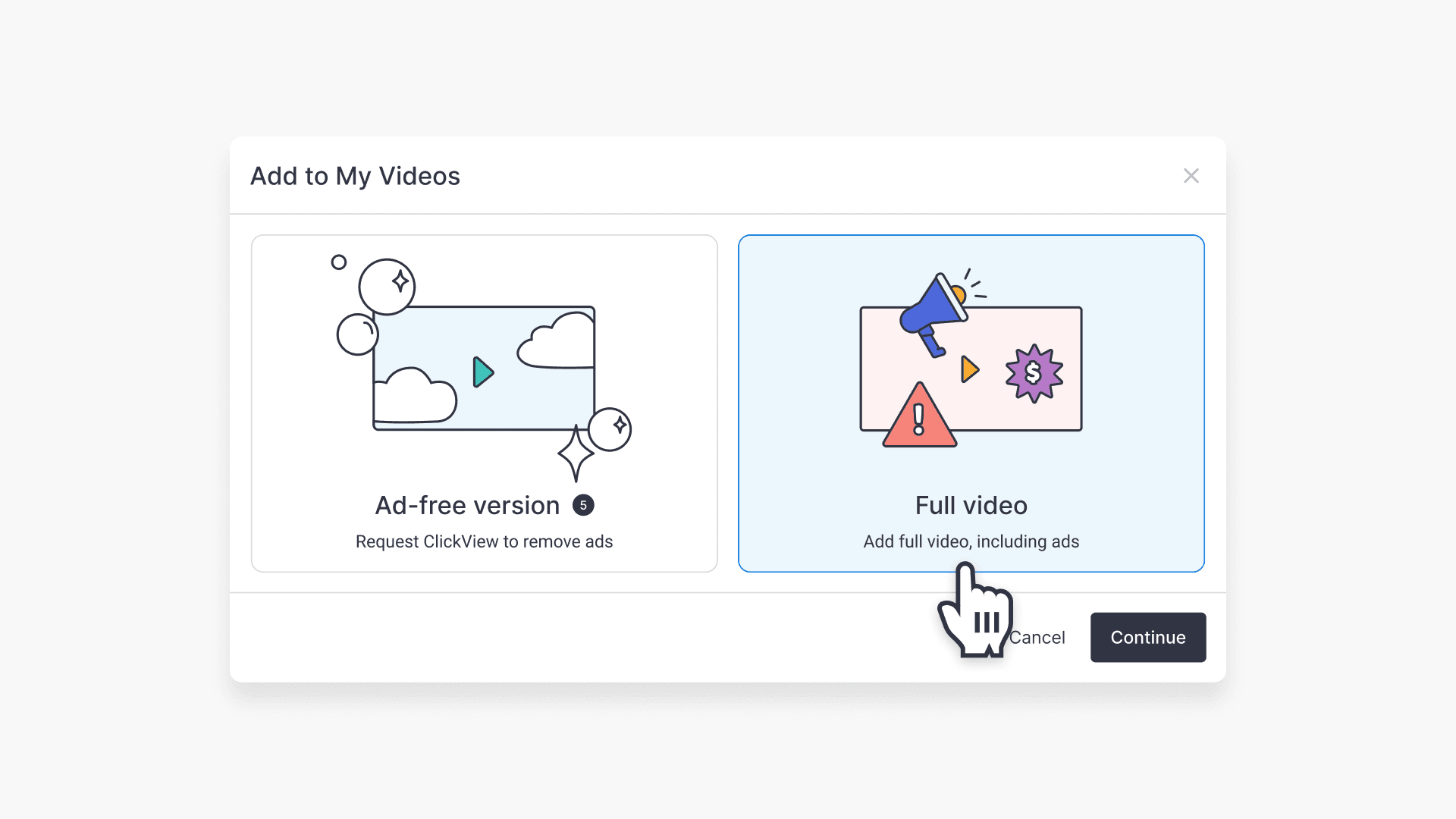
- Full videos are processed in a few minutes and will appear directly in My Videos.
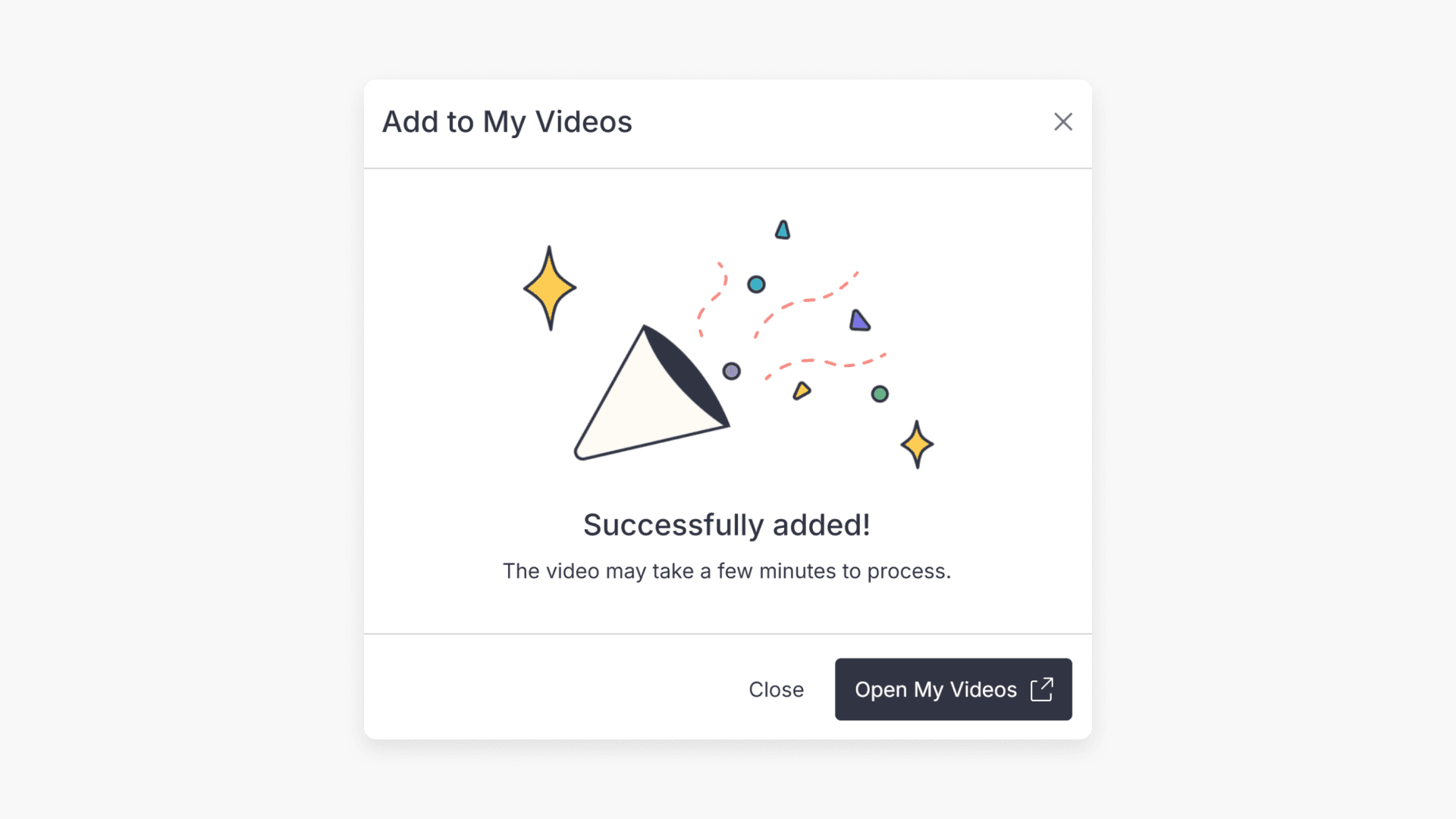
- Click ‘Open My Videos’ to view in My Videos.
Editing programmes in Cloud Editor
- To edit before saving, click the three dots on the video and select ‘Edit video’.
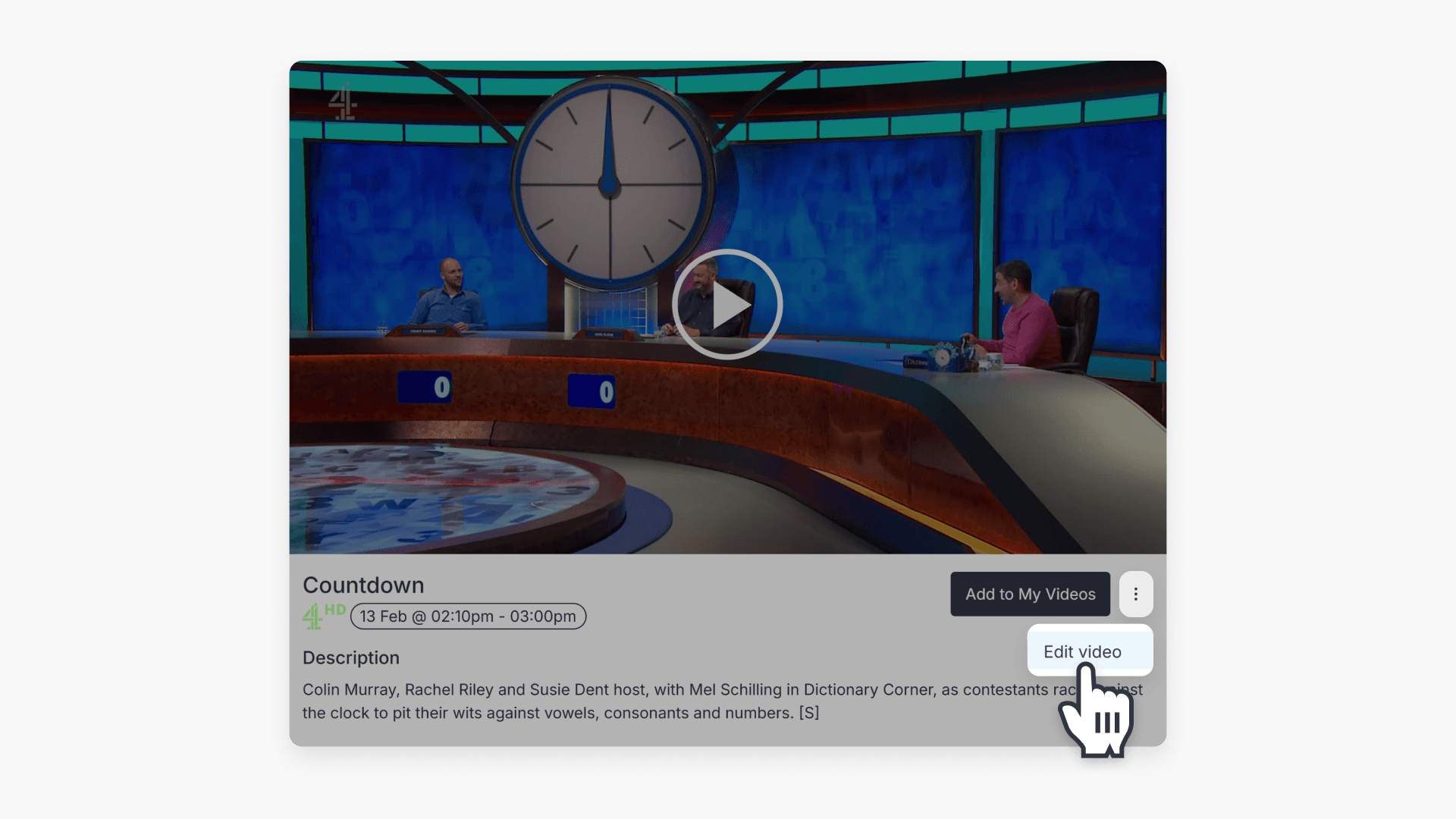
- In Cloud Editor, add named chapters or crop sections as needed.
- The edited programme is saved to My Videos.
- For more details, see the guide on Cloud Editor.
Frequently asked questions
You can request up to five ad-free TV programmes per day. The request counter will update with each submission and reset daily.
Yes, use the ‘Region’ drop-down at the top of the ClickView TV page, or select a region at the bottom of the homepage to see relevant content.
Click the three dots on the video, select ‘Edit video’, and use Cloud Editor to add chapters or crop sections before saving to My Videos.
Get in touch
If you’re having trouble finding the right topics or videos, just reach out! Our team - 

 Akhil, Daniel, Jalaj, or any of us at ClickView - will be happy to help you get sorted.
Give feedback
Was this guide helpful?
Up Next
Understanding Featured Channels
Summary What are Featured Channels in ClickView? Featured Channels bring together every video from one producer in a single place, so you can explore all their videos and resources rather than finding them across topics, series, and search results. Each channel includes a banner introducing the producer, videos organised by recent, popular, and series, and […]