How to access student analytics

Summary
- Where you find student analytics depends on how the video was shared, via a Share link or via Open Classrooms.
- For Share link videos, go to Shares in the left navigation to find video insights.
- For Open Classroom videos, go to Classrooms → Open classrooms and select the video.
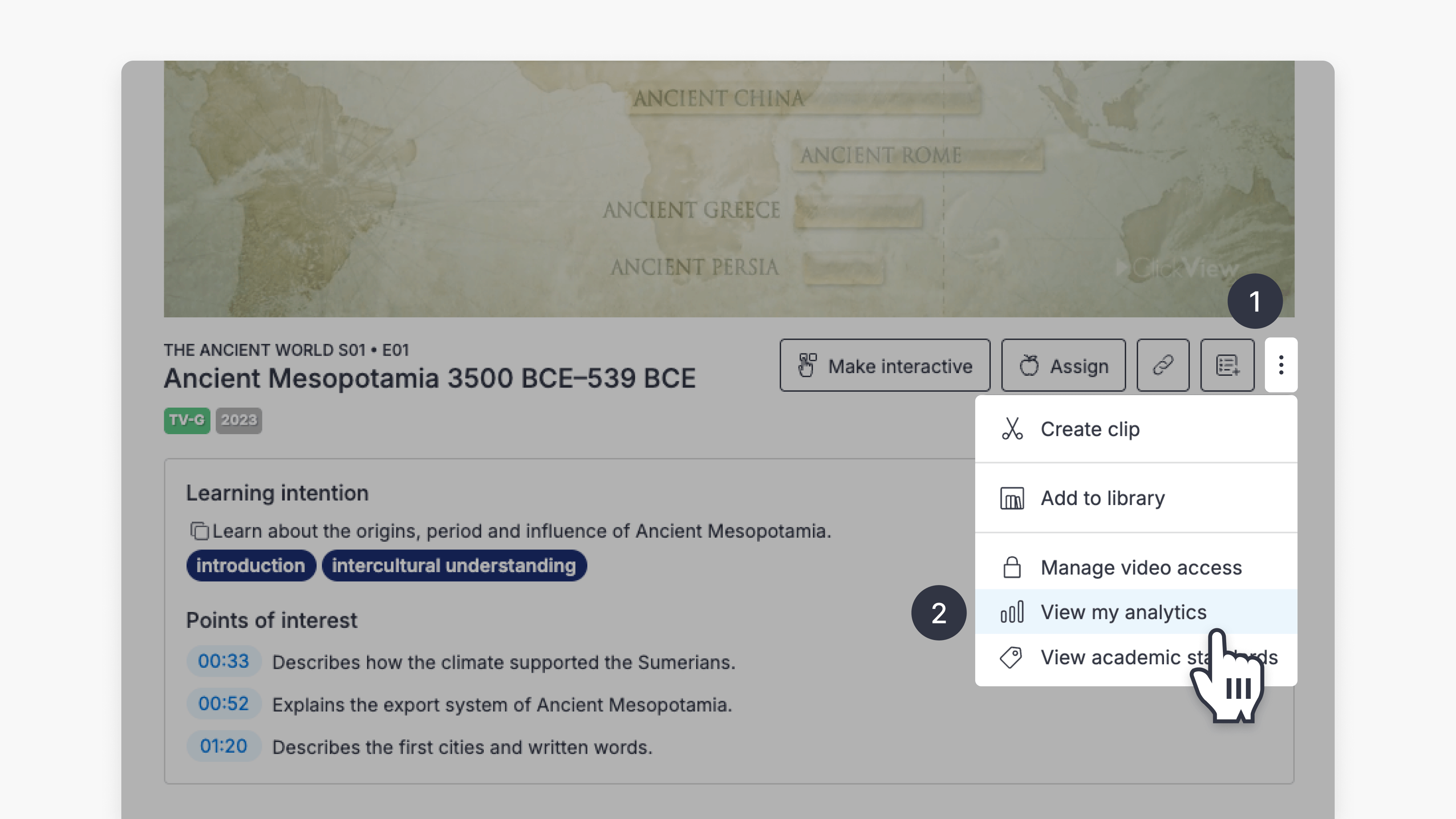
- You can also access analytics for any video directly from the video page via the three dots (⋯) ➡ View my analytics.
- Select any shared video to view its Insights, including viewer count, amount watched, and device breakdown.
- Interactive videos also show student results, question performance, and a class performance summary.
How to find student analytics
Where you access student analytics in ClickView depends on how the video was shared. There are three ways to find it.
Important notes:
- Viewers appear as Anonymous when the share link does not require the viewer to sign in to access it.
- Analytics are available for both active and expired shares. Deleting the share will also delete the analytics.
- For interactive videos with open-ended responses, performance data may be incomplete until responses have been marked. A prompt appears on the Insights page to mark outstanding responses.
Option 1 — Shares (for videos shared as a Share link)
If the video was shared as a Share link, go to Shares in the left navigation. Find the video and select it to view its insights.
Note: This path is covered in the existing shared video analytics article.
Option 2 — Classrooms ➡ Open classrooms (for videos assigned to an Open classroom)
Open Classrooms is a way to share video with students without needing classrooms set up in ClickView. If the video was assigned to an Open classroom, access its analytics from the Classrooms tab in the left navigation.
Steps:
Prerequisites: Teacher or Administrator account.
- Select Classrooms from the left navigation.
- On the Overview tab, locate the Open classroom section — or select the Open classrooms tab.
- Select the video you want to review.
- The Insights tab opens by default, showing viewing and engagement data.


From the Classrooms overview, the Open classroom section lists all videos shared via Open Classrooms, grouped by month. Each row shows the video title, view count, number of viewers, date shared, and status (Active or Expired).
Confirmation: The video’s analytics page opens, showing the Insights tab with viewer and engagement data. For interactive videos, additional tabs — Students, Questions, and Heatmap — are also available.
Option 3 — View my analytics (from the video page, for any share type)
You can access analytics for any shared video directly from the video page, regardless of how it was shared.
- Open the video in ClickView.
- Select the three dots (⋯).
- Select View my analytics.
- A modal appears showing all shares for that video, with columns for Assigned to, Views, Viewed by, and Date created.
If you’re an administrator, an Open in School Analytics link appears at the bottom of the modal. Select it to open the full Analytics product for school-level reporting.


Analytics for non-interactive videos
When you open analytics for a non-interactive video, the Insights tab shows:
- Viewers — total number of viewers, with individual viewer rows showing the percentage of the video each person watched. Use the Anonymise names toggle to hide viewer names.
- A View everyone who has watched the video link for the full viewer list.
- Class engagement:
- Devices — breakdown of phone vs computer usage
- Amount watched — average percentage of the video watched, with a heatmap visual and a View heatmap link

Analytics for interactive videos
When you open analytics for an interactive video, four tabs are available: Insights, Students, Questions, and Heatmap.
The Insights tab shows:
Student results:
- Marking required — number of responses awaiting marking
- Completed — number of students who have completed the interactive
How did students perform?
- Students who may need a helping hand — students with scores below 70%
- Students ready for a challenge — students with scores at 70% and above
- Hardest question — the question with the lowest average score
- Top scoring question — the question with the highest average score
Class performance:
- Average score — class average once results are collected and marked
- Average attempts — how many times students attempted the interactive on average
- Devices — phone vs computer breakdown
- Amount watched — average percentage of the video watched, with a View heatmap link

If marking is required
If an interactive video has responses that need marking, the Insights page displays a prompt: “See how your students scored — Mark new responses to see the most accurate data.”
Select Mark 1 response to begin marking, or select See incomplete data to view results before marking is complete.
The Marking required status also appears on the video in the Open classroom list view.

Frequently asked questions
Get in touch
If you’re having trouble finding the right topics or videos, just reach out! Our team - 


 Andrew, Nisch, Janice, Pfreya, or any of us at ClickView - will be happy to help you get sorted.
Give feedback
Was this guide helpful?
Up Next
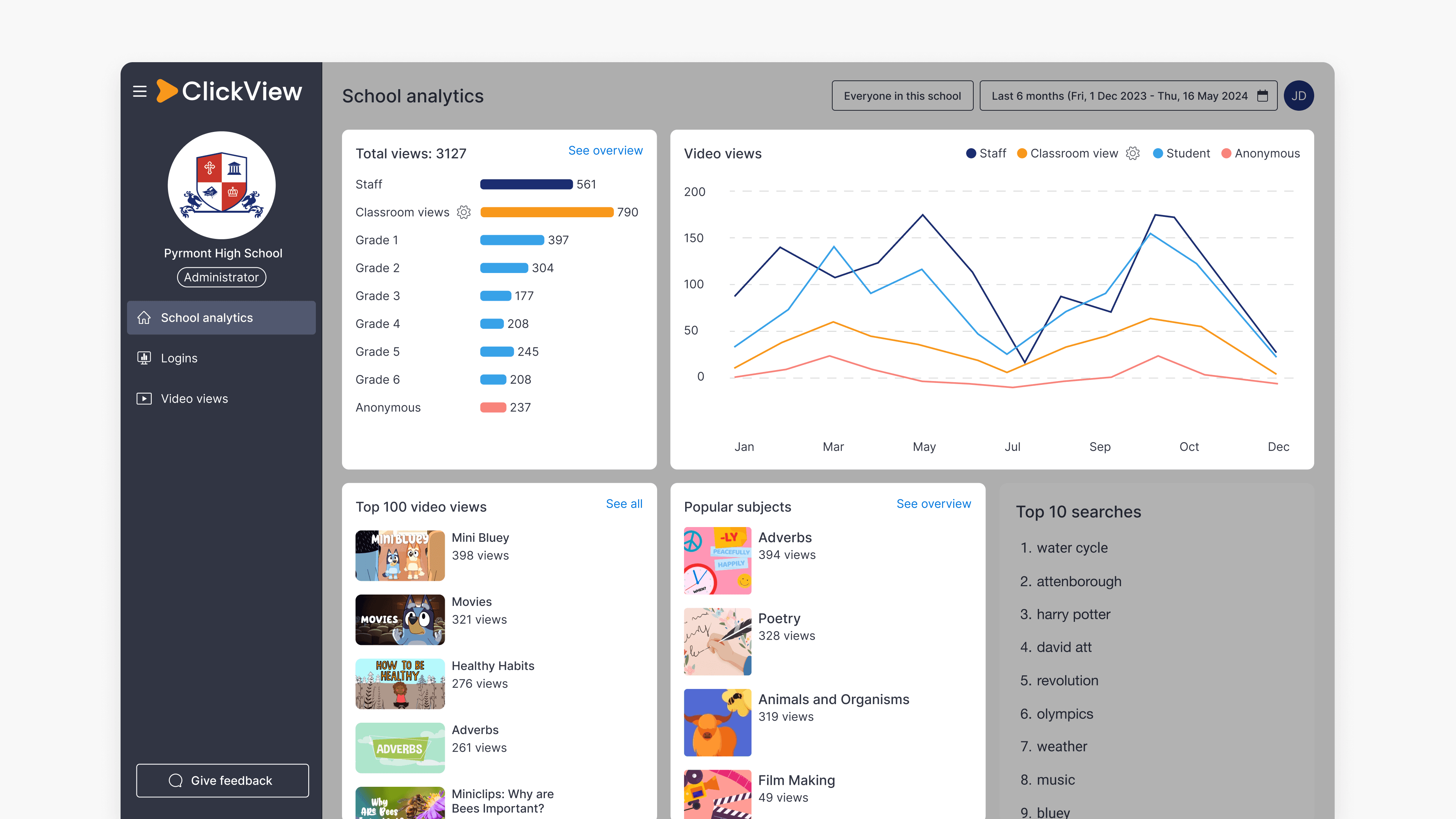
How to use Classroom views in School analytics
Summary In ClickView, how do I access and use Classroom views metrics? Sign in to ClickView with an Administrator account, then select your initials and choose Analytics. Classroom views metrics appear across the School analytics and Video views dashboards, as well as individual Video dashboard reports. Understanding Classroom views ClickView usage in schools often includes […]