Using the Immersive Reader for video text
In this article
Last updated by
2 min readClickView30th January, 2026

Summary
- The Immersive Reader reads screen text aloud on ClickView.
- Find the “Immersive Reader” icon in video descriptions and questions.
- Use the Play button to start reading text aloud.
- Adjust reading speed and voice type in Voice Settings.
- Edit font size, spacing, font, and background colour with Text Preferences.
- Highlight syllables, nouns, verbs, and more under Grammar Options.
- Focus text lines and use translation in Reading Preferences.
star icon
Quick tip
Who can benefit from Immersive Reader?
Immersive Reader supports all learners, including English language learners and visually impaired users, by improving reading fluency and comprehension.
How to access Immersive Reader
The Immersive Reader is available wherever you see the following icon in ClickView:

For example, you will find this icon next to video descriptions:

Or next to interactive questions:

Using Immersive Reader
To launch Immersive Reader, simply click the “Immersive Reader” icon:

Features of Immersive Reader
Once Immersive Reader is open, you will have access to several supportive features:
- Read text aloud and adjust voice settings
Use the Play button at the bottom of the screen to start reading the visible text aloud.
Click the Voice Settings button to change the reading speed or select a male or female voice.

- Edit font size, spacing, and background colour
Click the Text Preferences icon to open options for changing the font size, spacing, font style, and background colour.

- Display grammar features
Click the Grammar Options icon for tools that display word syllables and highlight parts of speech, such as nouns, verbs, adjectives, and adverbs.

- Reading preferences and language options
Click the Reading Preferences icon to focus attention on one or three lines of text and to translate content into different languages.

Frequently asked questions
Immersive Reader is available on video descriptions and interactive questions wherever you see the “Immersive Reader” icon.
Click the Text Preferences icon to adjust font size, spacing, style, and background colour.
Get in touch
If you’re having trouble finding the right topics or videos, just reach out! Our team - 

 Akhil, Daniel, Jalaj, or any of us at ClickView - will be happy to help you get sorted.
Give feedback
Was this guide helpful?
Up Next
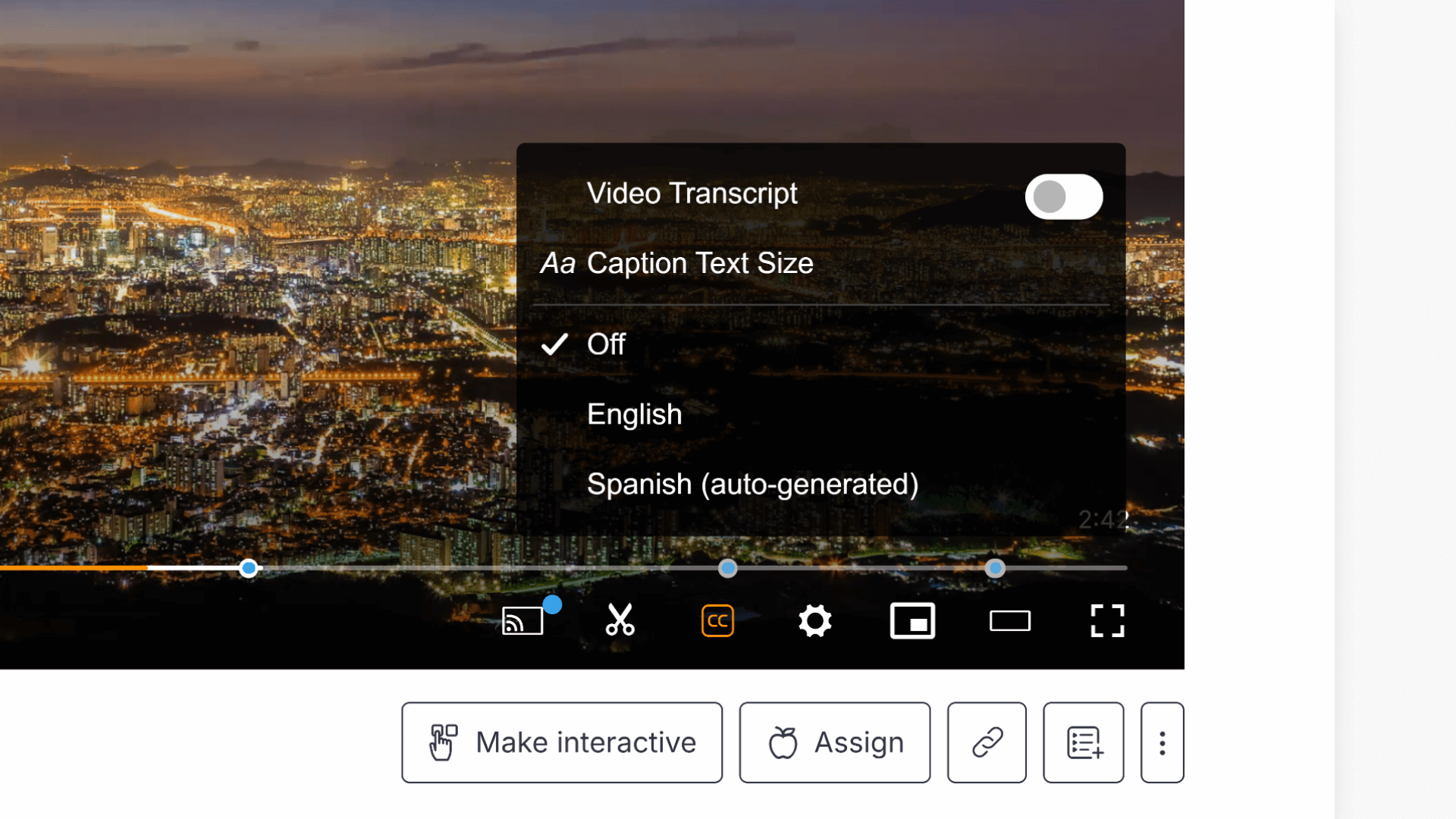
How to use subtitles and closed captions
This article explains how to enable subtitles and closed captions in ClickView videos, adjust caption text size, use the subtitle search feature, and set default subtitle preferences as an administrator.