How to enable Grade Passback in Canvas

Summary
- Grade Passback retrieves student scores from interactive video assignments.
- Before setup, check Canvas and ClickView integration with your administrator.
- Sign in to Canvas, choose your course and open Assignments.
- Click ‘+ Assignment,’ set ‘Points’ and display as ‘Percentage.’
- Set ‘Submission Type’ to External Tool and select ‘ClickView.’
- Add an interactive video, save, and publish the assignment to students.
Understanding Grade Passback
Grade Passback lets Canvas automatically retrieve answers and scores from ClickView interactive videos that your students complete. Before you start, confirm your Canvas and ClickView integration with the school administrator. Administrators can view the integration guide.
Setting up Grade Passback in Canvas
- Sign in to Canvas.

- Open your course. Click ‘Course’ from the left, then choose your course.

- Go to Assignments. Click the ‘Assignments’ link.

- Create a new assignment. Click the ‘+ Assignment’ button in the top right.


- Configure assignment settings. Set ‘Points’ to 100, and ‘Display Mark as’ to ‘Percentage.’

- Name and set the submission type. Enter the assignment name and set ‘Submission Type’ to External Tool.

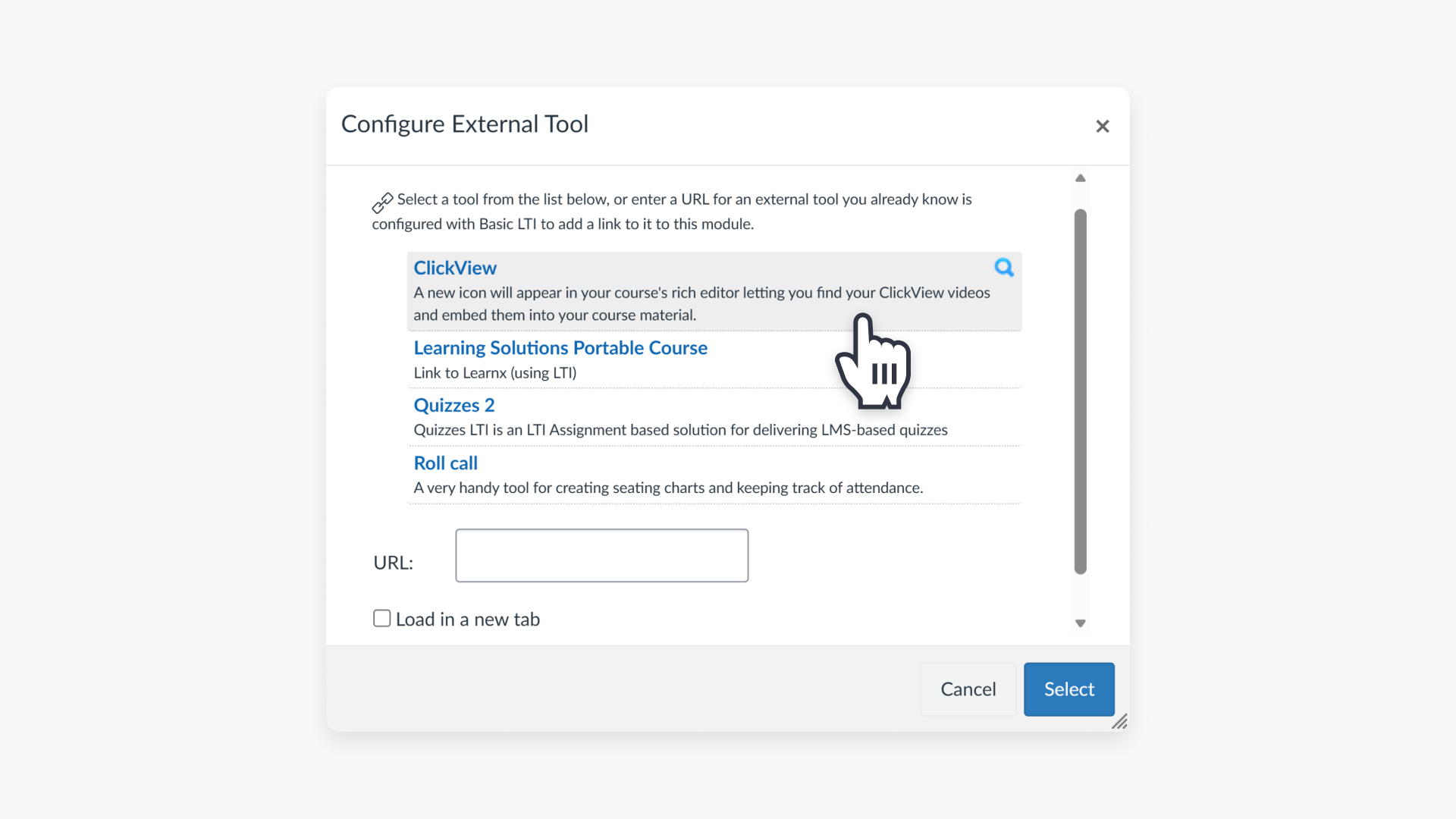
- Select ClickView as the external tool. Click ‘Find’ and choose ‘ClickView’ from available tools.

- Add a ClickView interactive video. In the ClickView window, go to My Videos, select and add an interactive video.


- Save your assignment. Click “Save.”

- Publish to students. Select the ‘Publish’ icon to make the assignment visible.

Your assignment is now ready. Once students complete the ClickView interactive video, their scores will appear under Marks in Canvas.
Frequently asked questions
Get in touch
If you’re having trouble finding the right topics or videos, just reach out! Our team - 

 Akhil, Daniel, Jalaj, or any of us at ClickView - will be happy to help you get sorted.
Give feedback
Was this guide helpful?
Up Next
How to set up LTI integration v1.3
This article explains how ClickView administrators can set up LTI 1.3 integration to connect your virtual learning environment (VLE) with ClickView. The setup process allows seamless access to ClickView content without separate sign-in.