Set up LTI integration v1.3 with Canvas

Summary
- Sign in to ClickView as an admin and open ‘Settings.’
- Go to ‘Integrations’ and choose ‘LTI platforms.’
- Create a new platform with ‘Version 1.3.’
- Copy the integration fields into Canvas.
- Set up LTI Key and placements in Canvas Developer Keys.
- Add and install the ClickView app using your Client ID.
What is LTI?
Learning Tools Interoperability (LTI) is an education technology standard for securely integrating external systems, such as video libraries or digital tools, into your Virtual Learning Environment (VLE). With LTI, students can access content like ClickView videos without separate sign-in requirements.
How to set up ClickView in Canvas
- Sign in to ClickView with an admin account, then open Settings.

- Select LTI platforms under Integrations. If you do not see the LTI option, contact Product Support.

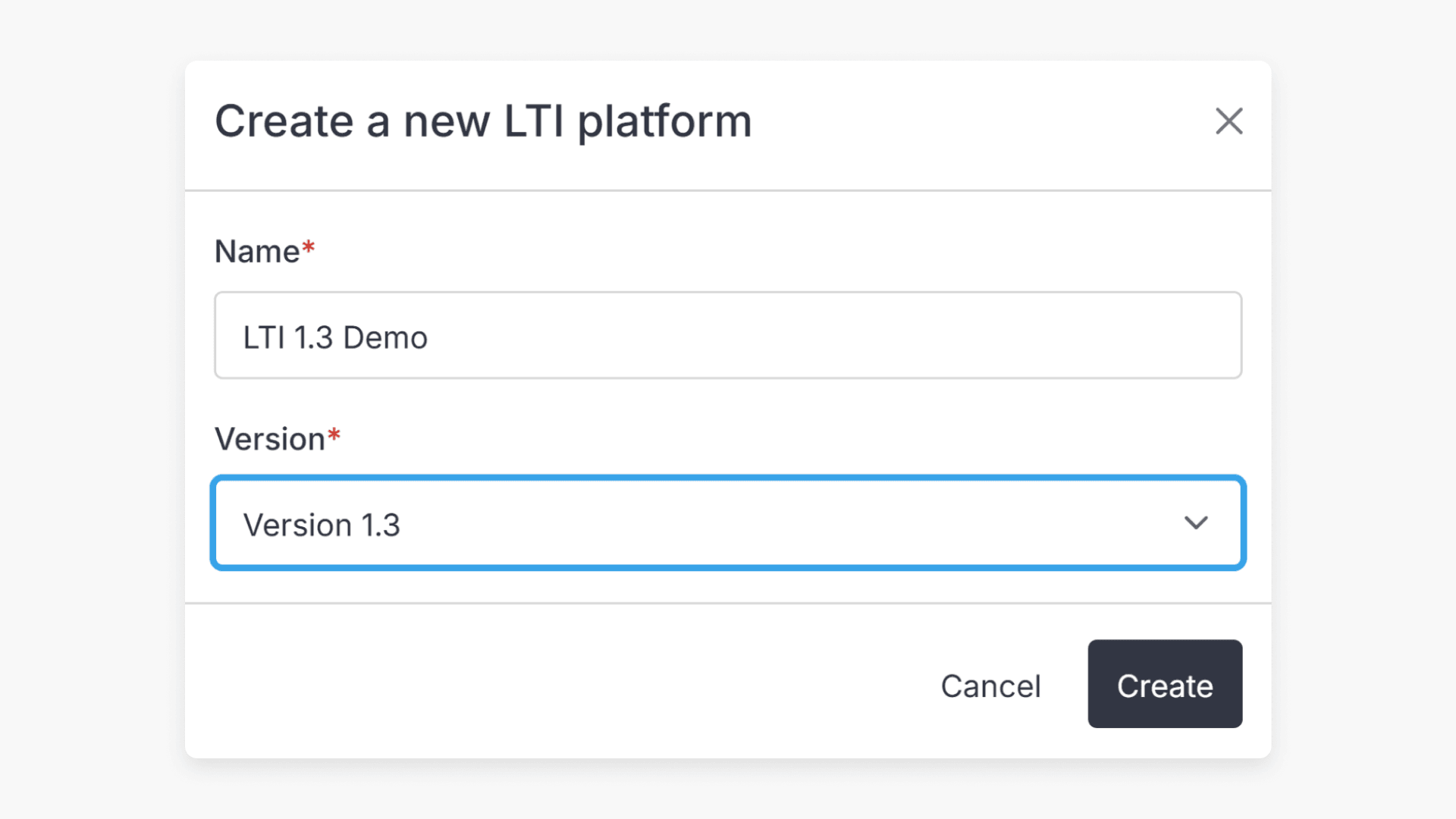
- Select the + Add platform button.

- Enter a name, select Version 1.3, then Create.

- The following will appear: Login URI, Redirection URI, Deep Linking Launch URI, Public Key, Public JWK. Make a copy of these values for Canvas setup.

- Open Canvas and go to the Admin section.

- Access Developer Keys in Account Navigation.

- Select + Developer Key then + LTI Key.

- The Key Settings window will open. Under Method, select Manual Entry.

- Set Key Name as “ClickView.” Paste Redirection URI into the ‘*Redirect URIs:’ field.

- In the Configure screen, enter the following:
- Paste Login URI into ‘OpenID Connect Initiation Url’
- Paste Redirection URI into ‘Target Link URI’
- Select ‘Public JWK’ for ‘JWK Method’
- Paste Public JWK into ‘Public JWK’ field

- Add Editor Button and Assignment Selection from the drop-down.

- Select Save.

- Open the Editor Button options and enter the following:
- Paste Deep Linking Launch URI from ClickView into ‘Target Link URI’
- Select LtiDeepLinkingRequest for message type
- Set Icon Url to https://online.clickview.com.au/Assets/images/icons/cv-logo.png
- Set Text to “ClickView”
- Set Selection Height to “800”
- Set Selection Width to “500”

- Set Assignment Selection options.

- Select Save.

- In the Assignment Selection options, enter the following:
- Paste Deep Linking Launch URI into ‘Target Link URI’
- Select LtiDeepLinkingRequest for message type
- Set Icon Url to https://online.clickview.com.au/Assets/images/icons/cv-logo.png
- Set Text to “ClickView”
- Set Selection Height to “800”
- Set Selection Width to “500”

- Under LTI Advantage Services, toggle on the required options.

- Save the configuration.
- Next you need to check the Developer Key State and copy your key. Go to Admin > ClickView > Developer Keys. Toggle on State.

Make note of the key for ClickView.
- Return to ClickView and complete Step 2. Paste your Canvas key and required URLs into these fields: Client ID, Issuer, Access Token URL, Authorize URL, JWK Set URL. Leave Deployment ID blank.

- Client ID: (copy from Canvas)
- Issuer: https://canvas.instructure.com
- Access Token URL: https://<your-canvas-domain>/login/oauth2/token
(ex: https://clickview.instructure.com/login/oauth2/token) - Authorise URL: https://canvas.instructure.com/api/lti/authorize_redirect
- JWK Set URL: https://<your-canvas-domain>/api/lti/security/jwks
(ex: https://clickview.instructure.com/api/lti/security/jwks)
- Save all settings.
Add the ClickView app to Canvas
- Go to Settings > Apps > View App Configurations > + App in Canvas.

- For Configuration Type, choose By Client Id.

- Paste your Client ID.

- Click Install.

- ClickView will now be available in the WYSIWYG editor and as an External Tool in Assignments.
Frequently asked questions
Get in touch
If you’re having trouble finding the right topics or videos, just reach out! Our team - 

 Akhil, Daniel, Jalaj, or any of us at ClickView - will be happy to help you get sorted.
Give feedback
Was this guide helpful?
Up Next
How to set up LTI integration v1.3
This article explains how ClickView administrators can set up LTI 1.3 integration to connect your virtual learning environment (VLE) with ClickView. The setup process allows seamless access to ClickView content without separate sign-in.