How to edit videos and create chapters

Summary
- Go to My Videos and the video you want to update.
- Choose ‘Edit Video’ from the drop-down.
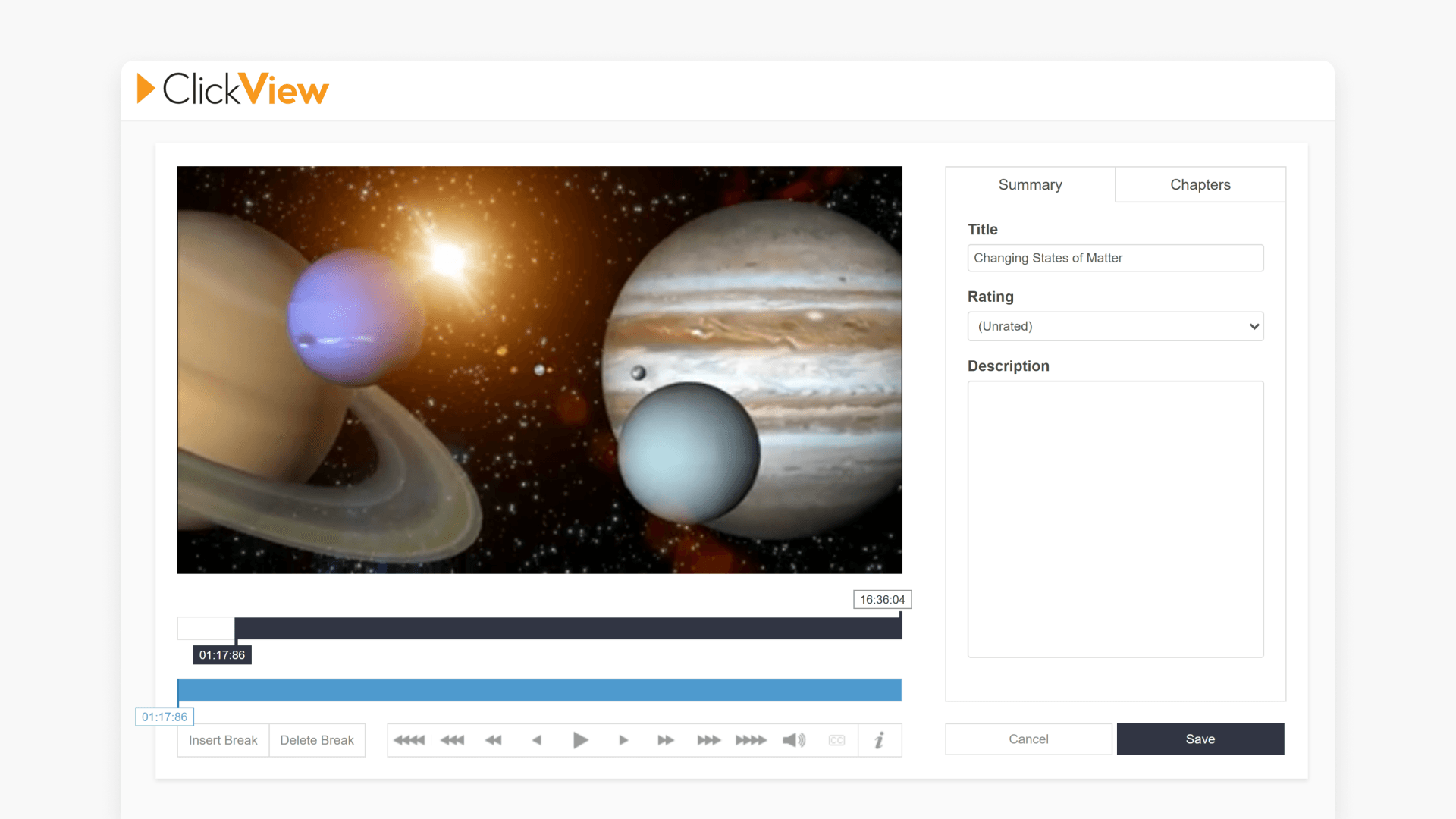
- Use the “Summary” tab to update the title, rating, and description.
- Use the black trim bar to adjust the video start and end times.
- Drag the blue bar and select “Insert Break” to add chapters.
Editing video and chapter details
With ClickView, educators can update video metadata, including the title, description, rating, chapters, and duration. Adding video chapters helps present focused content for class activities.
Accessing video editing in My Videos
- Go to your My Videos page.
- On the right-hand side of the video, select the 3-dot button to open the drop-down menu. Select Edit video.

Trim the video start and end times
Use the black bar below the video window to set the start and end times for the video section you want to keep.


Create and manage chapters
- Use the blue bar under the video window to navigate to where you want a new chapter to start.
- Drag the indicator to the correct point, then select “Insert Break”.

- Repeat this process to add as many chapters as you need.
- To remove a chapter break, move the indicator to the break point and select “Delete Break”.

- Chapters also appear in the right panel under the “Chapters” tab. Point your mouse at a chapter for an “X” icon to remove it individually. To remove all chapters, select Clear Chapters at the bottom.

Tip: Use the keyboard shortcuts shown below the editor to make precise adjustments and place chapter breaks exactly where you want them.

Update title, rating, and description
- Select the “Summary” tab to the right of the video editor.
- Update the title, rating, and description as needed.

- When you are ready to apply your edits, select “Save”.

- A confirmation pop-up will appear letting you know your changes have been saved and prompting you to return to My Videos.

Accessing your edited videos
- After you save your changes, the edited video will begin processing. While this happens, the video displays a Processing status with a blue progress bar and percentage so you can track progress.

- When processing is complete, the edited version appears at the top of My Videos, showing the updated title, description, and rating.

- The original version of the video remains in My Videos and appears directly below the edited version.

Frequently asked questions
Get in touch
If you’re having trouble finding the right topics or videos, just reach out! Our team - 


 Andrew, Nisch, Janice, Pfreya, or any of us at ClickView - will be happy to help you get sorted.
Give feedback
Was this guide helpful?
Up Next
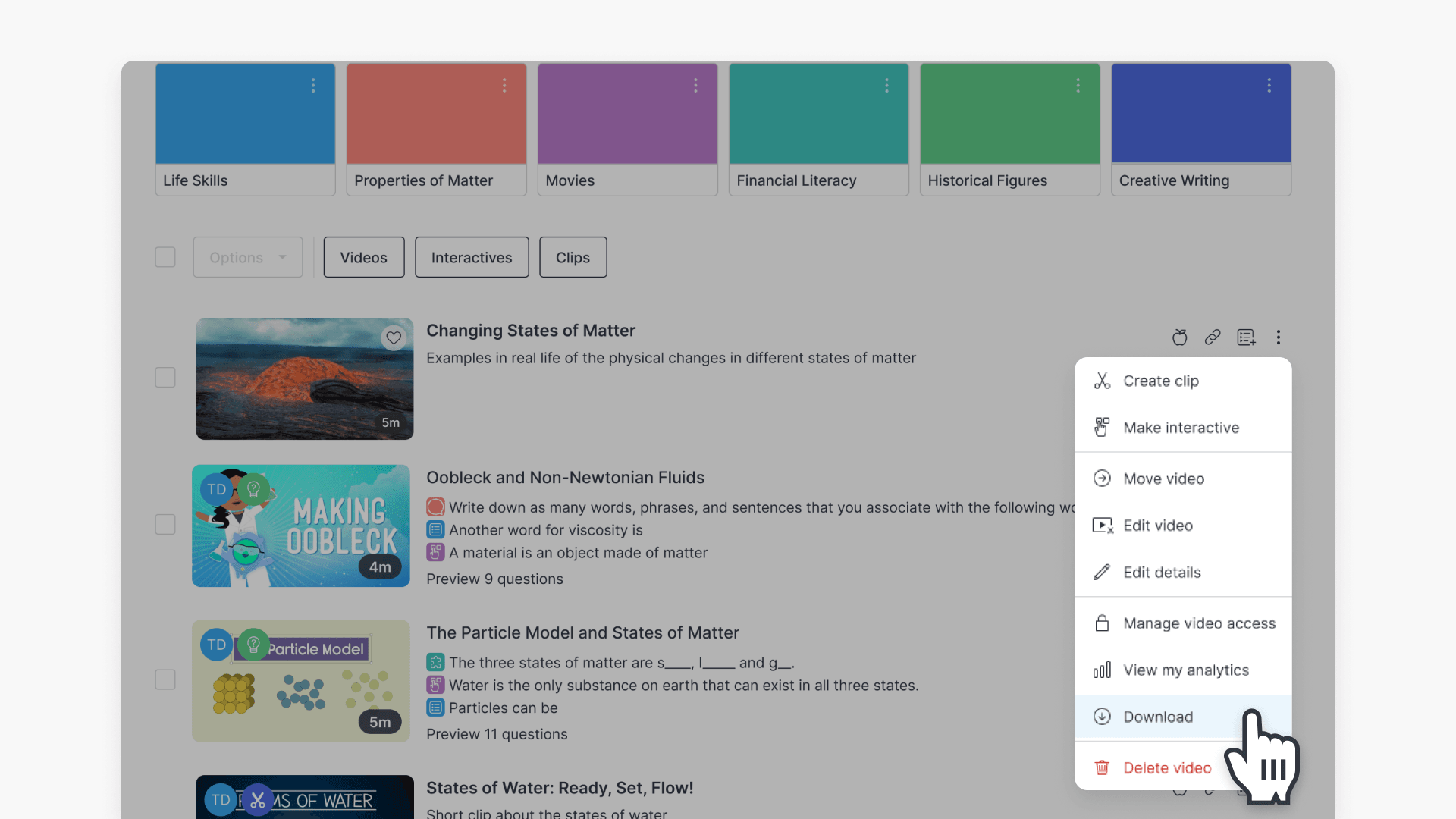
How to download a video from My Videos
This article guides educators on how to download a video from My Videos in ClickView. Follow clear, step-by-step instructions to save your video as an MP4 file on your device.