How to set up and manage classrooms

Summary
- Click the ‘Classrooms’ item in the menu on the left.
- Use ‘+ Create classroom’ to create and name a classroom.
- Click on a classroom to manage students and staff.
- Use ‘+ Add students’ or ‘+ Add staff’ to add participants.
- Share classroom access via join code or invite link.
- Archive or restore classrooms using ‘Archive classroom’ and ‘Retrieve classroom’.
Creating and managing classrooms
ClickView enables staff and admin users to create virtual classrooms to organise students and facilitate blended learning. You are automatically assigned as the owner when you create a new classroom and can invite additional staff members for content sharing.
How to create a classroom
- Click the ‘Classrooms’ menu item from the left side of the screen.

- Select the + Create classroom button and enter a name for your classroom.

Favourite classrooms
- To mark a classroom as a favourite, select the ‘Classrooms’ tab.

- Click the star next to the classroom name.

- You can mark multiple classrooms as favourites.

- Your favourite classrooms appear in the left-hand menu and at the top of your classroom list.

Add students to a classroom
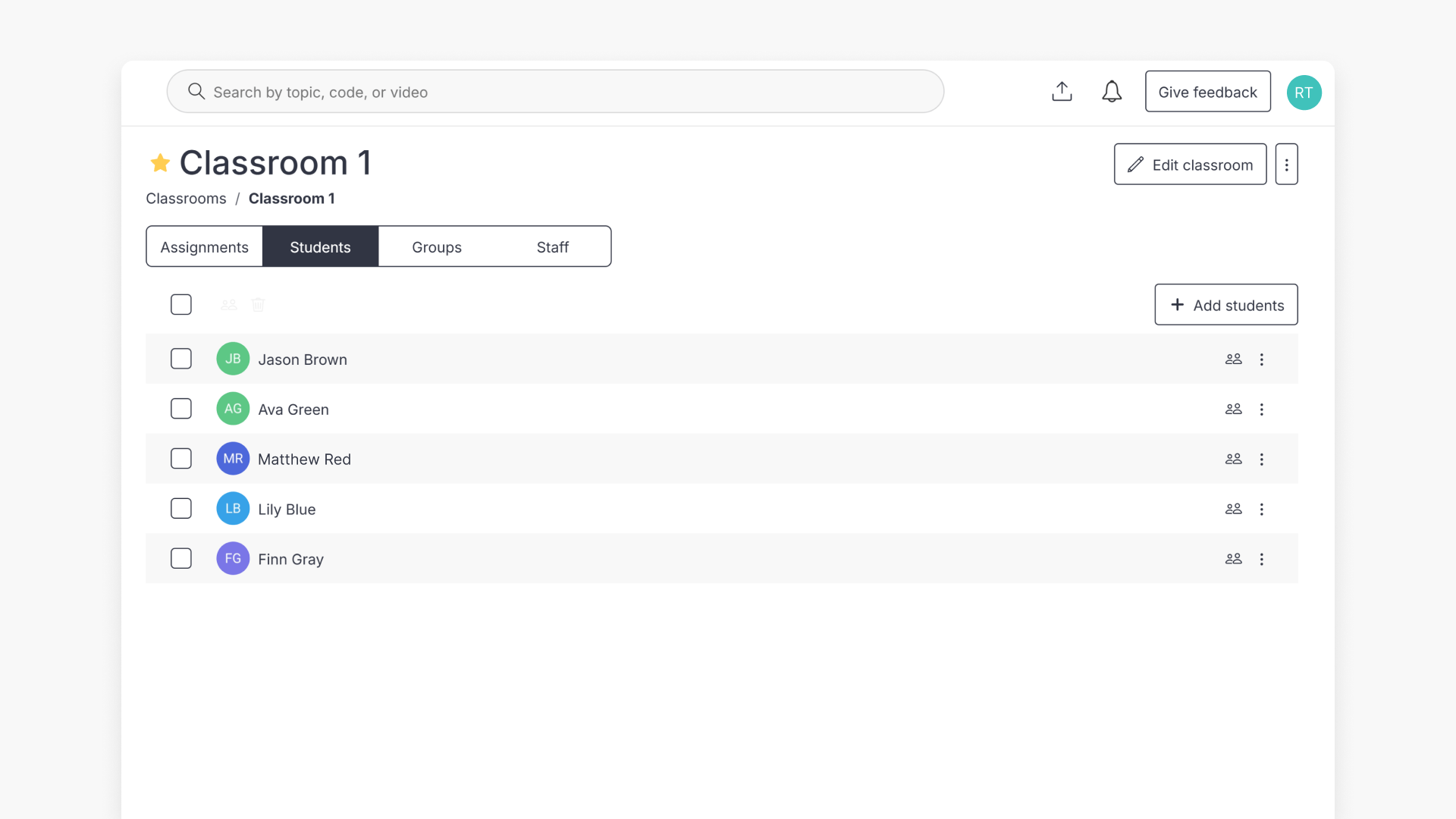
- Click on the classroom to open the manage classroom screen. Click + Add students.

- You will first be asked to confirm whether your students already have ClickView accounts:

- If your student accounts have already been created in ClickView, either because you added them manually or your school uses Single Sign-On, select the “Yes, students are set up” option.
- If your students are not yet set up in ClickView, or you are unsure, select the “Not yet” option or click “I’m not sure”. Please reach out to your school’s ClickView Administrator for assistance in setting up student access.

- If your student profiles have already been created by your ClickView Administrator and you select “Yes, students are set up”, you can then add students to your classroom in three ways:
- Add students manually
- Invite students using a classroom code
- Invite students using a classroom invite link

1. Add students manually
- Use the student search box to find students by name.

- Click on the student’s name to add them to your classroom list.
- Click Add students to complete.

2. Invite students using a classroom code
- Give students the five-digit classroom code displayed on your invite screen.
- Classroom codes expire after 7 days. If a code has expired, return to the invite screen to generate a new one.

- Classroom codes expire after 7 days. If a code has expired, return to the invite screen to generate a new one.
- If students are not logged into ClickView, ask them to visit clickview.net/join, then enter the class code.

- If students are already logged in, ask them to click their initials and select ‘Join classroom’, then enter the code.

- Students will see a confirmation once they join.

3. Invite students using a classroom invite link
- Click the integration icon (Microsoft Teams or Google Classroom) to send the invite, or use the ‘Copy link’ button to copy and send the link directly.

- Students follow the link, sign in, and receive a notification confirming classroom access.


Add staff to a classroom
- Click on the classroom to go to the manage classroom screen.

- Click + Add staff, then type to search for the staff member.

- Click their name and then the Add staff button.

- Staff will be sent an email with a join link.

- Optionally, promote staff to classroom owner.

How to archive a classroom
- Select the classroom, click the three vertical dots in the top right, and choose ‘Archive classroom’.

- Tick the I understand the above box and click ‘Archive classroom’ on the pop-up notification.

- ClickView Administrators can access archived classrooms via the Archived classrooms page in Settings under School management.

- To restore a classroom, use the ‘Retrieve classroom’ icon next to the classroom, then confirm in the pop-up window.


Groups within a classroom
Once your classroom is set up with students and staff, you can create student groups for differentiated learning. For guidance, see the article on setting up groups within classrooms.
Sharing content with your classroom
Classrooms let you share content with your entire class or specific student groups. For details, see the article on sharing videos.
Frequently asked questions
Get in touch
If you’re having trouble finding the right topics or videos, just reach out! Our team - 

 Akhil, Daniel, Jalaj, or any of us at ClickView - will be happy to help you get sorted.
Give feedback
Was this guide helpful?
Up Next
How to create Groups in your classrooms
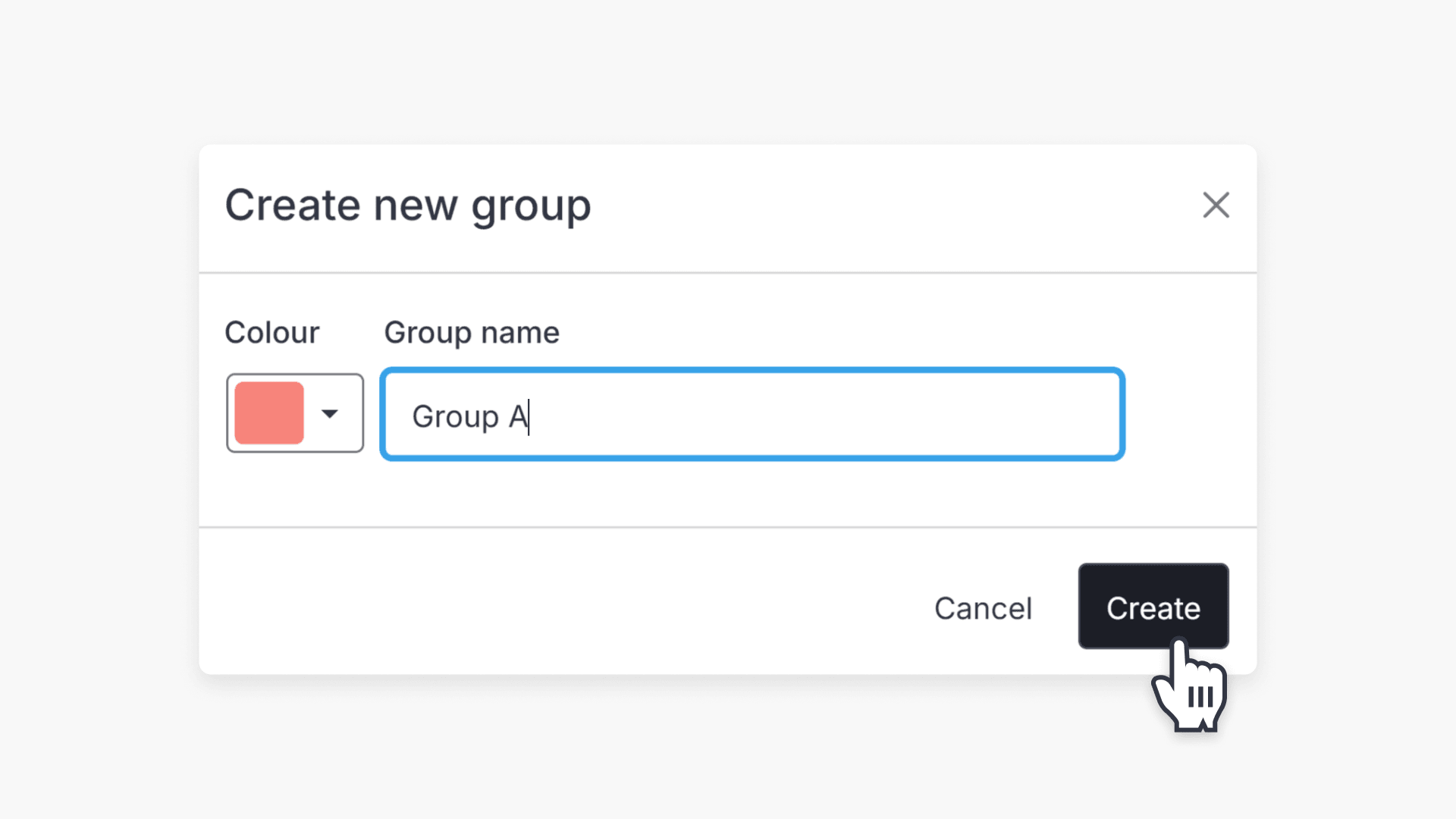
This guide explains how to create and manage student groups in ClickView, add students to groups, and share content for personalised classroom learning.