Record and upload a video in the iOS app

Summary
- Open your profile from the bottom menu
- Tap the Camera icon, then choose Camera
- Record a video and upload it to My Videos
- Add a Title and Description to finish the upload
- Find your upload anytime in My Videos
Recording and uploading your own video
The ClickView iOS app lets you quickly capture a video on your device and upload it straight to My Videos. This is useful for adding short teacher explanations, student presentations, or classroom updates to your ClickView library for easy access later.
- Open the ClickView app and select your profile from the main menu at the bottom of the screen.
- Tap the Camera icon.

- When prompted, choose Camera.

- If asked, allow ClickView access to your camera.

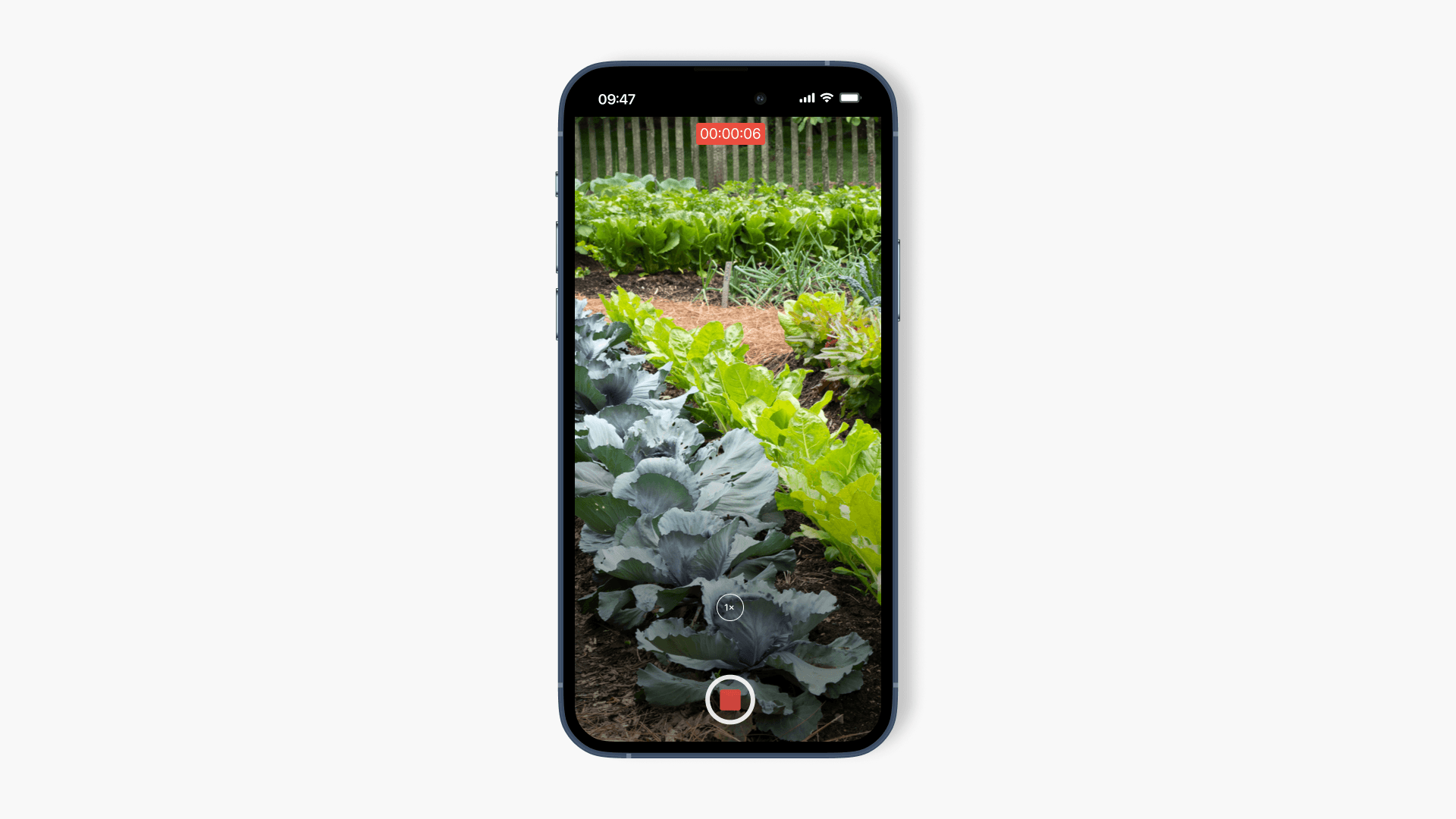
- Record your video using your device camera, then finish the recording.

- Your video uploads to your ClickView account.

- After the upload, enter a Title and Description to complete the details.

- Your newly uploaded video will appear in My Videos, ready to view and share when you need it.

Next steps
After your video is uploaded, you can return to My Videos at any time to manage it. For example, you can update the title and description later to make it easier to find and reuse.
Share your uploaded video
Once your video appears in My Videos, you can share it with students or colleagues directly from the iOS app. To learn the available sharing options and the steps to use them, see How to share videos in the iOS app.
Frequently asked questions
Get in touch
If you’re having trouble finding the right topics or videos, just reach out! Our team - 


 Andrew, Nisch, Janice, Pfreya, or any of us at ClickView - will be happy to help you get sorted.
Give feedback
Was this guide helpful?
Up Next
Record and upload a video in the Android app
This article explains how educators can use the ClickView Android app to record new videos or upload existing clips directly to My Videos. Step-by-step instructions help you capture, describe, and share content with your school community.