How to use the ClickView iOS app

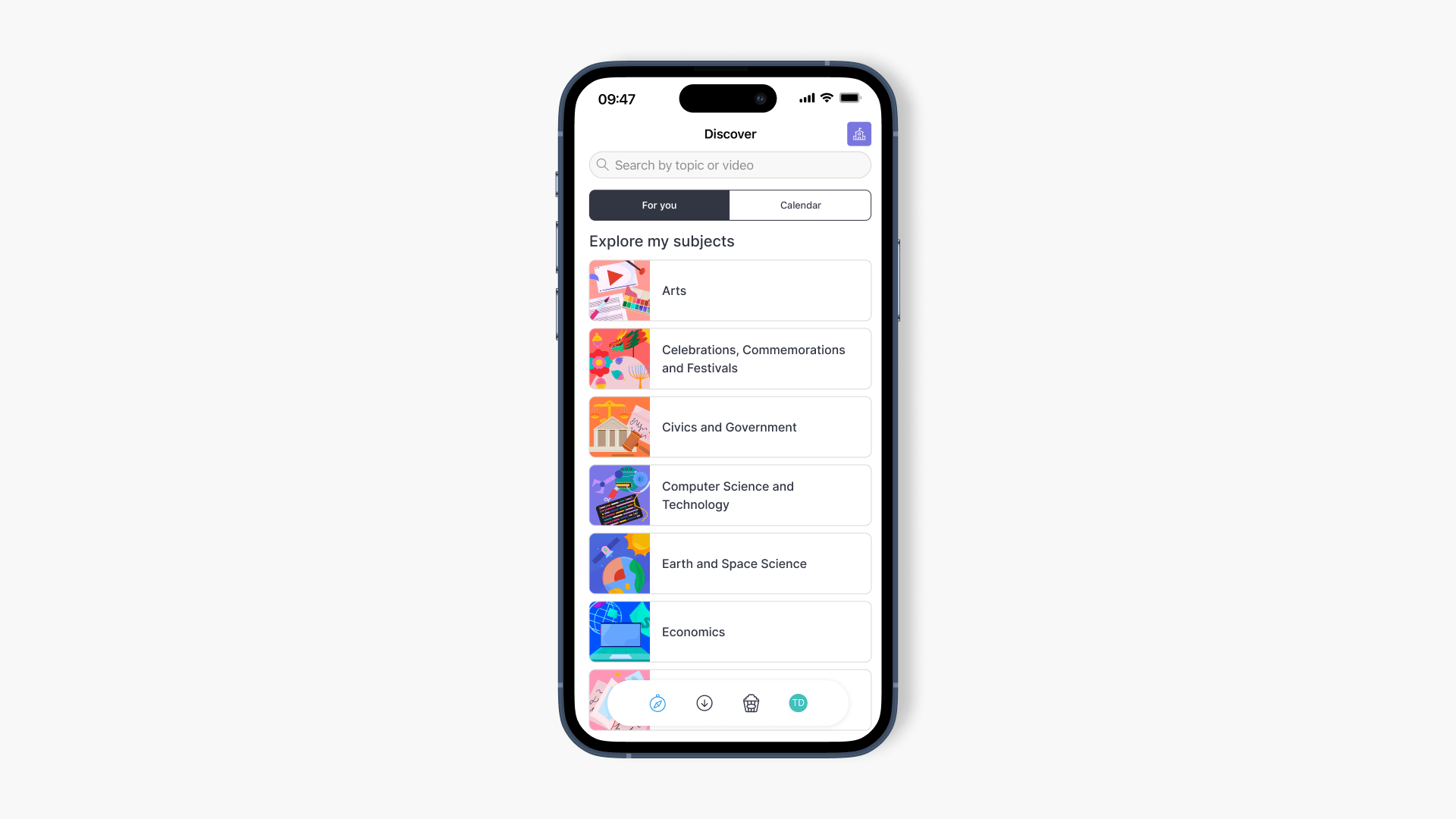
Summary
- Download the ClickView app from the App Store.
- Install the app, then open it from your Home Screen.
- On the sign-in screen, confirm your region at the bottom of the page.
- Sign in using your ClickView credentials.
- Use the bottom menu to open Discover, My Videos, Movies + TV, or Downloads.
- Use the Filter button in Discover to narrow search results.
- Pause playback to show video controls while watching.
Getting started with the iOS app
The ClickView iOS app allows educators and students to access thousands of K–12 classroom videos and resources on an iPhone or iPad. This guide explains how to download and install the app, sign in, explore content, and use key features.
Install the app
- Open the App Store on your iOS device.

- Tap the Search icon, then type ClickView in the search bar.
- Find the ClickView app in the results and tap GET to download it.

- If needed, stop the download by tapping the download tracker.

- When the download completes, tap OPEN to launch the ClickView app.

How to sign in
- Open the ClickView app on your iPhone or iPad.

- On the sign-in screen, make sure your correct region displays at the bottom.
- Enter your credentials and sign in.

The navigation menu
After signing in, you’ll see five main sections in the bottom menu:
- Discover: Search content and view featured videos.

- My Videos: Access your videos, including Interactive Videos, Clips, and Playlists. Upload or record videos by clicking the camera icon in the top right corner, or create folders by clicking the “+” sign in the top left.

- Movies + TV: View educational movies and TV series.

- Downloads: Watch videos you have downloaded to your device.

Filter your video search
- Begin searching for a video in the Discover section.
- Click the Filter button at the top right to refine your results.

You can filter by:
- Year Groups: Show videos by year group.
- Topics: Filter by topics such as History or Maths.
- Types: Filter by Clips, Interactives, and other video types.
- Ratings: Restrict results by rating (E, TV-PG, etc.).
- Features: Filter for HD, Subtitle, and other features.
- Production Year: Filter by released date, such as This Year or Last 3 Years.
- Duration: Filter by video length (Short, Medium, etc.).
Use video controls
While watching a video, pause playback to view multiple icons for controlling the video.
Frequently asked questions
Get in touch
If you’re having trouble finding the right topics or videos, just reach out! Our team - 


 Andrew, Nisch, Janice, Pfreya, or any of us at ClickView - will be happy to help you get sorted.
Give feedback
Was this guide helpful?
Up Next
Record and upload a video in the Android app
This article explains how educators can use the ClickView Android app to record new videos or upload existing clips directly to My Videos. Step-by-step instructions help you capture, describe, and share content with your school community.