How to set up LTI integration v1.1

Summary
- LTI enables your VLE to use external tools from ClickView.
- ClickView is compliant with LTI v1.1 and v1.3 standards.
- Sign in with an administrator account and go to ‘Settings’.
- Select ‘Integrations’, then choose ‘LTI platforms’.
- Select ‘+ Add platform’ and assign a name.
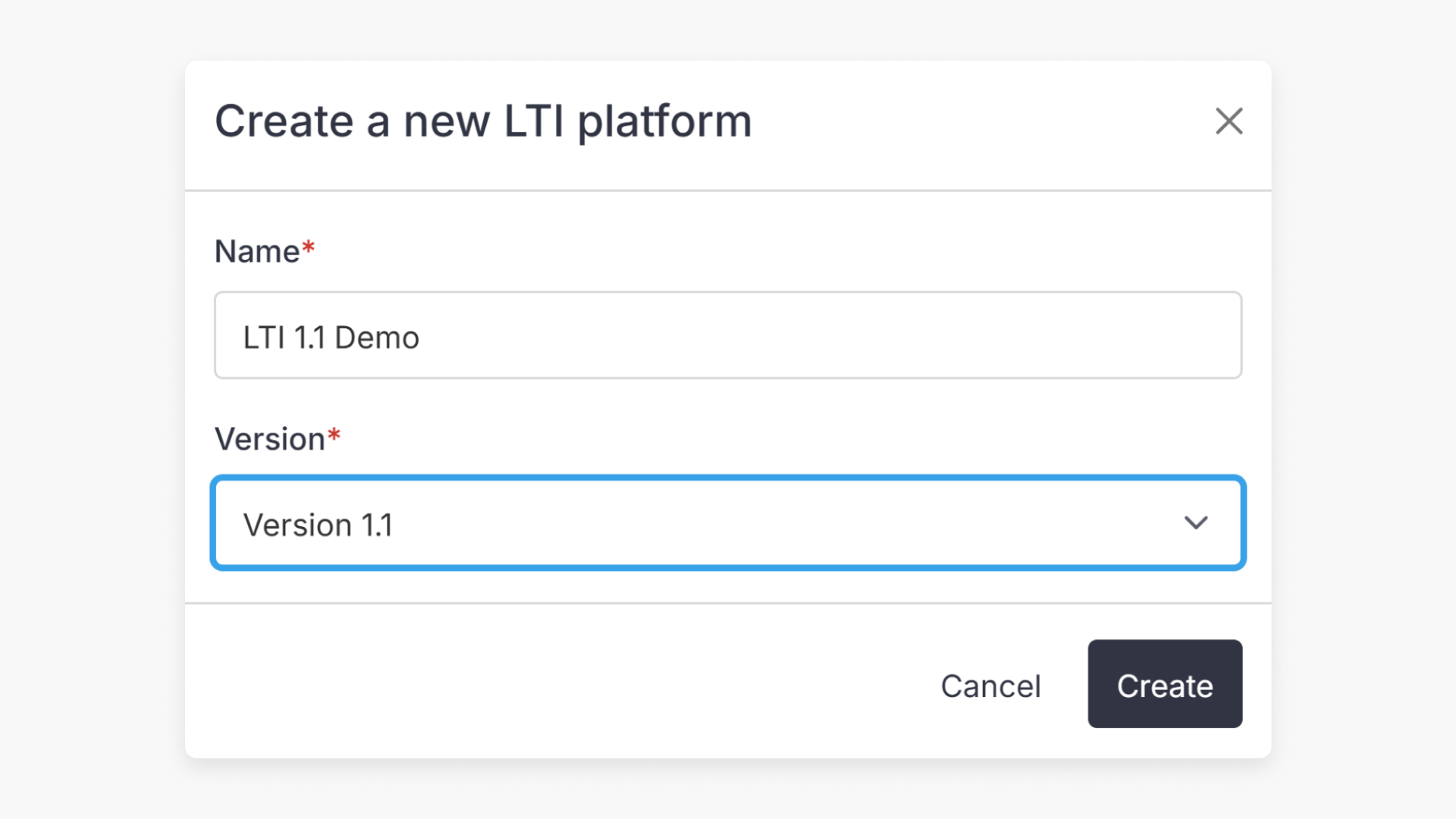
- Select ‘Version 1.1’ to expose integration fields.
- Copy Key, Secret, Launch URL, and XML URL to your VLE.
What is Learning Tools Interoperability (LTI)?
Learning Tools Interoperability (LTI) is a technology standard that allows your virtual learning environment (VLE) to communicate with external platforms such as ClickView. This enables educators to integrate third-party course content and tools directly into their VLE without requiring additional sign ins for students or teachers.
Steps to configure LTI v1.1
- Sign in to ClickView using an administrator account and go to ‘Settings’.

- Under ‘Integrations’, select ‘LTI platforms’.

- Select ‘+ Add platform’.

- Enter a name for your LTI platform and select ‘Version 1.1’.

- Your LTI configuration is now created. The fields required for integration—Key, Secret, Launch URL, and XML URL—will be shown.

- Copy the Key, Secret, Launch URL, and XML URL and enter them in your VLE settings portal to complete the integration.
LTI-compliant learning management systems
For a full list of learning management systems that support LTI, visit the eLearning Industry LMS directory.
Frequently asked questions
Get in touch
If you’re having trouble finding the right topics or videos, just reach out! Our team - 


 Andrew, Nisch, Janice, Pfreya, or any of us at ClickView - will be happy to help you get sorted.
Give feedback
Was this guide helpful?
Up Next
How to set up LTI integration v1.3
This article explains how ClickView administrators can set up LTI 1.3 integration to connect your virtual learning environment (VLE) with ClickView. The setup process allows seamless access to ClickView content without separate sign-in.