Install the ClickView plugin for Canvas

Summary
- Select ‘Settings’ from the sidebar menu in your Canvas course.
- Go to the ‘Apps’ tab within ‘Settings’.
- Find ‘ClickView’ by scrolling or using the search bar.
- Click ‘+Add App’ to add ClickView to your course.
- Enter ‘US’ and click ‘Add App’ to confirm installation.
- Access ClickView in your course text editor.
- Search videos within the ClickView app and embed as needed.
How to set up the ClickView plugin in Canvas
The ClickView plugin for Canvas lets educators safely browse their full ClickView video library and My Videos directly in Canvas. This makes it simple to embed classroom-ready videos into course pages for students.
Step-by-step installation
- Access the Canvas course or account where you wish to install the ClickView plugin.

- Select Settings from the menu on the left-hand side bar:

- Select the Apps tab within Settings:

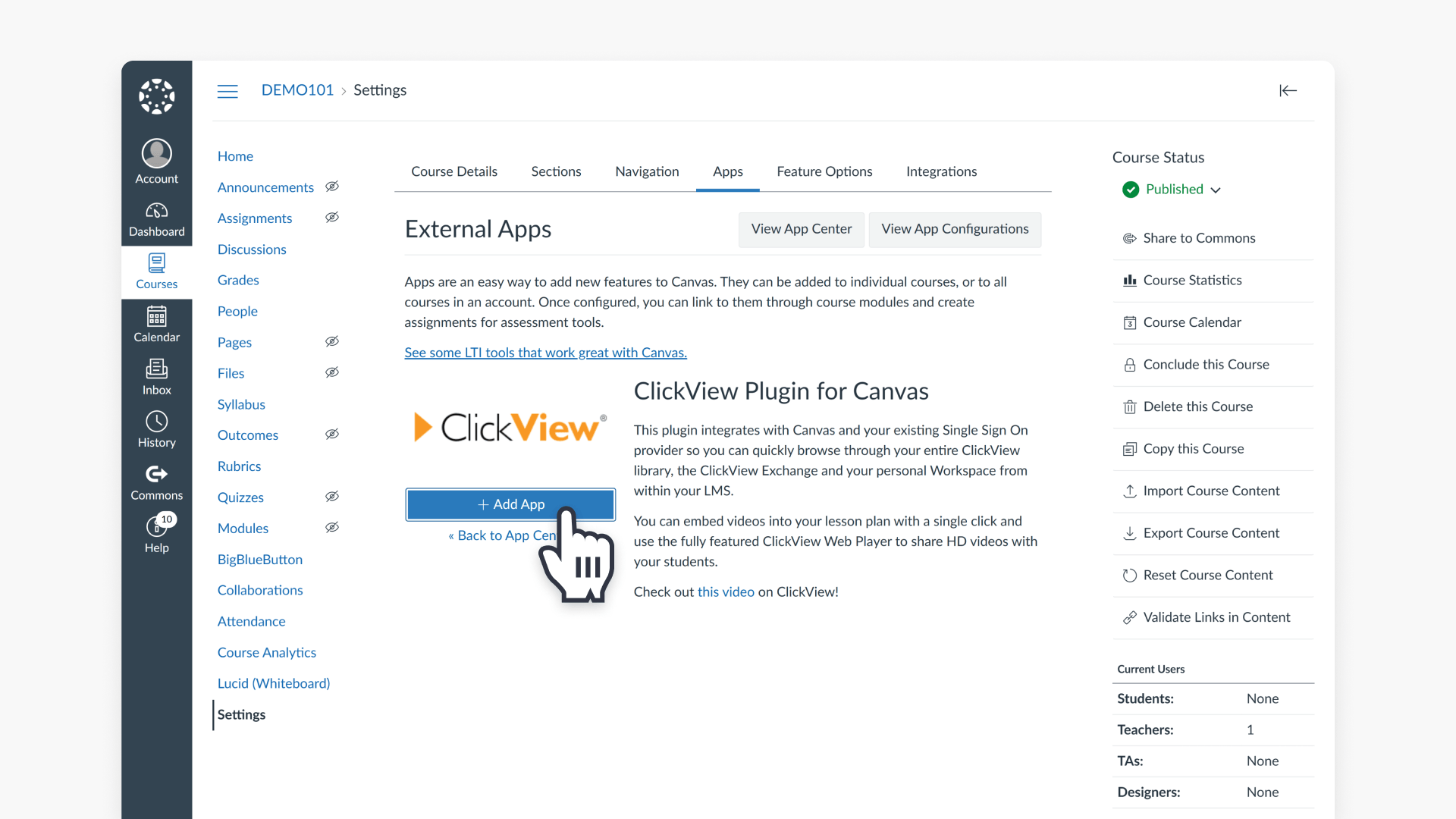
- Scroll down the list of apps until you see the ClickView logo and select it.

- Alternatively, type ClickView into the search bar in the top right to quickly locate the app.

- Select the ClickView Plugin for Canvas.

- Click on +Add App to add the ClickView Plugin for Canvas.

- Enter US and click Add App to confirm installation.

How to embed a ClickView video in Canvas
Once installed, educators can easily search their entire ClickView library or My Videos, select appropriate content, and seamlessly embed classroom resources into Canvas pages for student access.
- Access the ClickView app from your course text editor.

- Search for videos within the ClickView app in Canvas.

- Select the ‘Embed video’ button to the right of the video.

- Choose the appropriate embed size for your course pages.

- Click Embed for the video to appear in your Canvas assignment.

Frequently asked questions
Get in touch
If you’re having trouble finding the right topics or videos, just reach out! Our team - 


 Andrew, Nisch, Janice, Pfreya, or any of us at ClickView - will be happy to help you get sorted.
Give feedback
Was this guide helpful?
Up Next
How to set up LTI integration v1.3
This article explains how ClickView administrators can set up LTI 1.3 integration to connect your virtual learning environment (VLE) with ClickView. The setup process allows seamless access to ClickView content without separate sign-in.