How teachers can request access to your ClickView school

Summary
- Open Settings, then go to User management and select Access settings.
- Choose how teachers join your school: request, invite, or automatic.
- If request access is enabled, approve or deny requests in Staff manager under Access requests.
- If teacher invites is enabled, teachers can use Invite a colleague to email an invite or share an invite link.
- If automatic access is enabled, teachers can join using approved school email domains (generic domains like Gmail or Outlook are not accepted).
What are access settings?
Access settings in ClickView let administrators control how teachers join their school’s ClickView account. You can allow teachers to request access, let existing teachers invite colleagues, or enable automatic account creation for approved school email domains.
Open the access settings
- Click your initials at the top right of the ClickView screen and select Settings.

- Under User management, click Access settings.

Configuring access settings
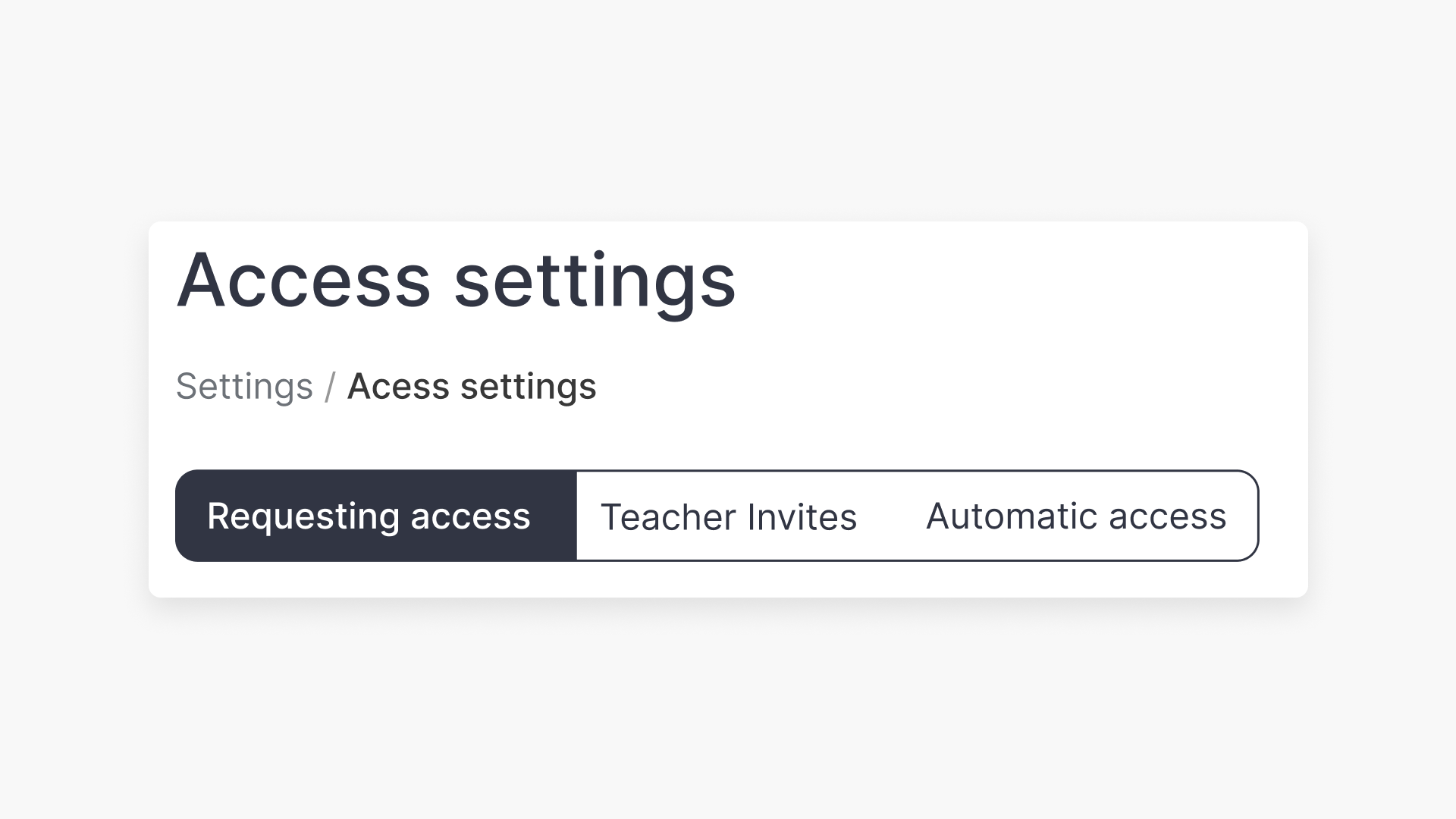
In Access settings, there are three ways teachers can get access to your ClickView account:
- Requesting access
- Teacher invites
- Automatic access

Requesting access options
Within the requesting access settings, administrators can choose one of the following:
- No one can request to join your school
- Prevents teachers from submitting requests. Teachers are instructed to contact their ClickView administrator for access.
- Allow teachers with a specific email address to request to join your school
- Only staff whose email matches designated school domains can submit access requests.
- Note: Generic domains like Gmail and Outlook are not accepted.
- Allow any teacher to request to join your school
- Allows staff to request access using any email address.
1. Requesting access
How teachers request access
- Select Sign up for free at the top right of the ClickView page.

- Click I’m an Educator.

- Enter your school email address and click Continue.

- Select your school’s ZIP code or city.

- Choose your school and click Get started.

- Depending on your school’s access setting, the teacher can submit a request or may be prompted to contact their school’s ClickView administrator.

- A confirmation notification displays once the request is submitted for approval.
How administrators approve or deny requests
Administrators review requests in Staff manager. You can open Staff manager from any of the following:
- Notifications (the bell icon)
- Access settings

- Settings

To approve or deny:
- In Staff manager, click Access requests to view pending requests.

- Approve or deny each request using the relevant button.


What teachers receive after approval or rejection
- If denied: The teacher receives an email notification that access was not granted.

- If approved: The teacher receives an approval email with an Activate my account button.

2. Teacher invites
When teacher invites are enabled, teachers can invite colleagues from within ClickView.
How teachers invite a colleague
- Click your name at the top right and select Invite a colleague.

- Fill out First name and Work email address, then click Send invite.

- A confirmation pop-up appears.

Teachers can also create an invite link:
- Create a link, then click Copy link. Share the link with colleagues.

- To review invitations, click the Pending tab.

What invitees receive
- Invitees receive an email with an Accept invitation button.

- New teachers enter their details and set a password, then click Continue.

- Once completed, the teacher has access to ClickView.

3. Automatic access
Automatic access simplifies onboarding for approved email domains.
Set up automatic access (administrator)
- Select Allow teachers with specific email addresses to automatically join your school.

- Input your school domains.
Note: Domains like Gmail or Outlook cannot be used for automatic onboarding.
How teachers join with automatic access
- Select Sign up for free at the top right of the ClickView page.

- Click I’m an Educator.

- Enter your school email address and click Continue.

- Select the ZIP code or city.

- Select your school and click Get started.

- ClickView confirms the account and displays a notification.

- The teacher then receives an activation email. Click Activate my account.

- Complete the name and password steps to access ClickView.

If No one can automatically join your school is selected, teachers must contact their school’s ClickView Administrator for access.
Frequently asked questions
Get in touch
If you’re having trouble finding the right topics or videos, just reach out! Our team - 


 Andrew, Nisch, Janice, Pfreya, or any of us at ClickView - will be happy to help you get sorted.
Give feedback
Was this guide helpful?
Up Next
How to manage year group rollover with SSO
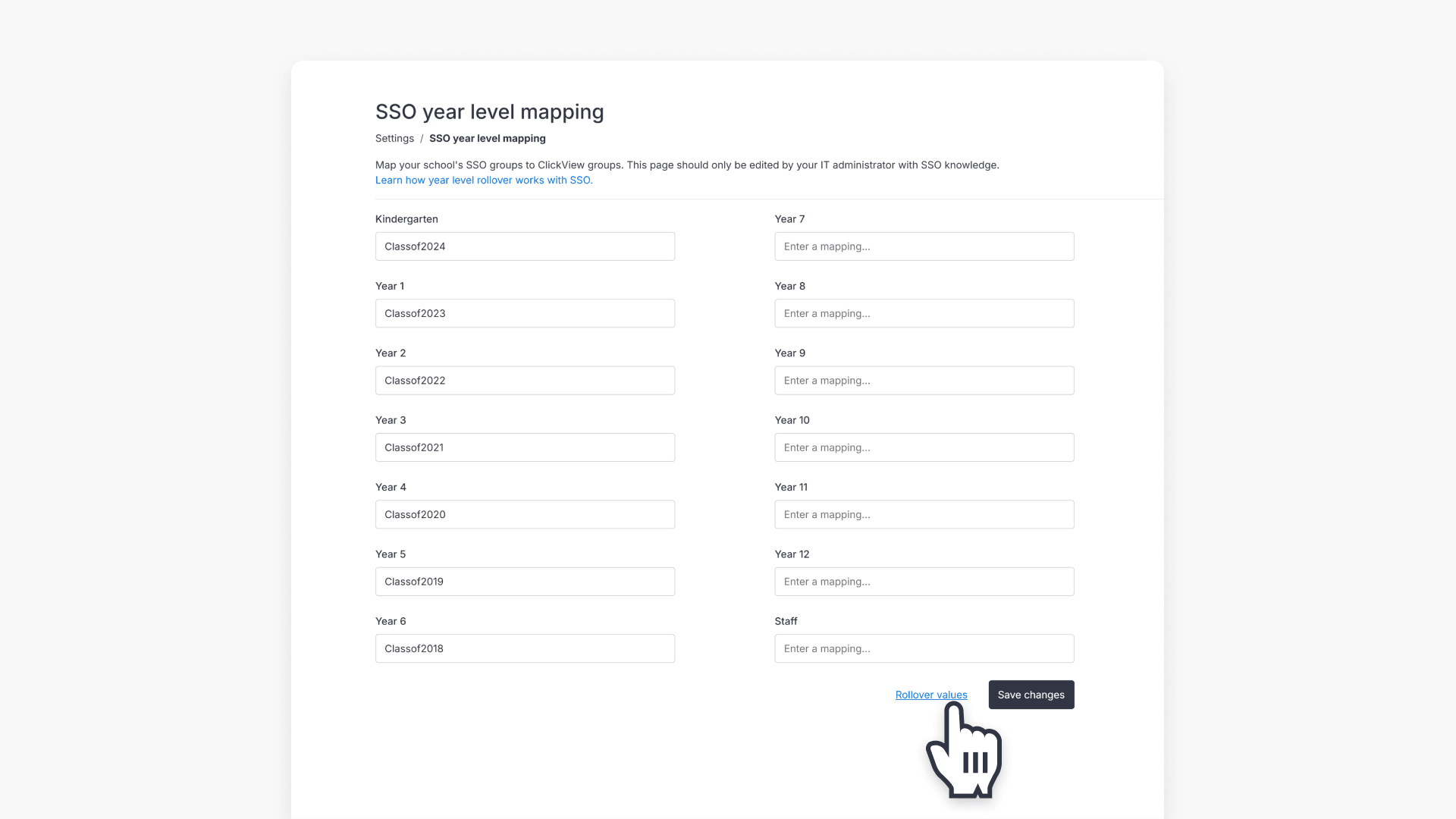
This article explains how administrators can perform annual year group rollovers for SSO groups in ClickView, choose the correct rollover method, and follow step-by-step instructions.