Managing user details with Single Sign-On


Summary
- User details are managed via your school’s Active Directory.
- Sign out and sign in to sync any updated user information.
- First and last names are controlled by Active Directory.
- Email changes are handled by Product Support after validation.
- Year groups are set via Single Sign-On or admin portal settings.
User management via Single Sign-On
User accounts in ClickView are managed outside of ClickView through your school’s Active Directory and Single Sign-On (SSO). IT Administrators control user details, security, and access through these systems. Editing user information directly in ClickView is not possible when SSO is enabled.
If a user’s information is missing or incorrect, they should sign out and sign back into ClickView. This syncs the latest details from Active Directory into ClickView.
User deactivation and deletion must be done by a ClickView Admin, as these actions are not automated by SSO.
How to update first name and last name
For all SSO providers, first name and last name are set in Active Directory. To update these fields:
- Edit the user’s first or last name in Active Directory.
- Ask the user to sign out and sign back into ClickView to sync changes.
How to update email address (username)
For all SSO providers, the user’s email address acts as their ClickView username. If the email address changes:
- A new account will be created in ClickView the next time the user signs in using the new email address. Their previous content will not be accessible under the new account automatically.
- Contact Product Support with the old and new email address. After the update, the user should sign out and sign back into ClickView to continue accessing their existing content.
How to update student year group
Correct year group assignment ensures students can access appropriate content for their age.
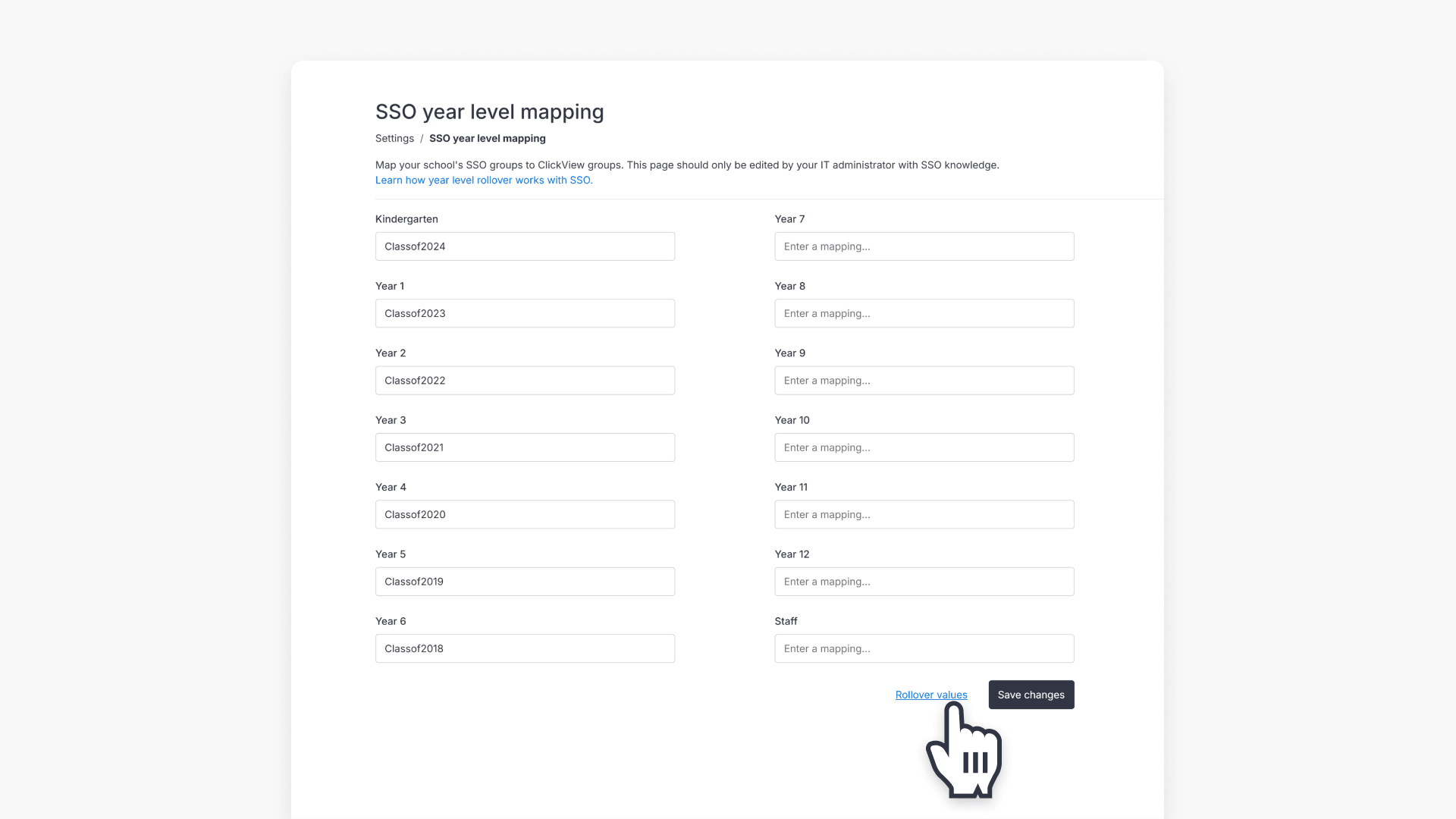
- Year group and staff/student status are determined by attribute values in Active Directory and settings in ClickView.
- If a user’s year group is incorrect after signing back in, compare attribute values in ClickView Settings – SSO with values set in Active Directory.
- Edit or add the appropriate attribute values in ClickView Settings – SSO and select save.
- Ask the student to sign out and sign back into ClickView.
- If problems persist, ensure the user’s attributes in Active Directory match those in ClickView, or contact Product Support for assistance.
Frequently asked questions
Get in touch
If you’re having trouble finding the right topics or videos, just reach out! Our team - 


 Andrew, Nisch, Janice, Pfreya, or any of us at ClickView - will be happy to help you get sorted.
Give feedback
Was this guide helpful?
Up Next
How to manage year group rollover with SSO
This article explains how administrators can perform annual year group rollovers for SSO groups in ClickView, choose the correct rollover method, and follow step-by-step instructions.