Managing AI features on ClickView

Summary
- Only administrators can access AI controls
- Find AI controls in Settings, under School management
- Use the global toggle to turn all AI features on or off for your school
- Use a feature’s own toggle to turn just that feature on or off
Managing AI features in ClickView
We’re adding AI to ClickView to make features easier to use and save teachers time. You stay in control of which AI features are available at your school.
This article covers what AI controls are, where to find them, and how to turn AI features on or off for your school.
Understanding AI controls
AI controls let you choose which AI features are available at your school. It has:
- A school-wide toggle: Turns all AI features on or off for your school
- Individual toggles: Turn each AI feature on or off on its own
AI features are on by default, just like any other ClickView feature.
AI features you can manage
- Auto-translate: Turns a video’s reviewed English captions into captions in other languages. To learn more, read How to use Auto-translate.
Every new AI feature gets its own toggle in AI controls before it goes live.
Find AI controls
Prerequisites: An Administrator account
- Select your initials, then select Settings.
- Under School management, select AI controls.

Turn AI features on or off
- All AI features: Turn the global toggle on or off
- One AI feature: Turn that feature’s toggle on or off, for example, Auto-translate
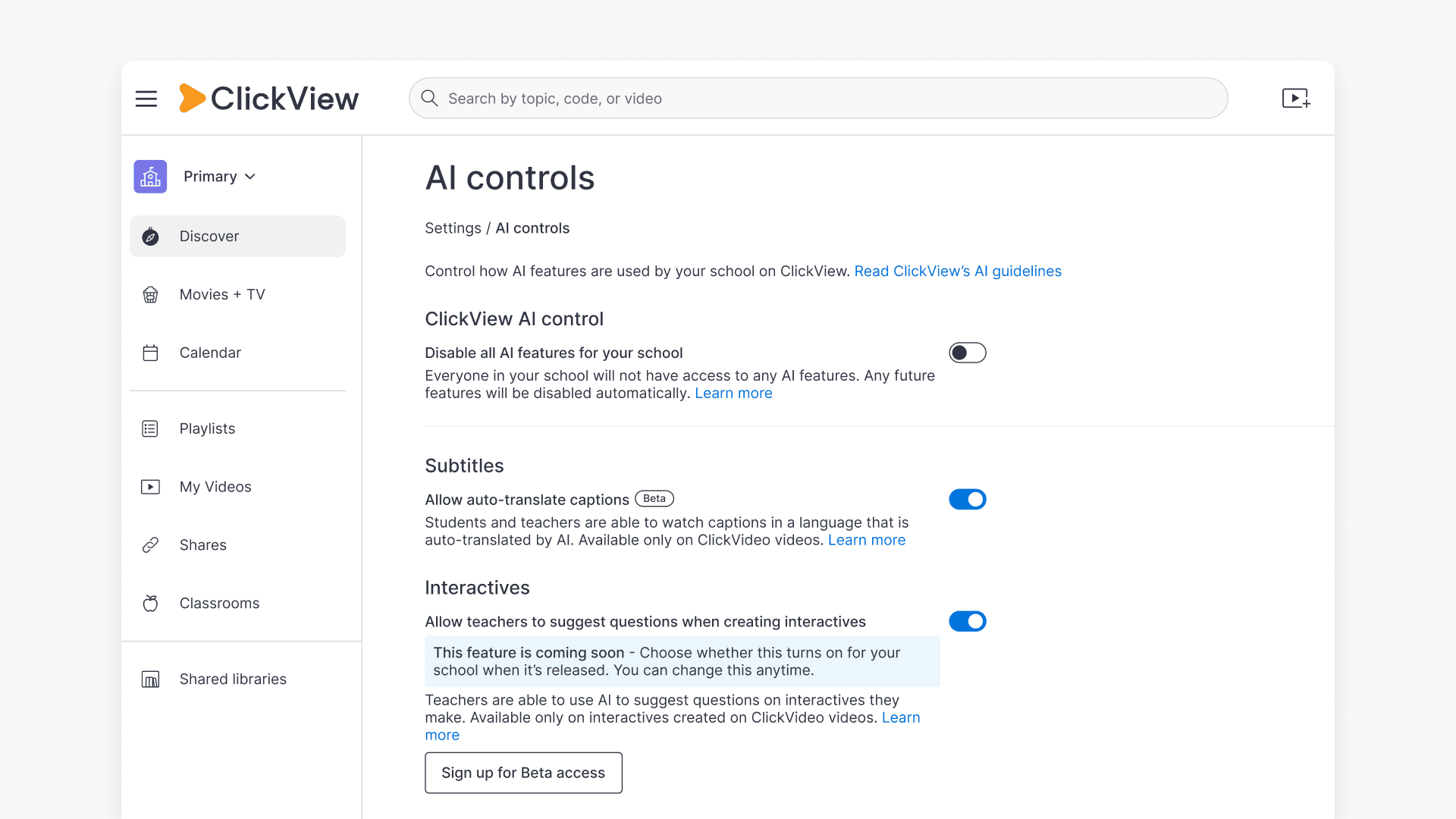
Your changes will be saved as soon as you select a toggle.
How the global toggle and individual toggles work together

An AI feature only works when the global toggle and that feature’s own toggle are both on. For example, if an AI feature is on and you turn the global toggle off, the feature’s toggle will still show as on, but the feature won’t run until you turn the global toggle back on.
Things to know
- New AI features: When we release a new AI feature, it’s on by default. If your school has AI switched off in AI controls, all AI features stay off
- Your data: Each AI feature works from the video, not your personal data or your students’ data. We don’t train AI on your school’s data
- Clear labels: Anything that uses AI is clearly labelled in ClickView
To learn more about how we use AI, read our AI Guidelines.
Frequently asked questions
Get in touch
If you’re having trouble finding the right topics or videos, just reach out! Our team - 

 Akhil, Daniel, Jalaj, or any of us at ClickView - will be happy to help you get sorted.
Give feedback
Was this guide helpful?
Up Next
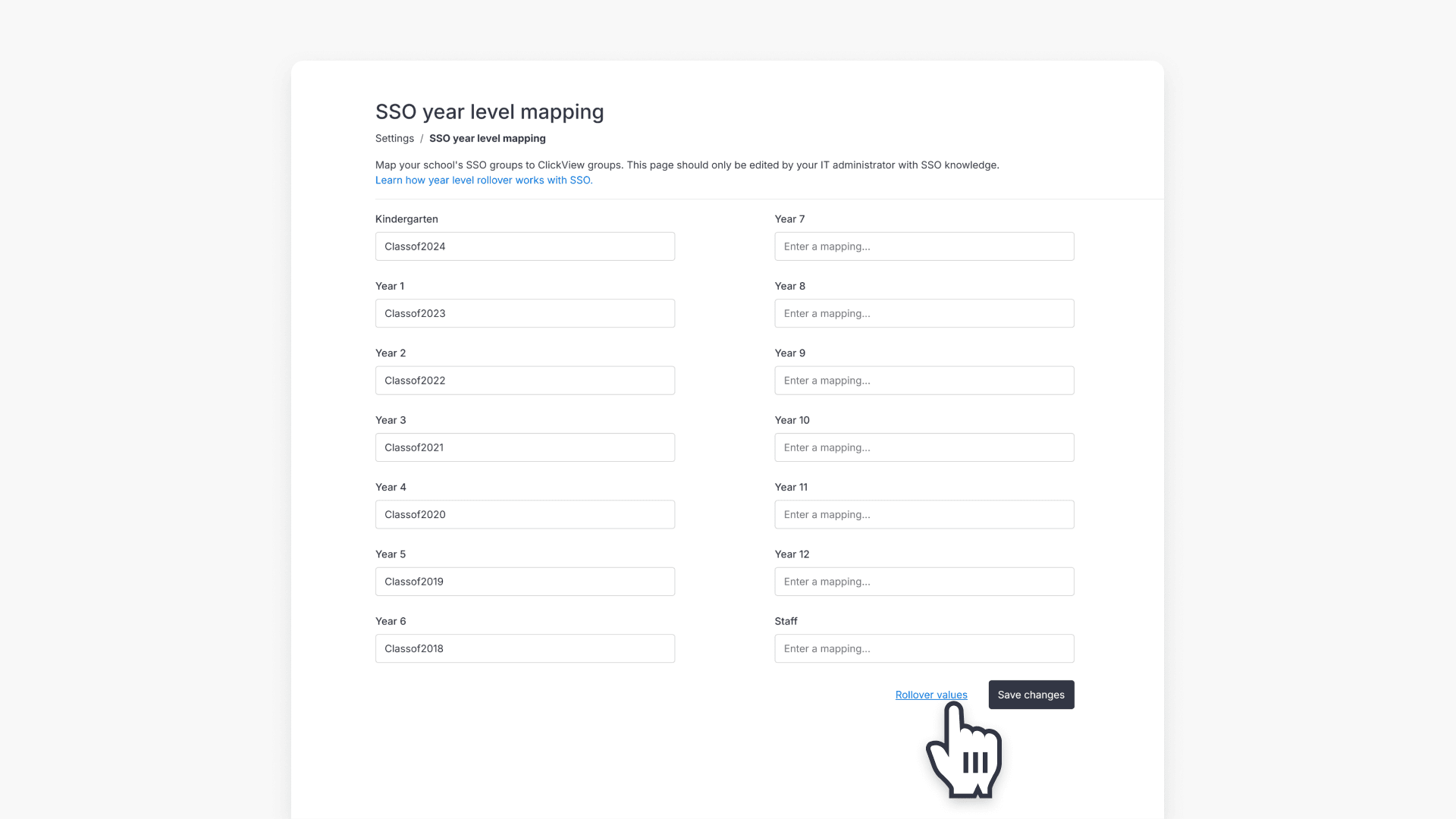
How to manage year group rollover with SSO
This article explains how administrators can perform annual year group rollovers for SSO groups in ClickView, choose the correct rollover method, and follow step-by-step instructions.