How to set up Google Workspace SSO

Summary
- Sign in as administrator at Google Apps Administration Site.
- Select Apps > Web and mobile apps.
- Add a custom SAML app for ClickView.
- Download IdP Metadata and send the XML file to Product Support.
- Enter ACS URL and Entity ID from the regional table.
- Complete attribute mapping with organisation unit path or Google Groups.
- Enable app for all users and submit SSO onboarding form.
Step-by-step SSO integration guide
This article explains how to integrate Google Workspace Single Sign-On (SSO) for ClickView, with step-by-step instructions for setup and attribute mapping. Follow these steps to connect your Google Workspace account to ClickView and support seamless authentication for both staff and students.
- Sign in to your Google Apps Administration Site with an administrator account.
- In the left-hand pane, select Apps > Web and mobile apps.

- Click Add app then Add custom SAML app.

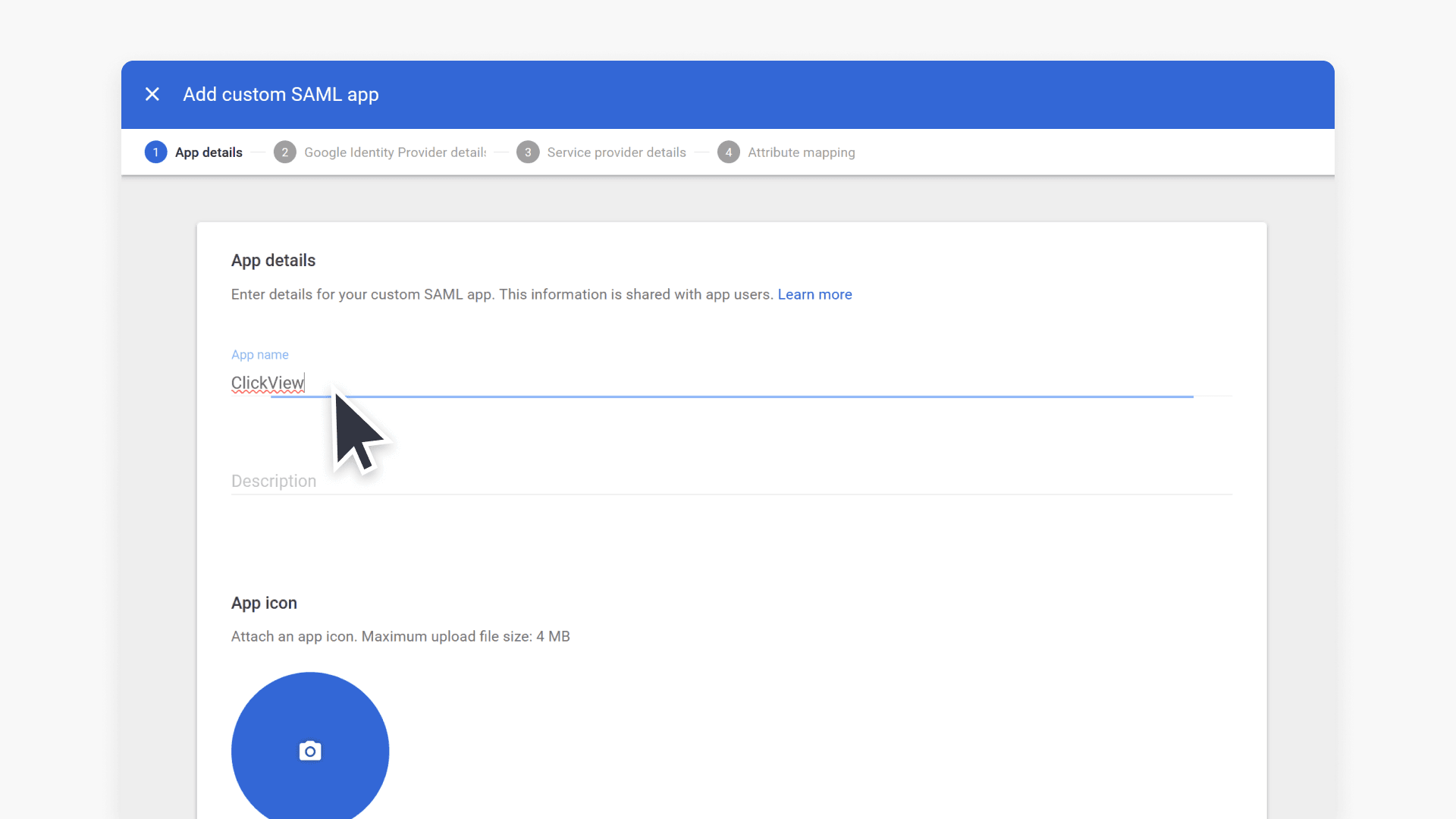
- Enter Application Name and App Icon. Recommended application name is ClickView. Click Continue.

- Choose Option 1 and Download IdP Metadata. Send the GoogleIDPMetadata.xml file to Product Support. Then click Next.

- Enter the ACS URL and Entity ID according to your region, then press Continue:
- ACS URL: https://saml-in3.clickview.co.uk/Shibboleth.sso/SAML2/POST
- Entity ID: https://saml-in3.clickview.co.uk/shibboleth

- In the Attribute mapping section, enter the required basic attributes, including First name, Last name, and Primary email address. You must also include an attribute for the user’s level of access (staff or student) and, if a student, their year group. Choose only one mapping method:
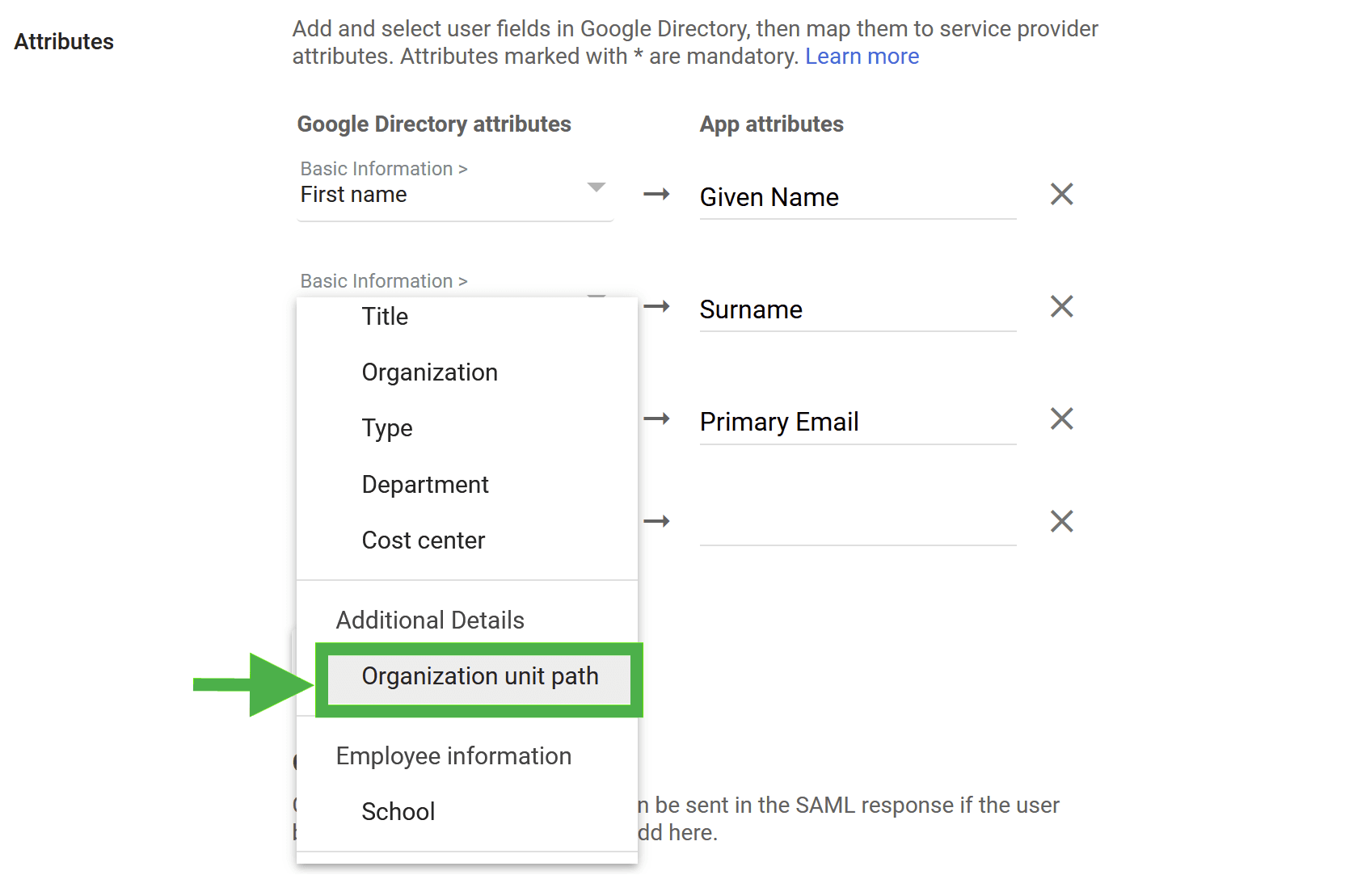
Option I: Using organisation unit path
In SAML attribute mapping, add the Organisation unit path. Click Save.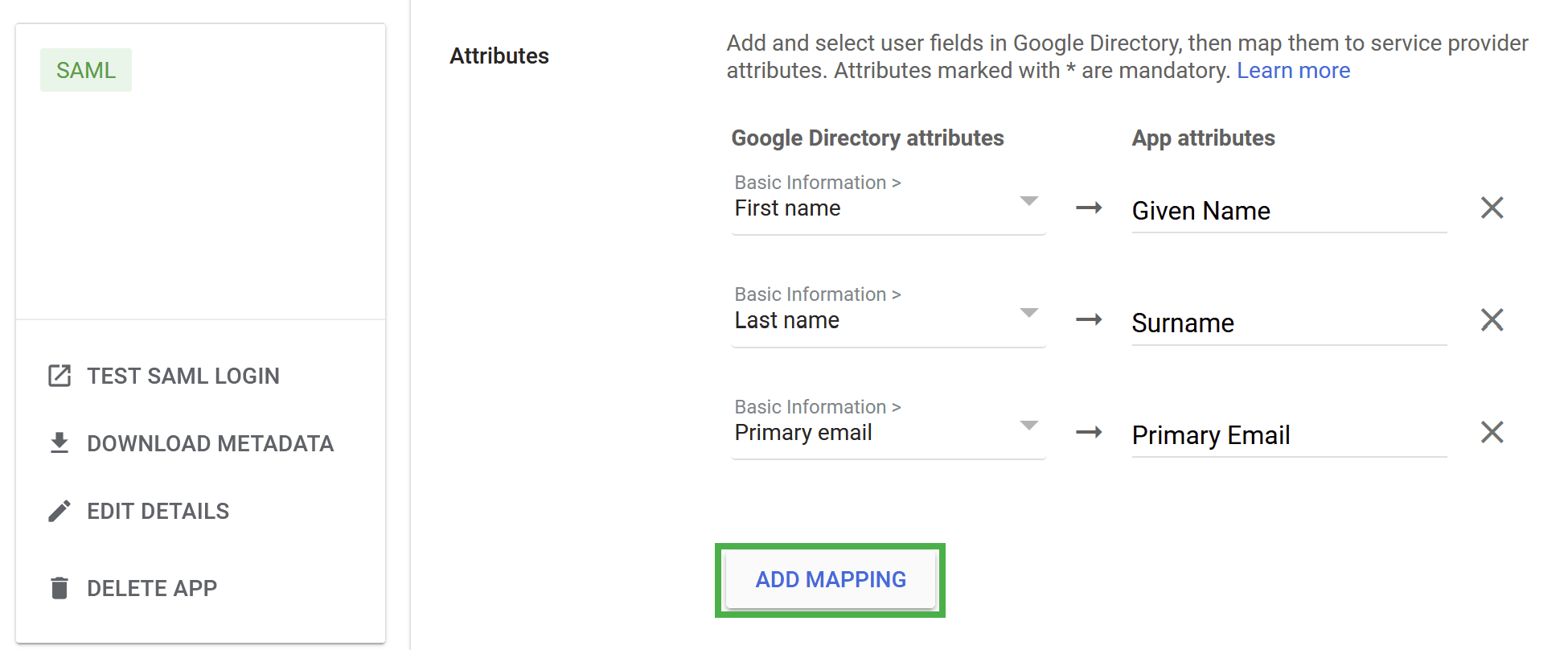
- How do I retrieve the full path in Google Admin?
- Sign in at https://admin.google.com with your admin account.
- Navigate to Directory > Organisational Units.
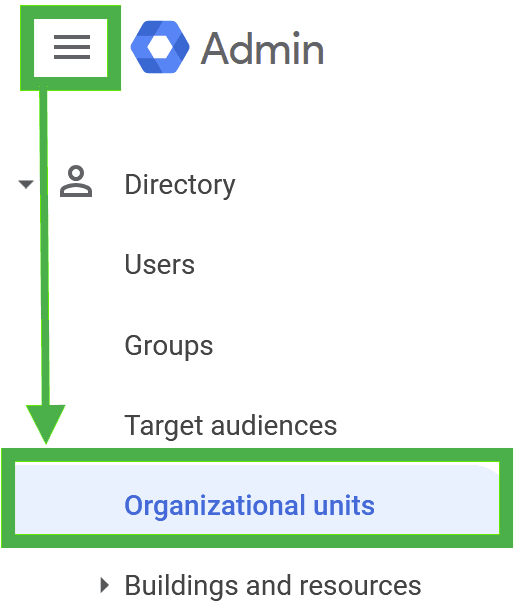
- Select the lowest level of the organisation unit path.

- Click the + symbol to reveal the Parent organisational unit.
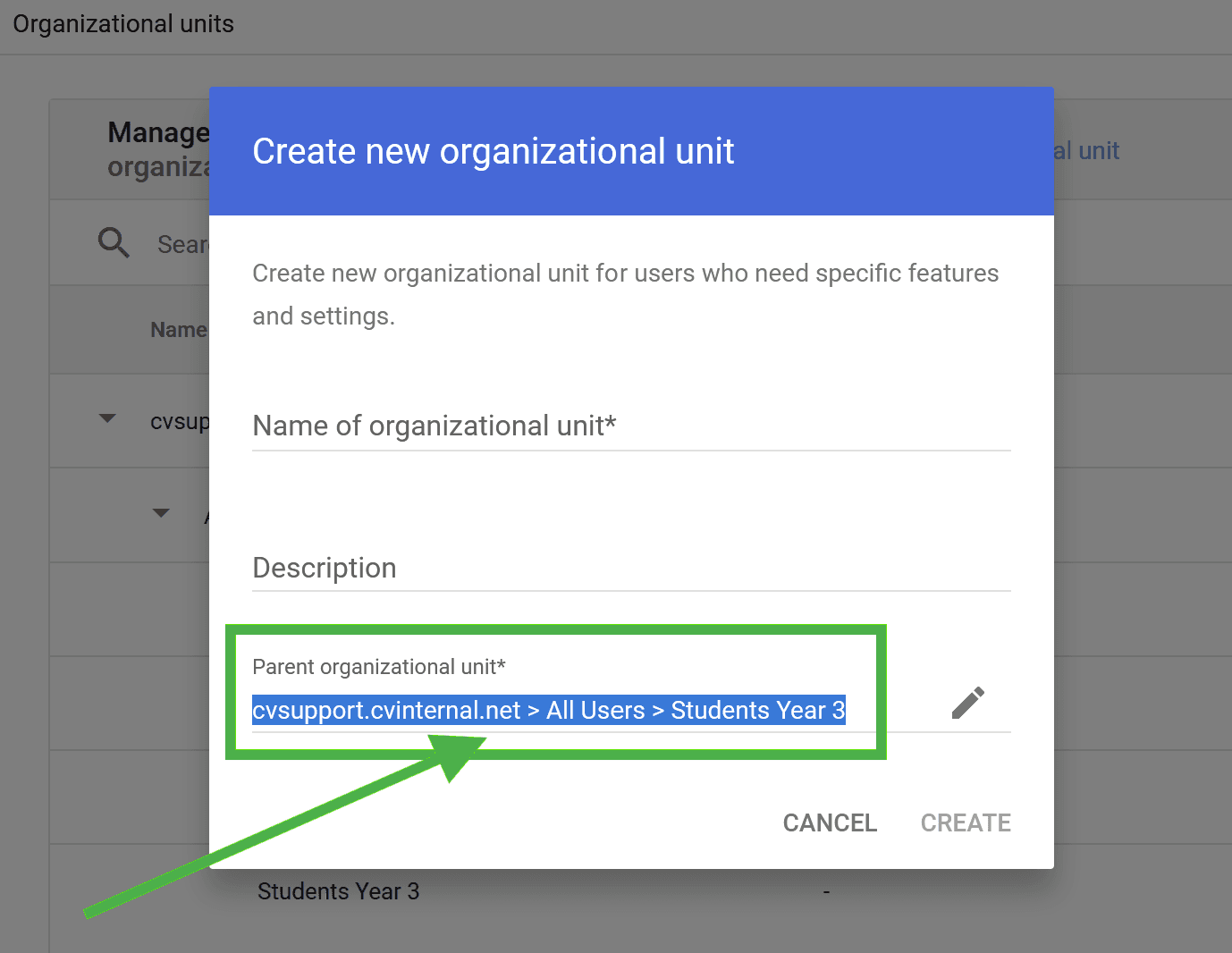
- Copy the full parent organisation unit and paste its value for each year group and staff organisational unit in the SSO onboarding form.
Option II: Using Google groups
- In SAML attribute mapping, scroll to the bottom and search for the desired groups under the Group membership (optional) heading.

- Enter the ‘App attribute’ value as ‘Department’. Click Save.
Option III: Using Department field
- Click Finish. Your SAML App is now added to your Google Workspace account.
- In SAML attribute mapping, add Department
- Once you have chosen one of the options above, continue below.
Enable SAML app for all users
- After the ClickView SAML App is added, open the Expand panel and change the setting from OFF for everyone to ON for everyone. Click Save.


- Note: This change may take up to 24 hours to apply for all users.
Submit the SSO onboarding form
Submit the required information using the SSO onboarding form.
Frequently asked questions
Get in touch
If you’re having trouble finding the right topics or videos, just reach out! Our team - 


 Andrew, Nisch, Janice, Pfreya, or any of us at ClickView - will be happy to help you get sorted.
Give feedback
Was this guide helpful?
Up Next
How to set up Google Workspace SSO for your School using the new SAML process
Summary How do I set up Google Workspace SAML SSO for ClickView at my school? To set up SAML SSO for ClickView, create a custom SAML app in your Google Workspace Admin console and send your SSO URL, Entity ID, and certificate to ClickView Support, who will reply with your school-specific ACS URL and Entity […]