How to edit video metadata

Summary
- Video metadata is the information that describes a video (e.g. title and description).
- You can only edit metadata for videos uploaded via Library Editor or videos you uploaded to My Videos.
- ClickView Administrators can edit metadata for library uploads in Library Editor.
- Educators can edit metadata only for videos they uploaded to My Videos.
- Select the gray pencil “edit” icon, update the metadata fields, then select “Save”.
What is video metadata?
Video metadata is the set of details attached to a video that helps people understand what it’s about and find it more easily in search results. In ClickView, metadata includes information displayed with the video—such as its title and description—and may also include additional details used for organisation, filtering, and discoverability.
How to edit video metadata
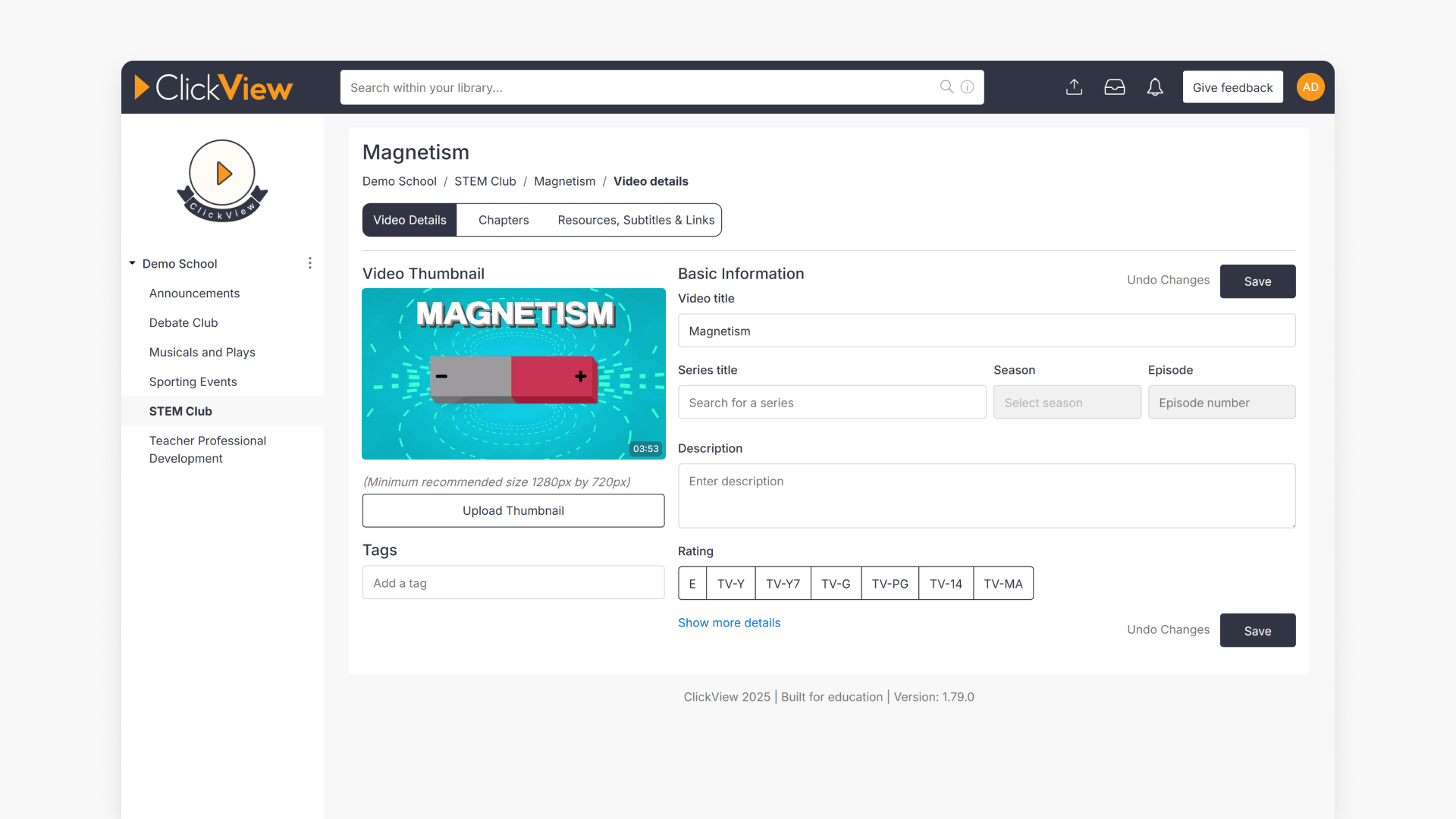
To edit video metadata, open the video where you have edit access (Library Editor for administrator-managed library uploads, or My Videos for your own uploads), select the grey pencil edit icon, update Video title and any other fields, then select Save.
Before you start
You can edit video metadata only for:
- School library videos uploaded via Library Editor
- Managed in Library Editor
- Edited by a ClickView Administrator
- Videos uploaded to My Videos
- Edited by the ClickView user who uploaded the video
You cannot edit metadata for videos from the ClickView libraries using this process. Use Suggest an Edit instead.
Editing video metadata in Library Editor
Step-by-step instructions
- In Library Editor, locate the video you want to edit, and select the gray pencil “edit” icon.

- You will be directed to a page where you can edit all metadata fields. The only required field is ‘Video title’.

- To edit additional fields, select “Show more details” to include fields like ‘Broadcast Details’ and ‘Production Details’.

- To save your changes, click the ‘Save’ button at the right of the screen.

For instructions on editing metadata for videos from the ClickView libraries, please refer to this article.
Frequently asked questions
Get in touch
If you’re having trouble finding the right topics or videos, just reach out! Our team - 

 Akhil, Daniel, Jalaj, or any of us at ClickView - will be happy to help you get sorted.
Give feedback
Was this guide helpful?
Up Next
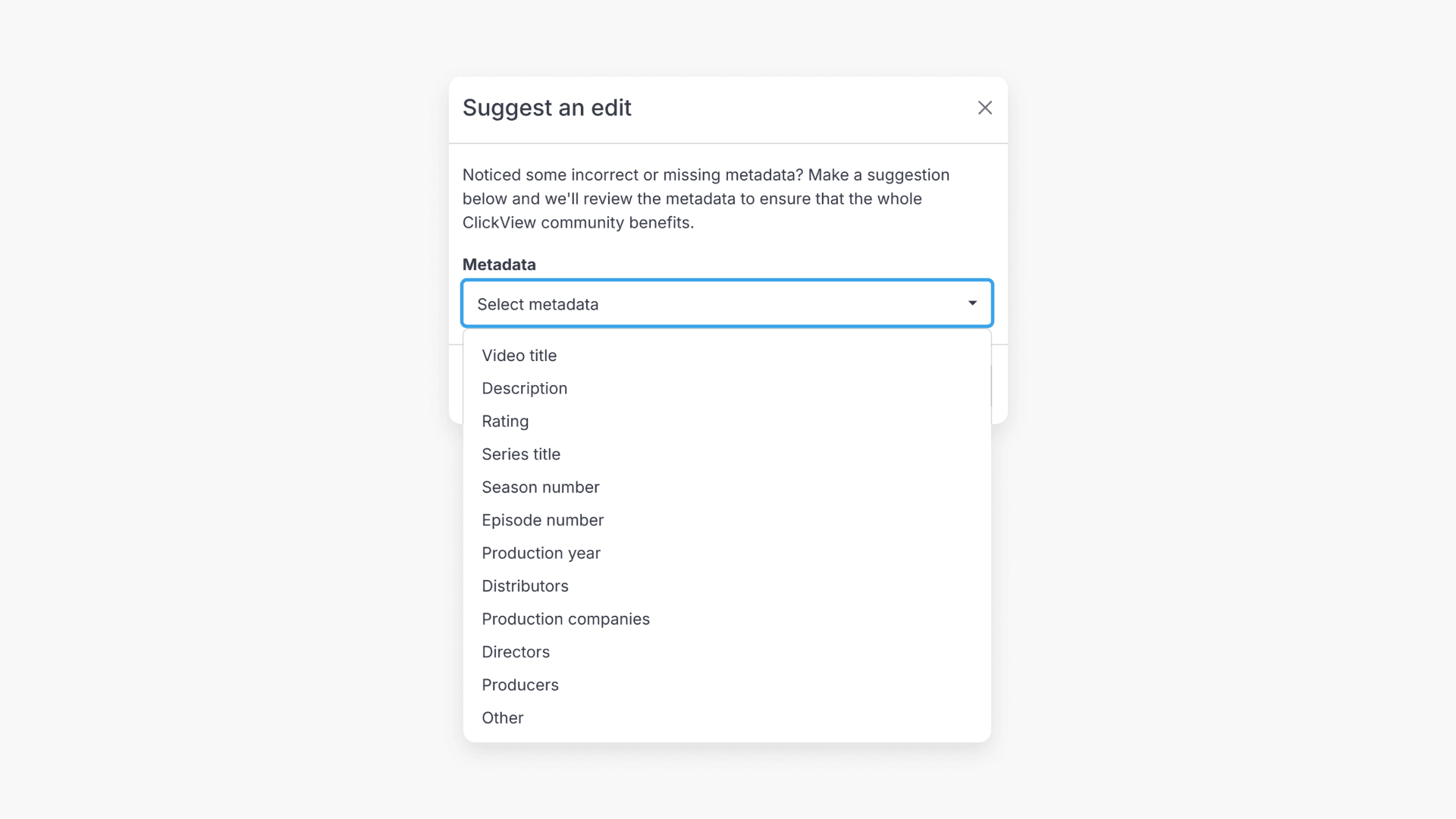
How to suggest an edit for video metadata
This guide explains how to suggest edits to ClickView video metadata, ensuring information remains accurate for educators and students. Admin users cannot make direct changes but can submit suggestions through Library Editor.