How to remove a video from your school library
In this article
Last updated by
1 min readClickView30th January, 2026
Summary
- Sign in to Library Editor using an administrator account.
- Find the video you want to delete in your School Library.
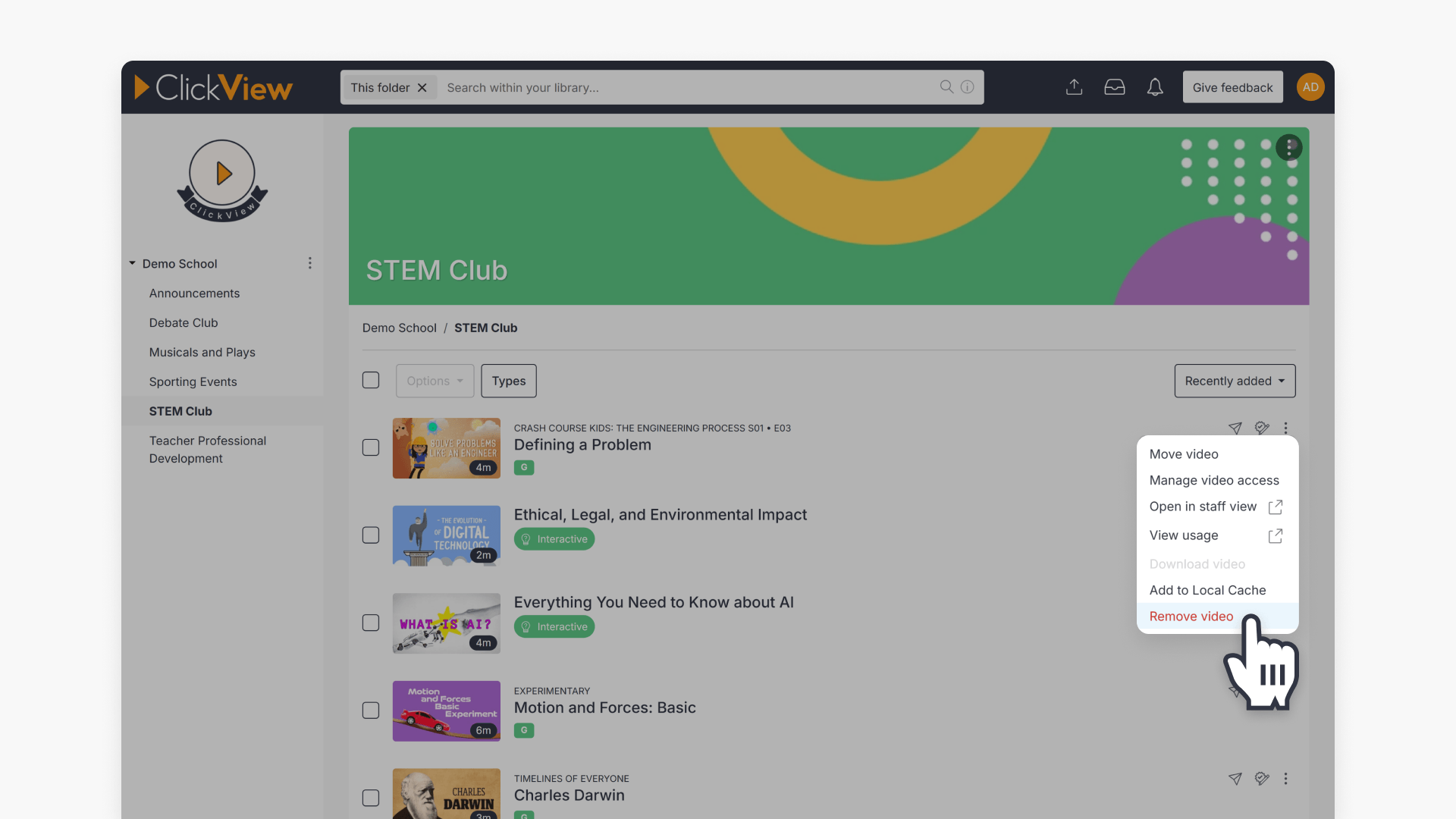
- Click the three dots menu next to the video.
- Select ‘Remove Video’ from the dropdown menu.
- Or, open the video details page and use the three dots in the top right to remove.
star icon
Quick tip
What should I check before removing a video from the School Library?
Before deleting a video, confirm it is not being used in playlists, lessons, or shared links. Removing a video immediately makes it unavailable to staff and students, so checking its usage first helps avoid disrupting active classes or resources.
Steps to delete a video
- Sign in to Library Editor with an administrator account:

- Locate the video you wish to delete and click the three dots menu:

- Select ‘Remove Video’ from the dropdown menu:

- Alternatively, if you have clicked on the video title and are on the video details page, click the three dots in the top right and select ‘Remove Video’:

Frequently asked questions
Only users with administrator accounts can remove videos using Library Editor.
Yes, you can click the three dots in the top right of the video details page and select ‘Remove Video.’
Get in touch
If you’re having trouble finding the right topics or videos, just reach out! Our team - 

 Akhil, Daniel, Jalaj, or any of us at ClickView - will be happy to help you get sorted.
Give feedback
Was this guide helpful?
Up Next
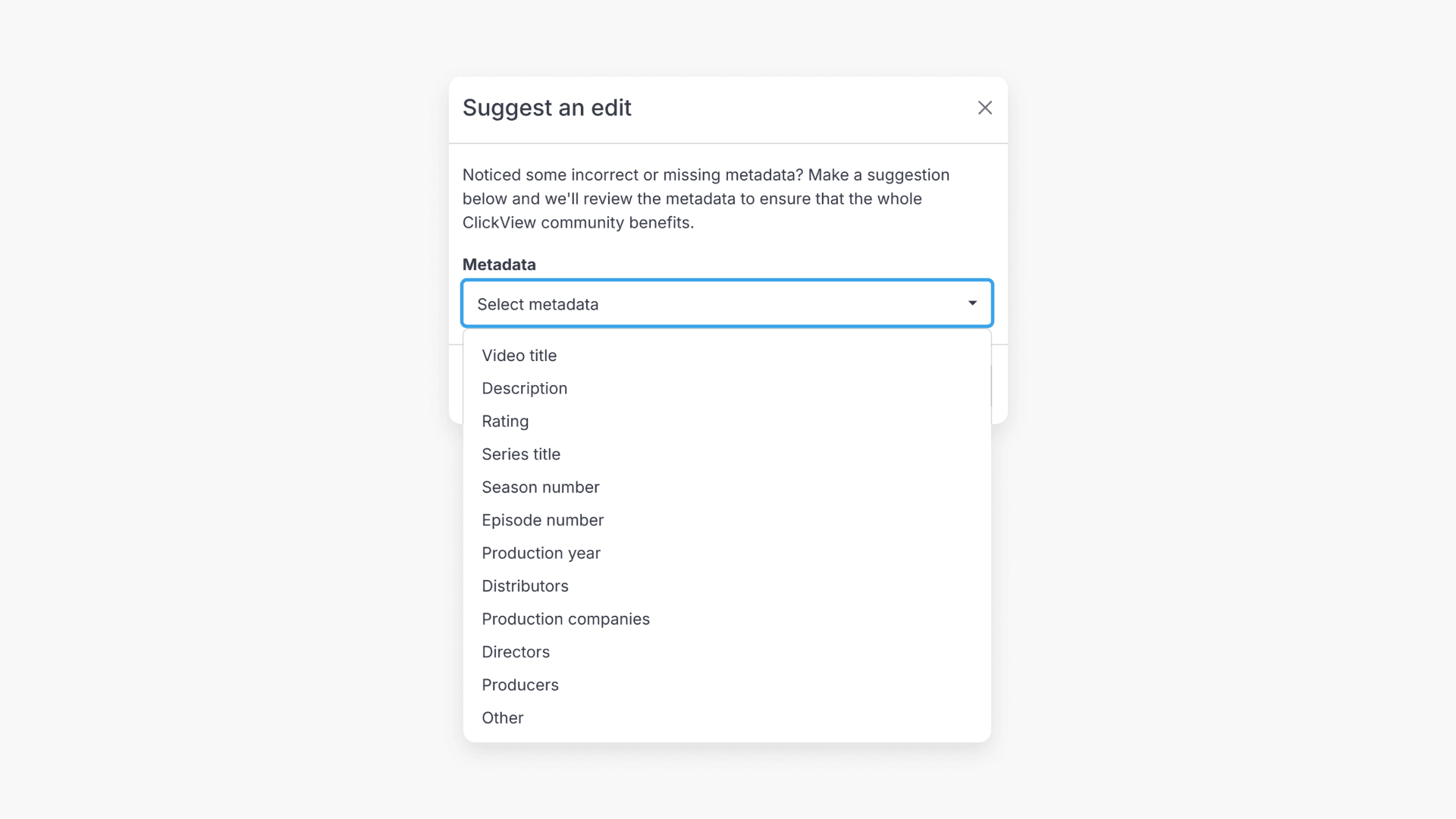
How to suggest an edit for video metadata
This guide explains how to suggest edits to ClickView video metadata, ensuring information remains accurate for educators and students. Admin users cannot make direct changes but can submit suggestions through Library Editor.