How to share a video to Google Classroom
Last updated by
2 min readClickView30th January, 2026
Summary
- Locate the video you want to share in ClickView.
- Click the ‘Share’ button below the video player.
- Select the Google Classroom icon in the Share link window.
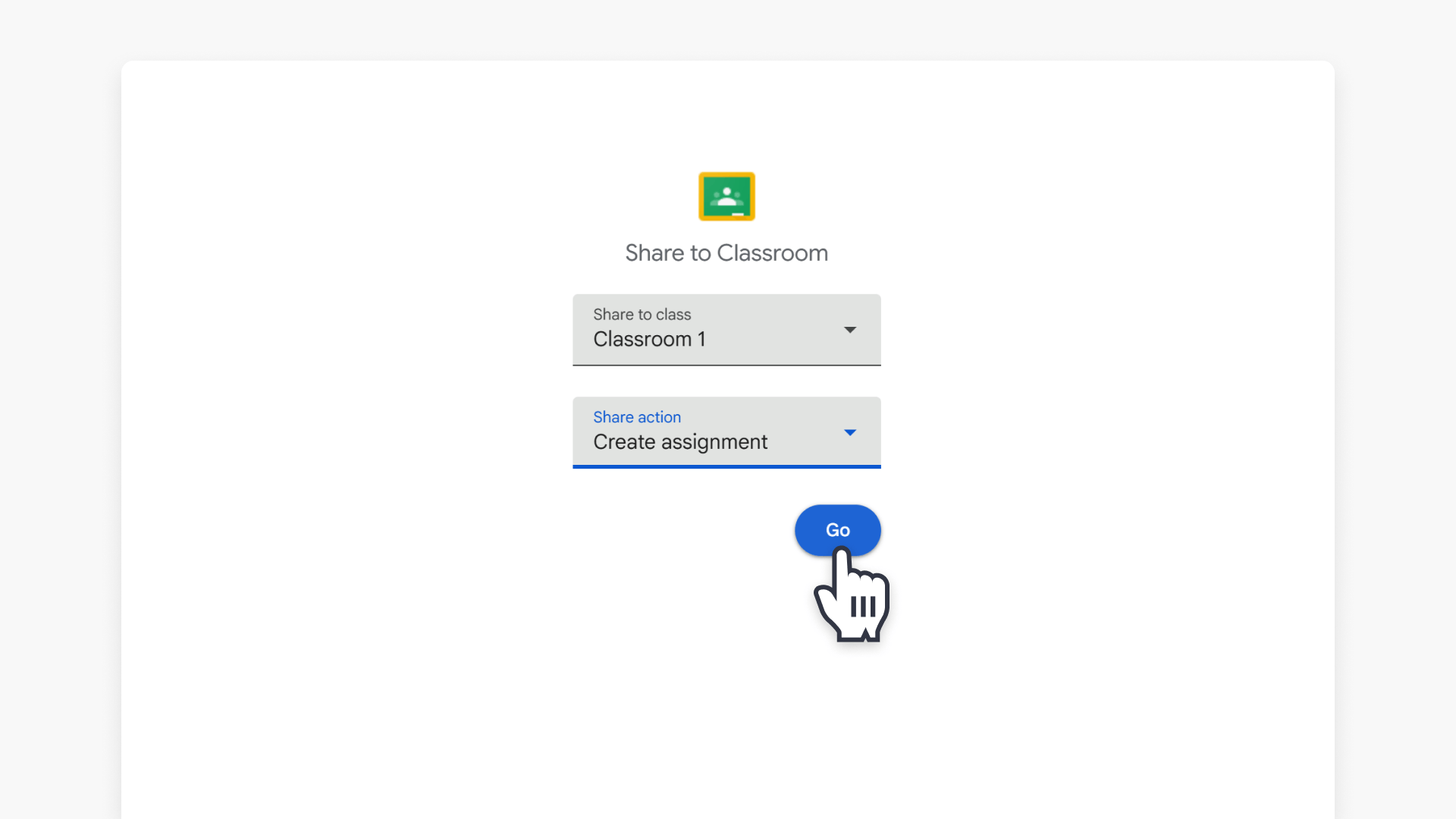
- Choose your Google Classroom class, then select an action (for example, assignment or question).
- Complete the required fields, then select Assign.
- Select View to open Google Classroom and confirm the post.
star icon
Quick tip
In ClickView, why is the Google Classroom icon missing when I select Share?
If the Google Classroom icon does not appear in the Share link window, your ClickView Administrator must first enable ClickView integrations (including Google Classroom). Once it’s enabled, return to the video and select Share again.
Share a ClickView video to Google Classroom
ClickView’s integration with Google Classroom allows teachers to share educational videos directly to their Google Classroom assignments, making it easy for students to access lesson resources.
- Locate the video you wish to share in ClickView and click the ‘Share’ button below the video player:

- Click the Google Classroom icon at the bottom right of the Share link window:

- If the Google Classroom icon is not visible, this means you need to first setup the Google Classroom integration. Please follow this guide to enable ClickView integrations.
- Select the class you want to share the video to:

- Select the type of action you would like to do, such as sharing an assignment or question:

- Fill out any required fields and click the Assign button located at the top right of the window:

- Select ‘View’ to go to your Google Classroom and find the newly shared ClickView video:

- Your ClickView video is now available for your entire class to view:

Frequently asked questions
If the Google Classroom icon is missing, you may need to enable ClickView Integrations by following the integration guide linked in the note above.
Get in touch
If you’re having trouble finding the right topics or videos, just reach out! Our team - 

 Akhil, Daniel, Jalaj, or any of us at ClickView - will be happy to help you get sorted.
Give feedback
Was this guide helpful?
Up Next
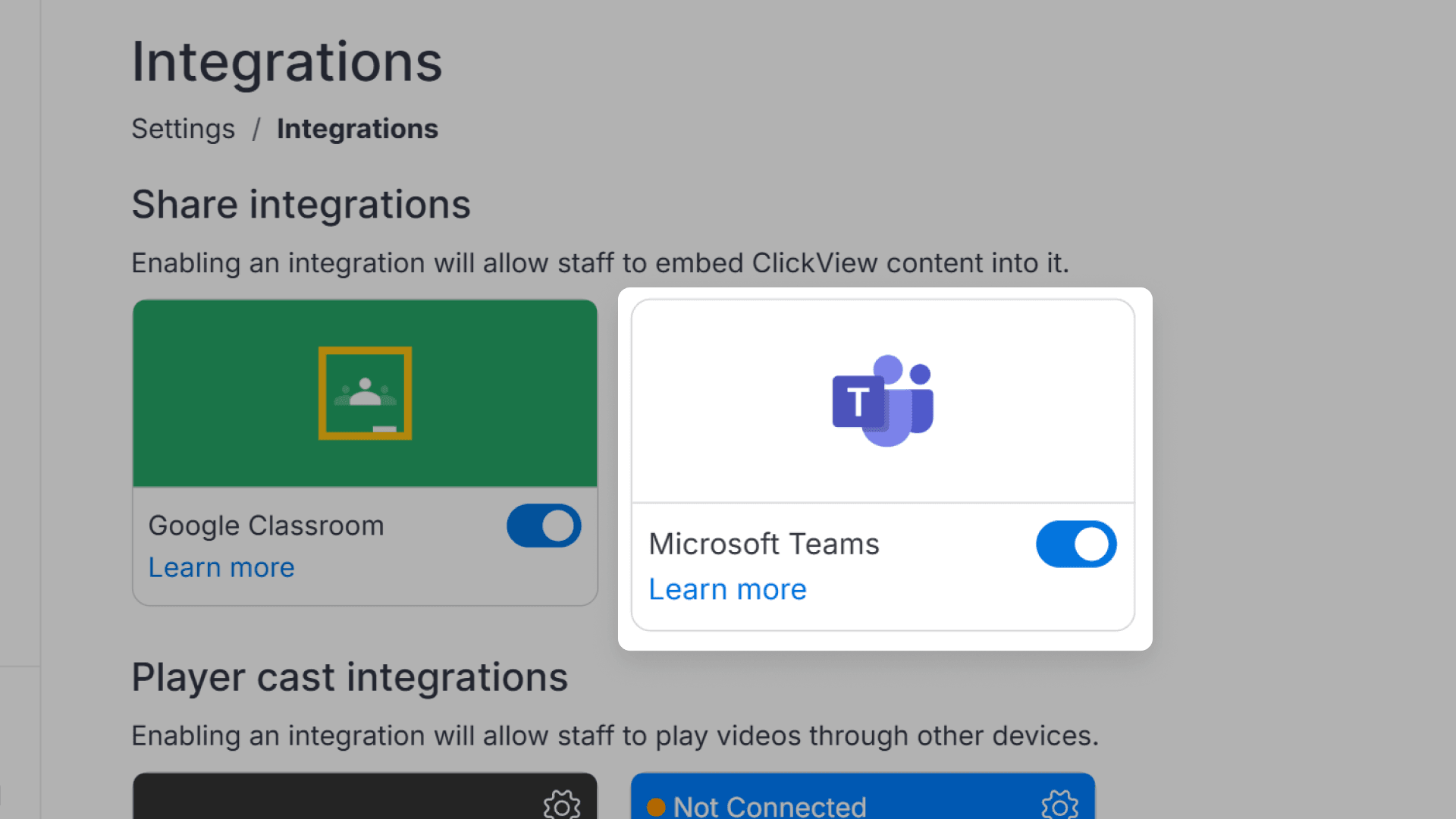
How to enable the Microsoft Teams and Google Classroom integrations
This article explains how administrators can enable the Microsoft Teams and Google Classroom integrations within ClickView. Step-by-step instructions show how to access the necessary settings, toggle the feature, and share educational video content with your classes.