How to verify your email address

Summary
- Teachers and ClickView Administrators must verify their email address to access all educator features.
- When you sign in for the first time, you can verify your email immediately or select “Skip for now”.
- If you skipped verification, you can verify later from Settings.
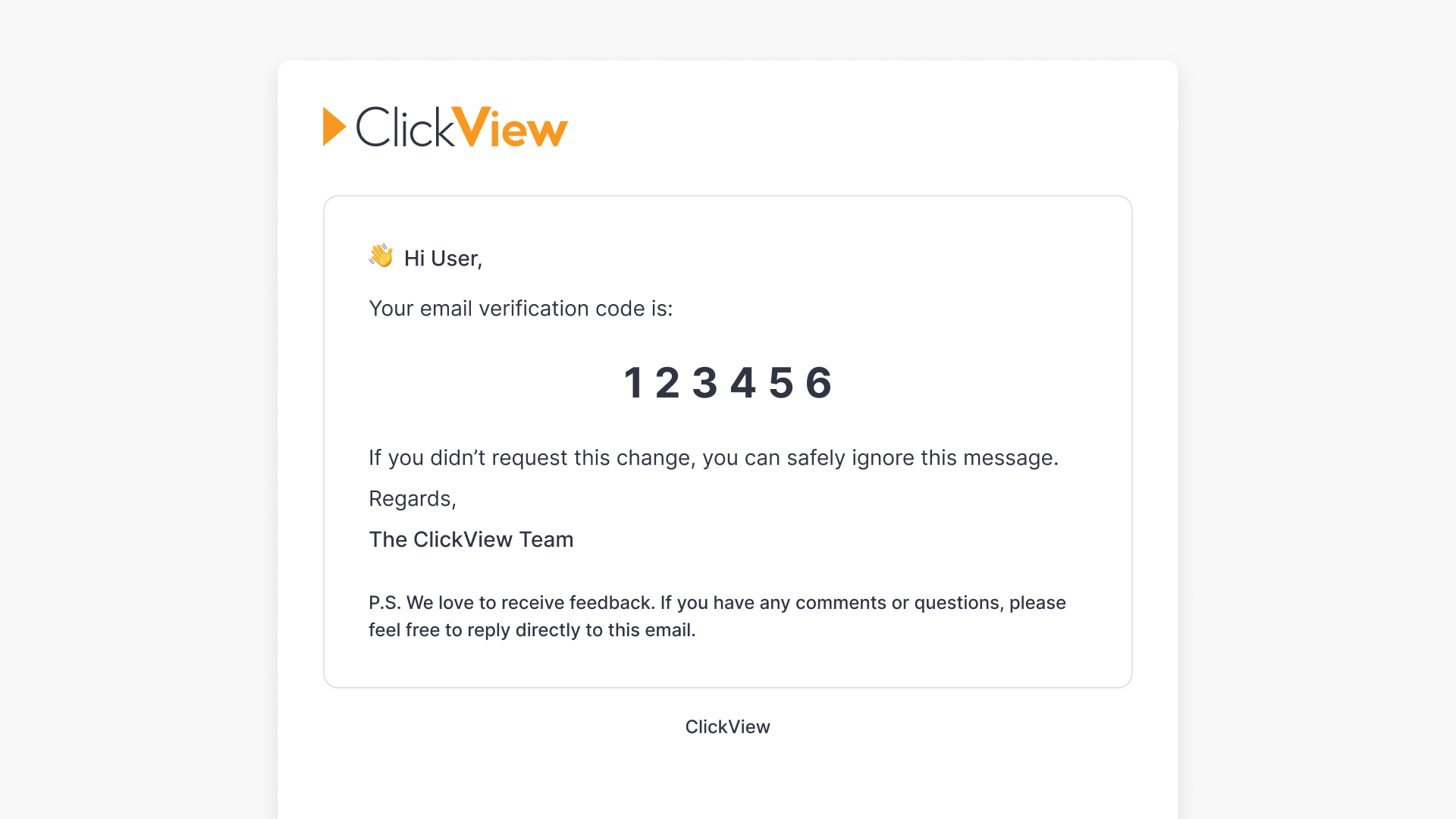
- Verification uses a 6 digit code sent to your inbox that you copy into ClickView.
Why email verification is required
For security reasons and to access specific features, ClickView Administrators and teachers must verify their email address. Admin privileges are only available with a verified email. Students can verify their email address, but verification is optional and does not impact their experience.
Verify your email when you first sign in
When you sign in for the first time with SSO, ClickView prompts you to verify your email. You can complete verification at this time, or select Skip for now and verify later.
- Go to clickview.net/gb and sign in to ClickView.

- When prompted, enter the email address you used to sign in.

- Select “Verify”.

- Open your email inbox and find the message from ClickView. Copy the 6 digit verification code from the email.

- Return to ClickView in your browser. Paste the code into the verification field, then select “Continue”.

Verify your email later from Settings
If you selected “Skip for now” during the first-time prompt, you can verify your email at any time from Settings.
- Go to clickview.net/gb and select “Sign in”.
- After you sign in, select your initials (top-right) and choose Settings.

- Select “Email and password”.

- Enter or confirm your email address, then select “Verify email”.

- Open your email inbox and find the message from ClickView. Copy the 6 digit verification code from the email.
- Return to ClickView in your browser. Enter the verification code, then select “Continue”.
Frequently asked questions
Get in touch
If you’re having trouble finding the right topics or videos, just reach out! Our team - 


 Andrew, Nisch, Janice, Pfreya, or any of us at ClickView - will be happy to help you get sorted.
Give feedback
Was this guide helpful?
Up Next
How to check if Single Sign-On is enabled
Learn how to verify Single Sign-On status in ClickView using either the sign-in process or the Settings menu. Both methods help you confirm whether your account uses SSO for streamlined access.