How to fix an email verification error

Summary
- The error appears when an email address is already used as another account’s username.
- Email verification is required to receive ClickView notifications and teacher-request features.
- Administrators can use Staff Manager to check if an email is already in use.
- Administrators can decide if the email is verified against the correct user or delete an incorrect account.
- Users can update their own address through Email & Password using the ‘Update email’ option.
- For account corrections, contact ClickView Product Support.
Understanding the email verification process
ClickView allows users to sign in with either a username or their email address. During email verification, the system prevents any attempt to verify an email address already assigned as another account’s username. Some users may be asked to re-verify their email due to multiple accounts.
Why email verification is required
Email verification lets you receive messages and notifications from ClickView. Administrators get alerts for new content, content requests, and school analytics reports. Teachers also need to verify their email address to benefit from features like classroom analytics, video shares, and more.
If your email is not verified, you will not receive these notifications.
What causes the “email address already in use” message
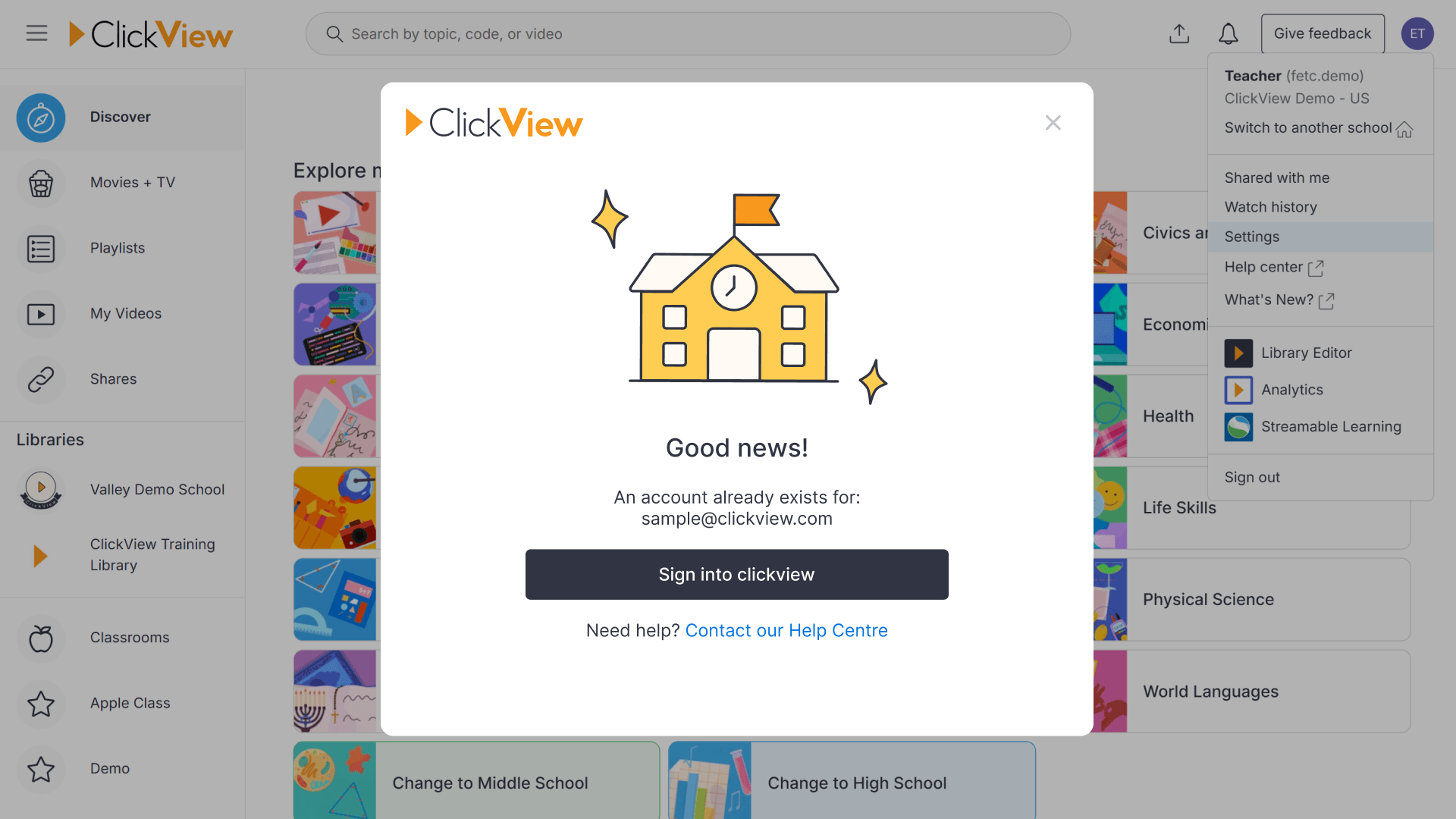
You may see this message when attempting to verify an email address:
The email address already exists against another user account.
This occurs when the address is already connected to a different ClickView account at the same school.
How to resolve the email error
If you try verifying an email that is already used by another account, ClickView will show an error message. Follow the steps below for ClickView administrators and users to resolve the error.

Steps for administrators
Administrators can review accounts within their school to determine whether an email address is associated with the correct user.
- Click on your name in the top right of the screen.
- Click on “Settings” within the drop-down menu.
- Click on “Staff manager”.
- From the Manage Teachers screen, use the search options to look up the name or email address.
- Select the appropriate filter from the drop-down menu and review the results.
- Determine whether the address is verified against the correct user.
- If it is not, the option to delete the account is available.

Note: Deleting an account will remove all content associated with that account. - If the email address is verified against the wrong account and should be removed, contact Product Support.

Steps for users
Users who need to switch to another email address can update it through their profile settings.
- Click on your name in the top right of the screen.
- Click “Settings” in the drop-down menu.
- Click “Email & password”.
- Use “Update email” to enter a new address for verification.

If you are unsure how to proceed, contact your school’s ClickView Administrator or contact Product Support.
Frequently asked questions
Get in touch
If you’re having trouble finding the right topics or videos, just reach out! Our team - 


 Andrew, Nisch, Janice, Pfreya, or any of us at ClickView - will be happy to help you get sorted.
Give feedback
Was this guide helpful?
Up Next
How to check if Single Sign-On is enabled
Learn how to verify Single Sign-On status in ClickView using either the sign-in process or the Settings menu. Both methods help you confirm whether your account uses SSO for streamlined access.